User guide
Everything FLEx Scratchpad does, in the order you will meet it: the notebook, writing, examples read live from your FieldWorks project, styling and visual filters, audio, collections, text charts and chart notes, searching the charts, exports, backup, the settings and shortcuts, and the questions people ask. Every picture is the real program showing its built-in demo project, an invented language.
Which version this describes. This guide describes FLEx Scratchpad 0.3.1-beta.1, the current release. One kind of flag marks what is newer:
- Unmarked: in the current release, 0.3.1-beta.1. Get it from the Install section of the home page (the installer or the portable zip).
- beta.6 is in the pre-release 0.3.1-beta.6 and not in 0.3.1-beta.1: FLEx Scratchpad hands the project back to FLEx (and lets go of it when idle) and ↻ really reloads; examples load faster; the paper and presentation kits for an AI assistant; citations from Zotero; lists that split and join; folders that open in place, arrows and a path over the note list; each tab's own sort order; tabs, folders and notes shared with another notebook, as they are or as templates; new notebooks that start with the SIL-PNG grammar outline, and new tabs that follow an outline; your FLEx texts and your notebook searched by an AI assistant from the search box; scripted visual filters, and filters that choose the views they apply to; a chart note’s rule column and the design of a web page or slideshow written in a conversation with the AI app, every AI session minimized to a tile with the model, the effort and the usage per message; the AI apps set up from Settings; a search for your own highlights and styling, with OR, NOT and parentheses; examples a filter must match or must not, and filters made from your highlights; instructions for AI apps in every notebook folder; and a notice when a newer version is out. Get it from its release page (installer · portable zip). It installs over the current release and keeps your notebooks.
The pictures were taken from the pre-release, so a picture can show something 0.3.1-beta.1 does not have yet. A flag in the text can be clicked: it goes to the pre-release.
Contents
- Getting started
- The notebook: tabs, folders, tags, search
- Writing: Markdown, headings, blocks, tables, links, files
- Examples from FLEx
- Styling, text markup tags and visual filters
- Hearing an example
- Example collections
- Text charts
- Chart notes and custom columns
- Searching the charts
- Exports
- Backup and storage
- Settings and keyboard shortcuts
- Your notes are files
- Questions people ask
- When something goes wrong
1Getting started
FLEx Scratchpad is a notebook for Windows that reads your FieldWorks project. You write in it as in any notes program; the interlinear examples, lexical entries and text charts in your notes are read from the project when they are shown, and the program can never change the project.
Pick your project
Install it from the download on the home page (an installer or a portable zip; both are the same program) and start it. Open Settings (the ⚙ button, or Ctrl+,) and choose the FLEx project: the list shows the projects FieldWorks has on this computer. The project is opened for reading only. FieldWorks may be open on the same project at the same time; if it refuses to share, the status pill at the top right says so and what to do (in FLEx: Project Properties › Sharing › Share project contents with programs on this computer).
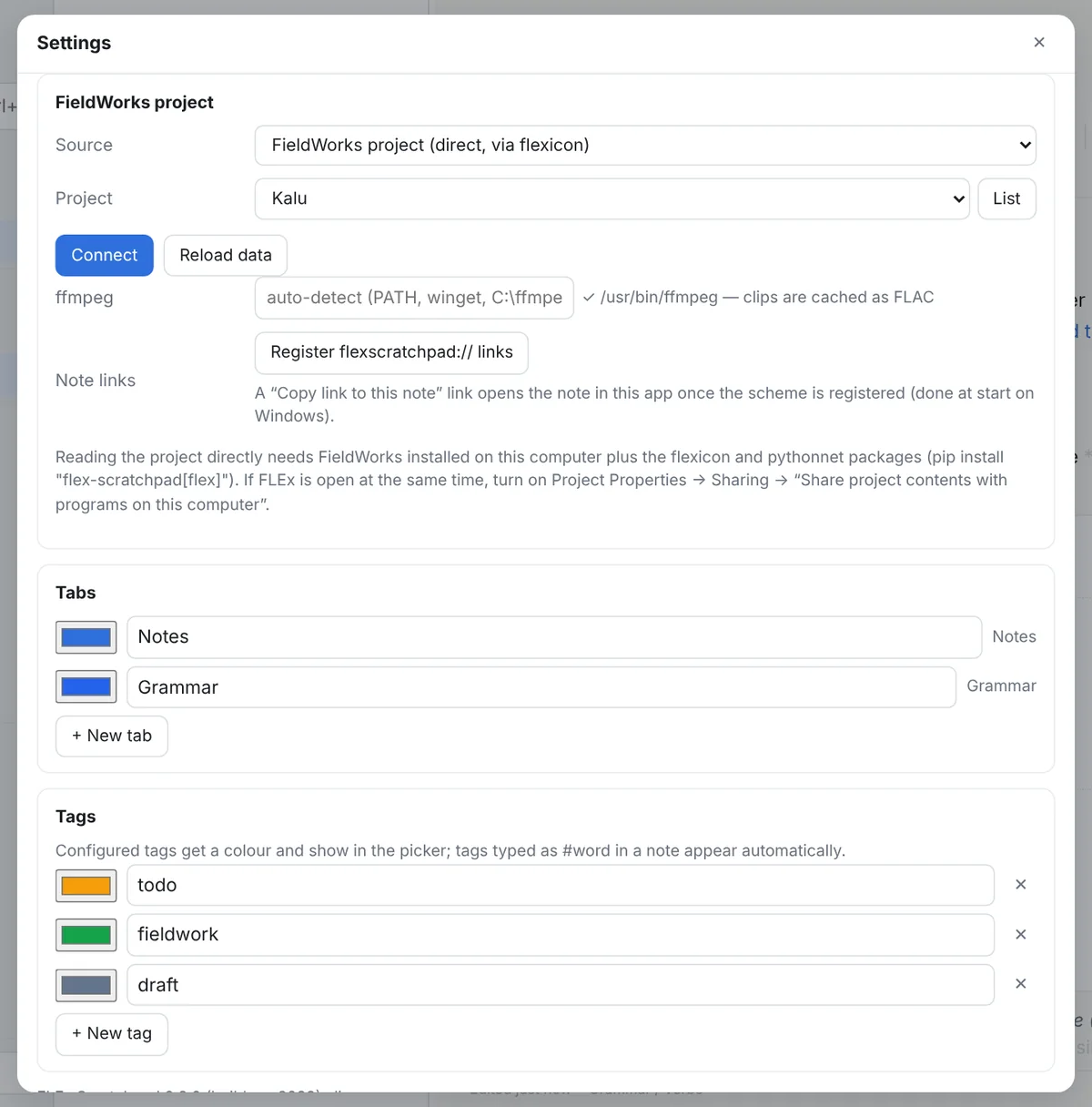
.flextext file or the demo), and the doors to tag styles, visual filters and backup. The project names here are invented.Two other sources exist for when there is no FieldWorks on the computer: a .flextext file exported from FLEx (texts only), and the built-in demo project, an invented language used for the pictures in this guide and for trying things out.
The notebook is a folder of your choosing (by default Documents\FLEx Scratchpad). Everything you write goes there and nowhere else; see Your notes are files.
The window
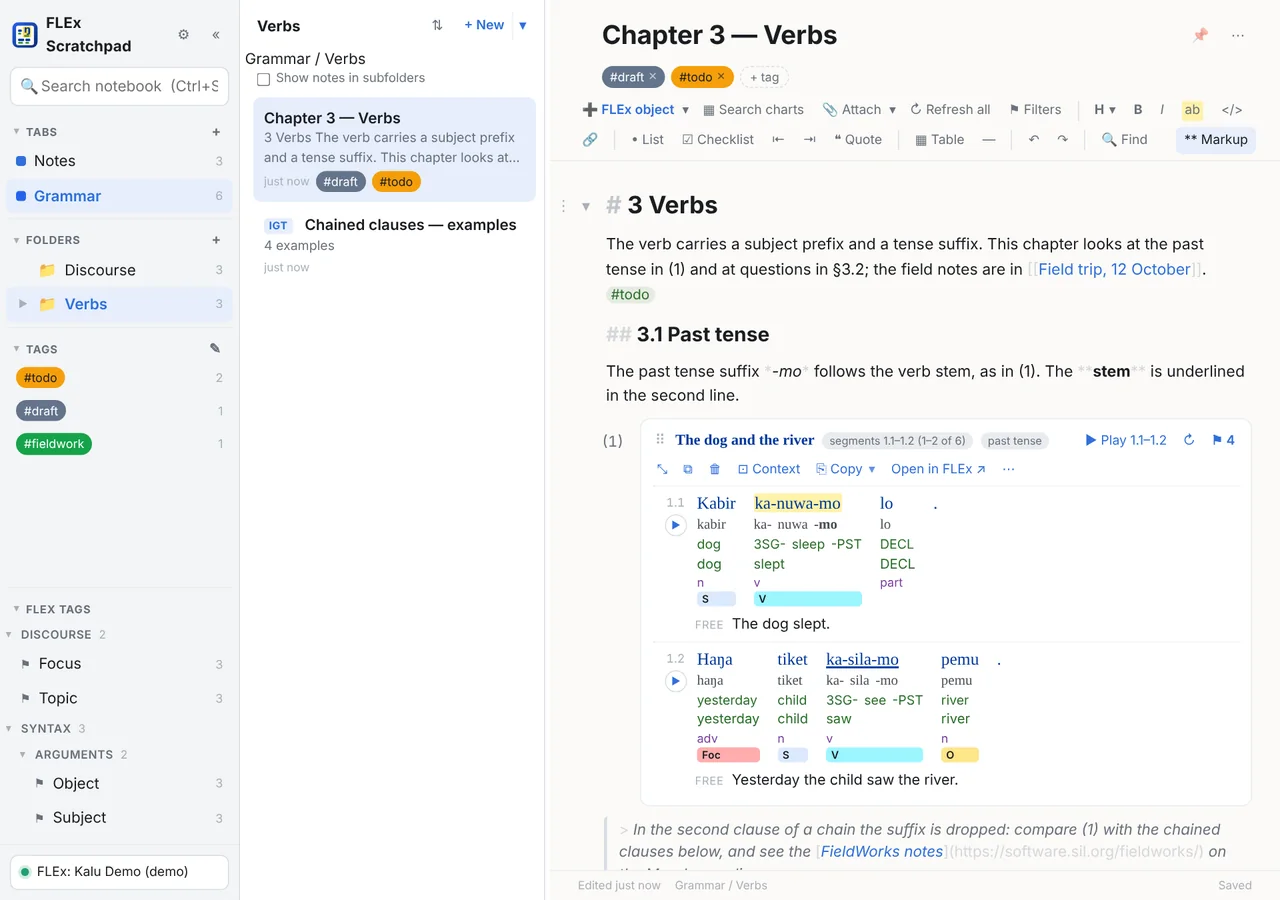
- The rail on the left: your tabs, the folders of the current tab, the tags, and the FLEx text markup tags the tab's notes use. Each part folds with a click on its heading and the dividers drag. Ctrl+\ hides and shows the left panes.
- The note list for the current tab, folder, tag or search, with an excerpt of each note.
- The note: its title, its tags, the toolbar, and the text. Notes save by themselves a moment after you stop typing; the state is shown next to the title.
- The status pill at the top right names the FLEx project, says when it is being read, and shows what the program is doing when that takes a moment.
A new notebook opens with a Welcome note that is a short tour you can delete.
Read-only and offline
The program asks FieldWorks for read-only access, every time. It has no code path that writes to a project, and its own test suite fails if one appears. Its exports are new files that you import yourself. It never needs the internet: everything it uses comes in the download.
Working alongside FLEx
FLEx Scratchpad and FieldWorks can be open on the same project at once, but two things decide when each one sees the other's work:
- To see a change you made in FLEx, quit FLEx first. Your latest edits can reach the project file only when you quit FLEx. Quit FLEx, then click ↻ on the example in FLEx Scratchpad, or ↻ Refresh all on the toolbar. You can open FLEx again straight away.
- To Send/Receive, close FLEx Scratchpad first. FieldWorks refuses to Send/Receive while another program has the project open, even a program that only reads it, as this one does. Close FLEx Scratchpad, Send/Receive in FLEx, then start FLEx Scratchpad again. Your notes are not affected: every example shows from its saved copy until the project can be read again.
Neither harms your notes. Both are mostly FLEx Scratchpad's own doing, and a fix is waiting to be tried on Windows (issue 25); see Known issues.
2The notebook
Tabs, folders, tags
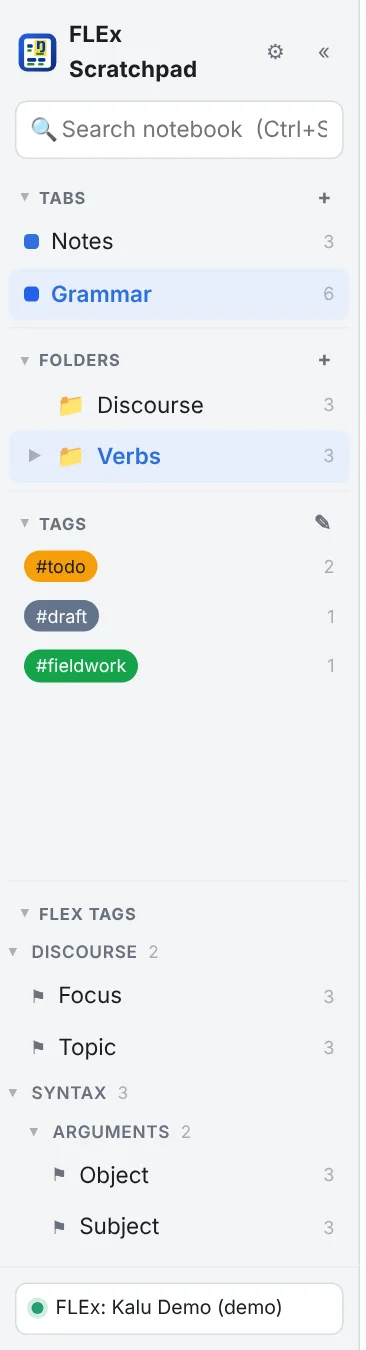
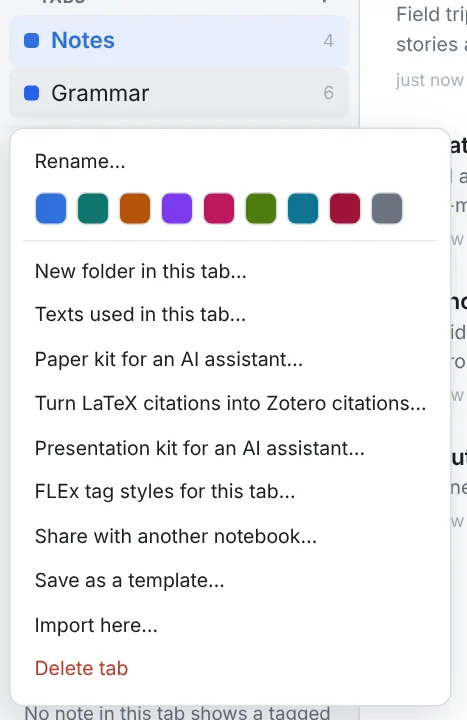
- Tabs are the top level: the + next to Tabs makes one, right-click a tab to rename it, give it a colour, reorder or delete it. Each tab is a folder in the notebook.
- Folders live inside a tab and nest as deep as you like: + next to Folders (or beta.6 + New ▾ → New folder… over the note list), right-click for rename and delete. A folder lists only its own notes; tick Show notes in subfolders under the list's title to see everything below it, each note with its subfolder.
- beta.6 Folders in the list. The folders directly under the place you are in show in the note list too, among the notes in the list's order (a folder's date is its newest note's); double-click one, or press Enter on it, to go into it, and drop a note on it to move the note there. Its ▶ opens it right there in the list instead: its notes and the folders inside it show under it, stepped in, and a folder in there opens the same way (→ and ← open and close a selected folder). The ⇅ menu opens or closes every folder at once, and the list remembers which are open. Turn folders off in the ⇅ menu or in Settings.
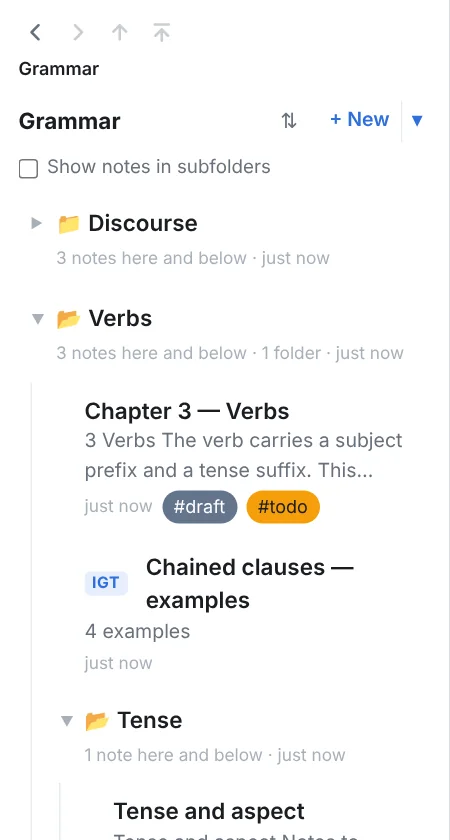
- beta.6 Back, forward, up, top. The arrows over the list go back and forward through the tabs and folders you have visited, each list scrolled as you left it, up to the folder above (Alt+↑) and to the top of the tab. Under them the path — the tab, then each folder — takes you to any of them with a click. They never change the note that is open.
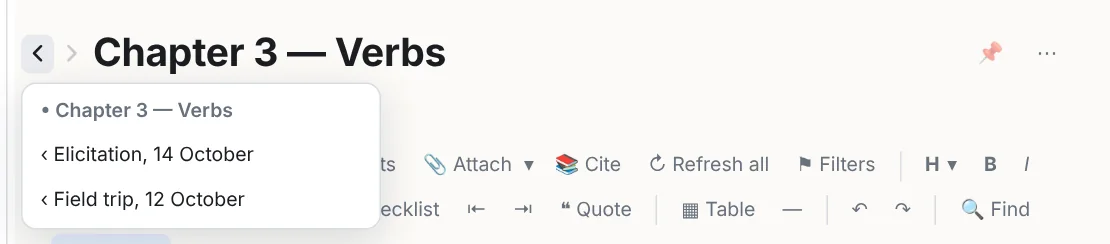
- beta.6 Back and forward between notes. ‹ › beside a note's title go back and forward through the notes you have opened, as a browser does through pages. Alt+← / Alt+→ do the same, also while you type in the note, and so do the mouse's back and forward buttons. Right-click either arrow for the list. Every note opens where you left it, scrolled to the same place with the caret where it was; a note you have never opened starts at its top.
- beta.6 Where you left off. FLEx Scratchpad starts on the tab and folder you had open, with the same folders unfolded in the left pane, the list and the left pane scrolled as you left them, and the note you had open at the same place, with its back and forward history. Each notebook keeps its own, on this computer.
- Tags are notebook-wide, with colours: + tag on a note, or type
#taganywhere in the text, which counts too. Click a tag in the rail to list the notes carrying it (a tag looks through the whole tab).
Notes and the list
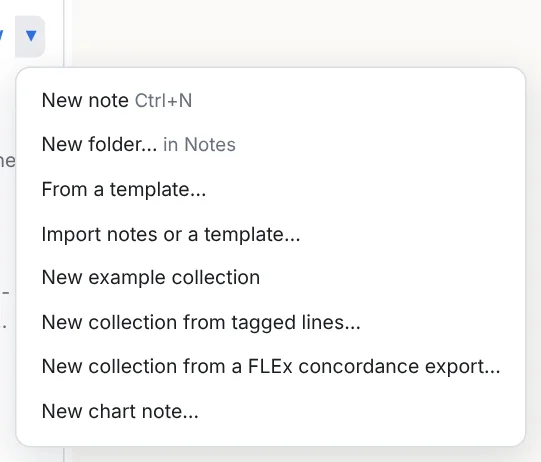
Ctrl+N makes a note in the current folder; + New ▾ offers the other kinds: an example collection, a collection from tagged lines, from a concordance export, and a chart note. beta.6 It also has New folder…, which makes a folder inside the one the list shows and opens it.
- Rename with F2 or by editing the title. Pin a note to keep it at the top of its list.
- Move a note by dragging it onto a tab or a folder in the rail, or ⋯ → Move to…. Duplicate from the same menu.
- Delete sends the note to the notebook's trash, which keeps everything until you empty it in Backup & storage. Nothing is ever destroyed by a click.
- Sort the list by date or title with the ⇅ button over it. beta.6 Each tab remembers its own order, also after the app is closed, and a title or folder that starts with a number sorts by that number (2 before 10, 3.9 before 3.10).
Sharing with another notebook beta.6
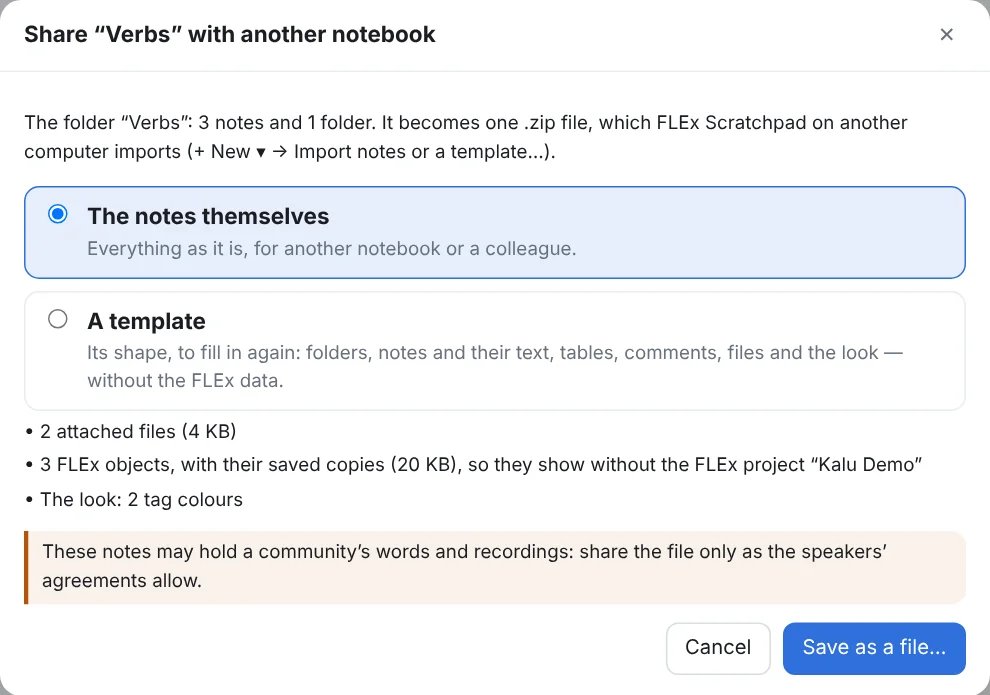
A tab, a folder or a note goes to another FLEx Scratchpad as one .zip file: right-click the tab or the folder, or open a note's ⋯ menu, then Share with another notebook…. Choose what the file carries:
- The notes themselves: everything as it is. The folders and notes, their attached files and pasted pictures, the saved copies of their FLEx examples (so they show on a computer without that FLEx project), the notebook texts they quote, the recordings cut for them (a box shows their size), the works they cite, and their look: the tag styles of the tab or folder, the visual filters those switch, the choice lists of chart notes and the tags' colours.
- A template: the shape, to fill in again. Folders, notes and their text, tables, comments, attached files and the look stay; the FLEx data goes. An example on a line of its own leaves a 💬 comment saying where one goes, a collection keeps its groups and its rule (⟳ Find new lines fills it from the other project), and a chart note keeps its view and its columns but not its values. Tick Keep the FLEx examples for notebooks that read the same FLEx project. Save to my templates keeps the template in this notebook instead of a file.
On the other computer, + New ▾ → Import notes or a template… (or Import here… on a tab's or folder's menu) shows what the file holds and asks where it goes: a tab as a new tab or as a folder in another place, a folder as a folder, a note into the folder you choose. Nothing there is overwritten: a name already in use gets a number, an attached file the notebook holds already is used again, and links between the notes that came together still lead to each other. The notes in the zip are ordinary Markdown files, readable without the program.
Templates and the grammar outline beta.6
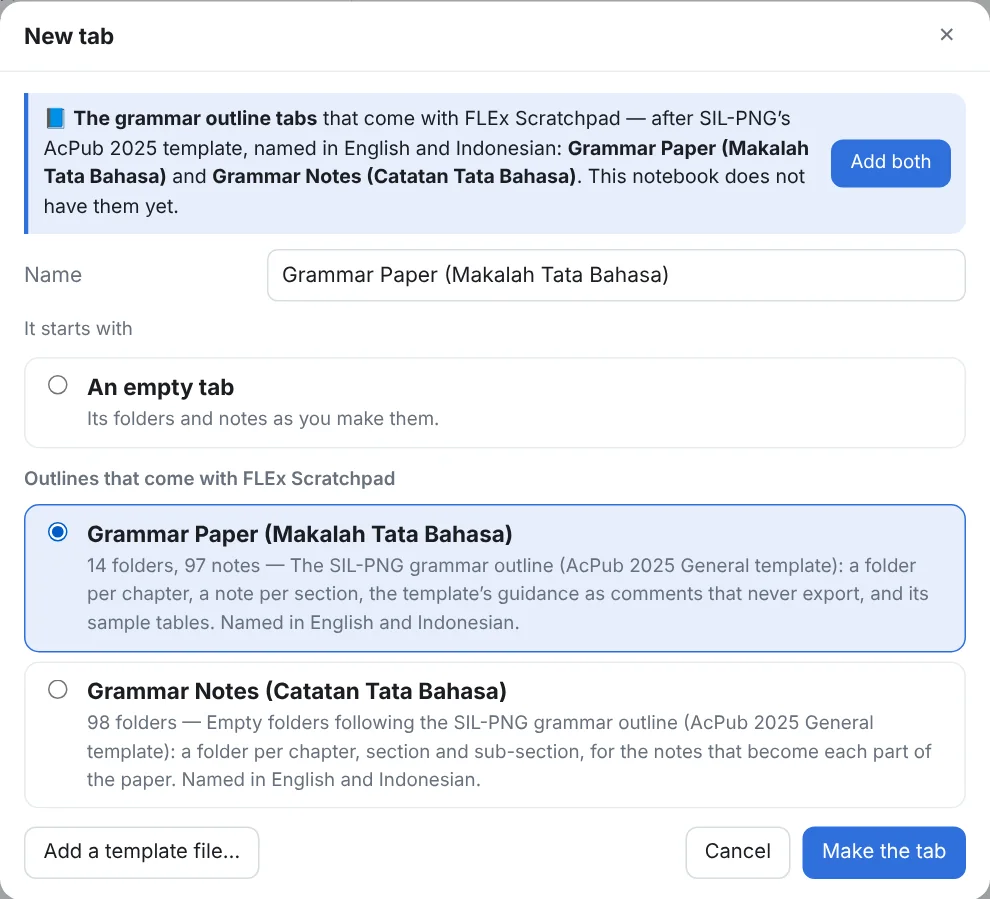
A new tab can follow an outline. The + beside Tabs (or + New ▾ → New tab…) asks for the tab's name and what it starts with: nothing, one of the outlines that come with the program, or a tab template of your own (Add a template file… brings in one someone sent you). Choosing an outline fills in its name; type another to name the tab yourself.
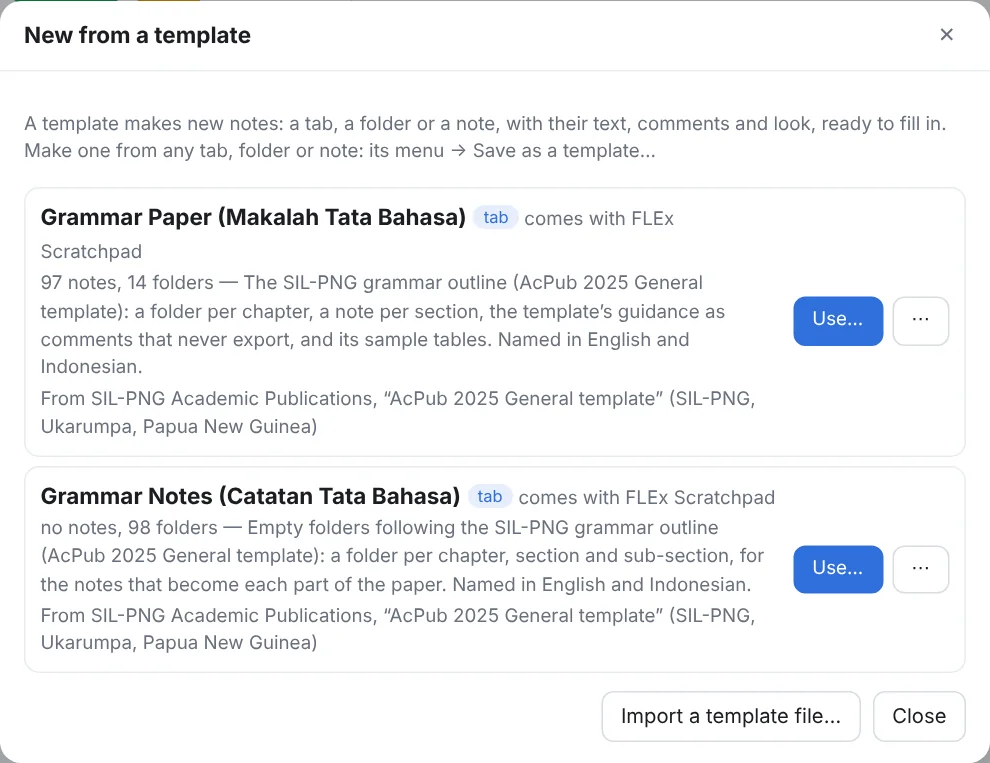
+ New ▾ → From a template… lists the templates: the two that come with the program, then the ones you saved or imported. Use… makes new notes from one, as a new tab or inside the place you choose; each use makes new notes. A template's ⋯ saves it as a file to share, or removes one of yours (to the trash). Make a template from any tab, folder or note: its menu → Save as a template….
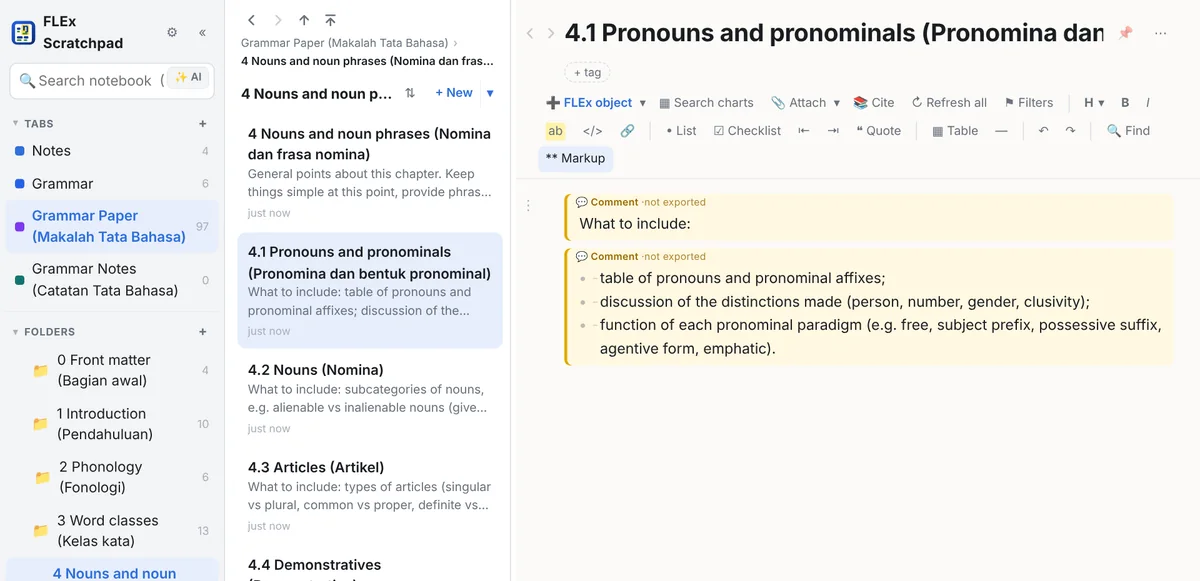
A new notebook starts with two more tabs after Notes, made from the SIL-PNG Academic Publications grammar template (AcPub 2025 General template):
- Grammar Paper (Makalah Tata Bahasa): a folder per chapter, from 1 Introduction to 12 Lexical considerations, with front matter (title page, contents, lists, abbreviations) and back matter (appendices, references), and a note per section, numbered as in the template. Each note holds the template's guidance as comments (💬, never exported) and its sample tables, ready to replace.
- Grammar Notes (Catatan Tata Bahasa): the same chapters, sections and sub-sections as empty folders, for the notes each section grows from.
Their names are in English with the Indonesian in parentheses, for the tabs, the folders and the notes: 2 Phonology (Fonologi), 2.1 Phonemes and allophonic variation (Fonem dan variasi alofonis). What the notes hold (the guidance, the headings inside a note, the sample tables) is in English, as the template has it. Rename anything as you like.
A notebook you already have is not changed. If it has neither tab, a line under its tabs offers them once: 📘 Add the grammar outline tabs (Grammar Paper, Grammar Notes)… opens the new-tab dialog, whose line on top adds both at once (Add both); the line's ✕ says no. Either tab stays one click away under the + beside Tabs. A paper kit of the Grammar Paper tab hands the whole outline to an AI assistant.
Search
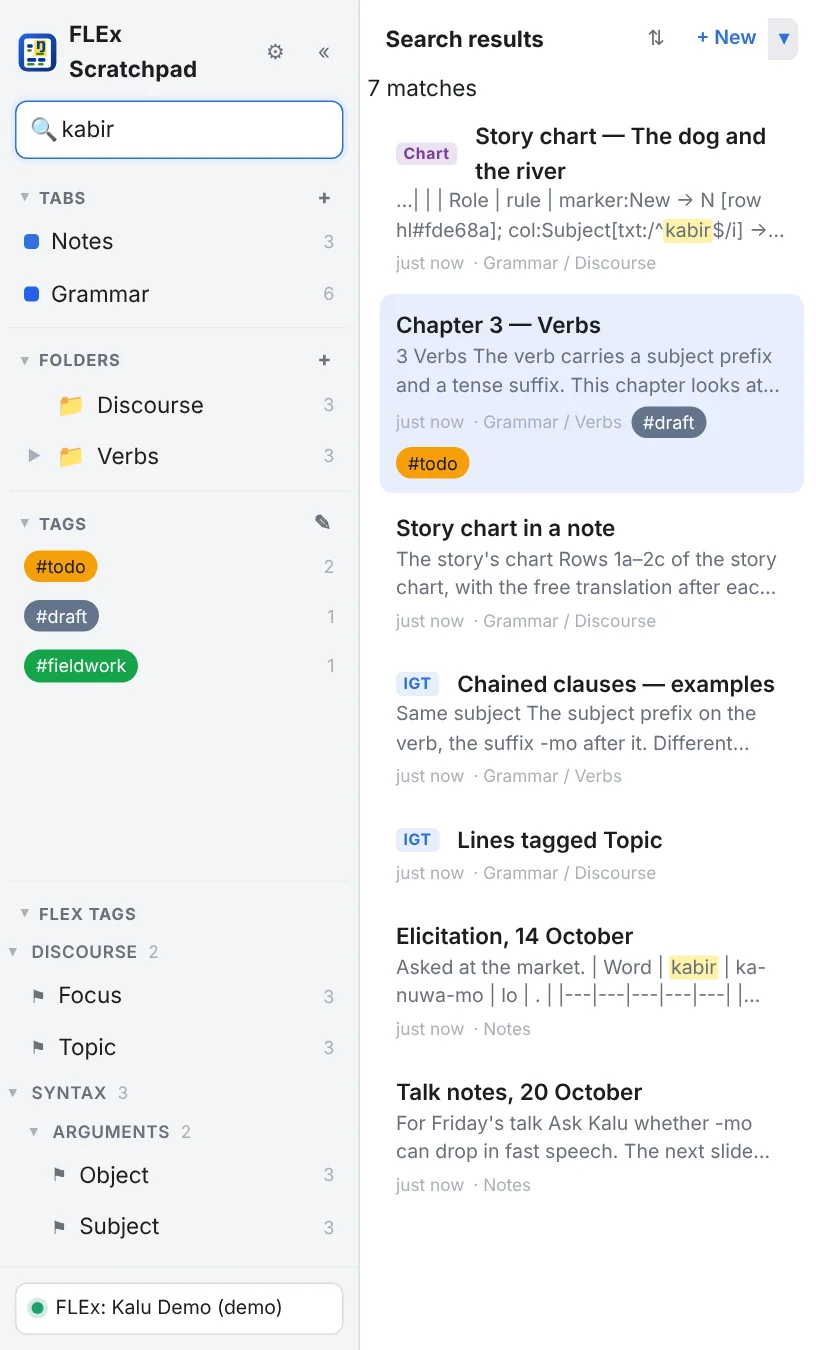
The box at the top of the rail (Ctrl+Shift+F) searches the whole notebook: titles, text, tags, and the content of the FLEx objects a note quotes, so a vernacular word, a gloss or a free translation finds the notes that cite it. Diacritics are ignored unless you turn that off in Settings. The syntax:
| Type | Finds |
|---|---|
kabir river | notes with both words, anywhere |
"the dog slept" | the exact phrase |
tag:fieldwork, tab:Grammar | notes with that tag, in that tab |
tagged:Topic | notes whose examples carry that FLEx text markup tag |
marker:Topic | notes whose charts carry that chart marker |
style:hl, style:hl#fff2a8, style:bold, style:underline, style:colour#b91c1c, style:any | beta.6 notes where you styled words by hand: a highlight (in that colour), bold, underline, italic, strike, a text colour, any of them — in examples and charts, and bold, italic, highlight and strike in your own text |
folder:Verbs, note:chapter | notes in a folder of that name (and its subfolders); notes whose title has that word |
a OR b, NOT a, -a, (a OR b) c | beta.6 either, not, and grouping: (style:hl#fff2a8 OR style:bold) folder:Verbs -tag:done; terms side by side must all match |
beta.6 A search for styling shows, on each note's card, the object that carries it (its code, the style key marked). The AI search knows how styling is written in the files, so it can be asked the same in words.
Ctrl+F finds inside the open note, with next and previous; a hit inside a folded section opens it.
Search with an AI assistant beta.6
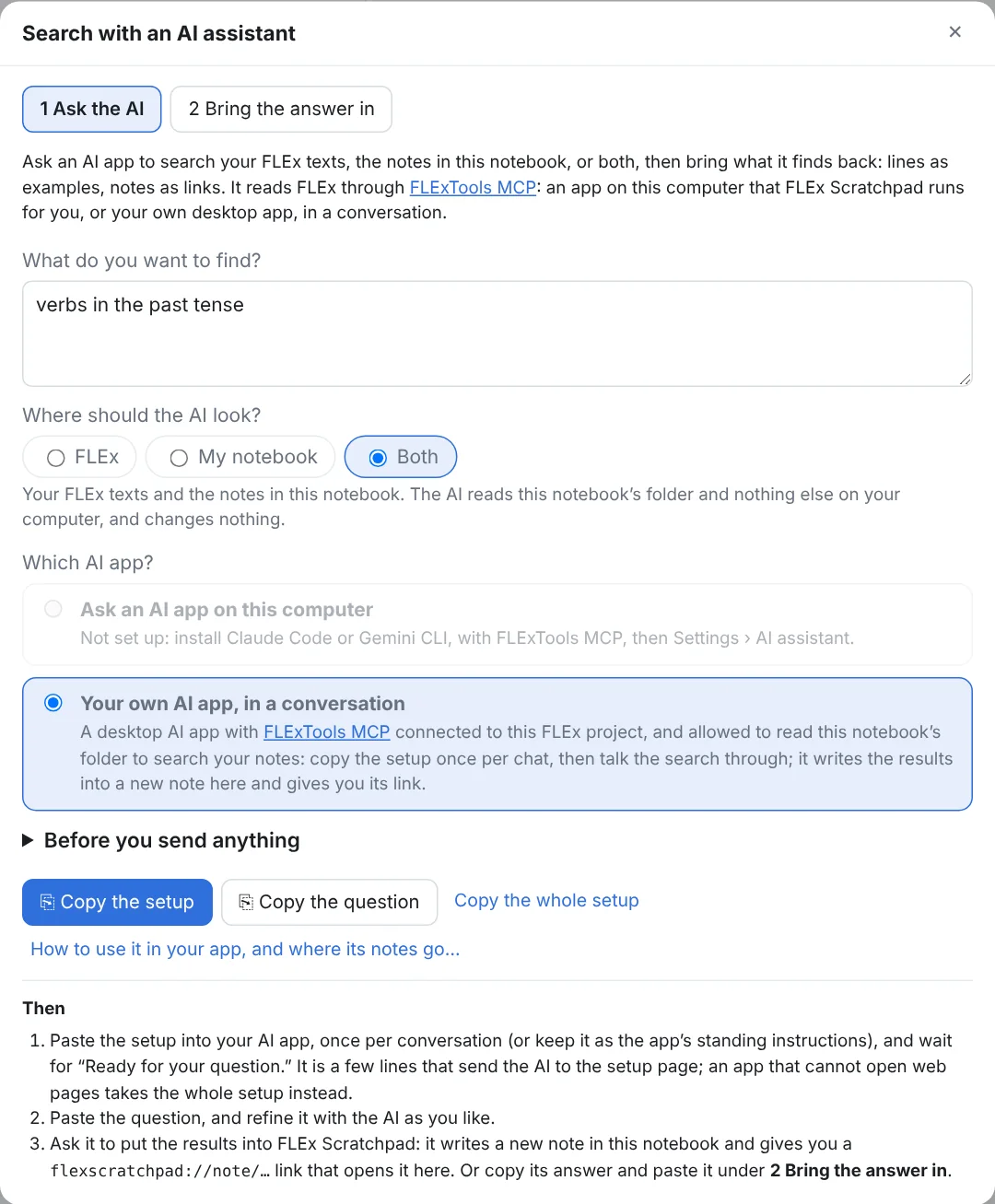
An AI can search your FLEx texts, and the notes in this notebook, for what the search box cannot: every verb that takes -mo, the lines about fishing, the questions in the Dog story, what I wrote about the past tense. Type what you are looking for in the search box and click ✨ AI beside it (or the line under the search results). Under What may the AI search? tick what it may read — FLEx project, My notebook, My .flextext texts, My Zotero library, The web (limited) — each on or off (see below); then, under Which AI app?, the app that searches. Either way it is an AI app on your computer that reads FLEx through FLExTools MCP:
- Ask an AI app on this computer: FLEx Scratchpad starts Claude Code or Gemini CLI itself, gives it your question, and shows what it finds in a window, with nothing to copy. The app must be installed and signed in, with FLExTools MCP added to it; Settings › AI assistant… finds it, shows whether FLExTools MCP is connected, and has Test and Sign in…. Tick the warning’s box, then Ask: the window shows each step, then each line the AI found, drawn and checked against your project. Keep the lines you want and Save as a collection, Insert into the open note or ⎘ Copy as examples. To go on with the same conversation, type in the box at the window’s foot and press Enter (Shift+Enter starts a new line): ask for more, fewer or other lines, or why one was chosen. Each answer comes as a block of its own under the ones before. A box at the top of each block takes all its lines and notes in or out, and each line and note keeps its own box, so what you save, insert or copy is what is ticked in every block. A new search ends the conversation. The AI may only read your project through FLExTools MCP: every other tool is turned off for the run, and a run that asks to write is stopped. A result too large to come back whole, which Claude Code saves in its own folder for the run, the AI may read there; a read anywhere else is refused, and the AI goes on without it. A run that was stopped keeps its conversation: reply, and the AI goes on from what it had found. Before it starts, FLEx Scratchpad lets go of the project so FLExTools MCP can open it, and connects again only when the AI is done: meanwhile the status pill at the top right says the AI is reading it, and your notes show their examples as last read. Stop lets a read of the project that the AI has begun finish first.
- Your own AI app, in a conversation, for a desktop AI app with FLExTools MCP that can write files: Claude Desktop (with its Filesystem extension), Claude Code, Gemini CLI. ⎘ Copy the setup once per conversation, or keep it as the app’s standing instructions (a Claude Desktop project’s instructions; Save it in the notebook folder writes it as
CLAUDE.mdandGEMINI.mdfor Claude Code and Gemini CLI started there), then ⎘ Copy the question and talk the search through. When you say so, the AI writes the results into a new note in this notebook and gives you aflexscratchpad://note/…link: click it and the note opens here. Settings › AI assistant… says where its notes go and how to set it up in each app. Its setup covers FLEx and this notebook; the question you copy says which to search. What you copy is a few lines that send the AI to the setup page, with your project and notebook filled in; an app that cannot open web pages takes Copy the whole setup instead.
Start from a note, a selection, a folder or an example. A note’s menu (⋯) has ✨ Ask an AI app, starting from this note… (and …from the selection… when something in it is selected), a folder’s menu ✨ Ask an AI app, starting from this folder…, and an example’s ⋯ ✨ Find more like this with an AI app…. What you start from is attached to the question: the AI reads it to see what you are after, then searches where you choose — FLEx alone, if you like: attaching a note does not make it search your notebook. + Attach ▾ under the question, and under the reply box, adds the open note, what was selected in it, an example in it, another note, a folder, or a file from this computer (a PDF, say: it is copied into the AI’s own folder for the search, and read there). With something attached, the question may be left empty: the AI looks for more lines like the ones in it.
An answer may be a short report. Ask the AI to sort or group what it found (by connector, say) and it may answer with headings, a few sentences under each — what the group is, a doubt or a question it has — and each line drawn where it belongs. A heading folds its section. A collection made from the answer keeps the headings as its groups, in the same order.
Into a note, marked as the AI’s. Nothing an AI app finds goes into a note by itself. In the results window, ✎ Weave into “…”… (the note the search started from, else the open note) asks the AI to add what it found to that note where it belongs — an example under the heading it shows, a word in an empty table cell, a row, a list item — and to send the note back. Say how, if you like; you see the result before anything is written, Apply puts it in, and Undo takes it back. FLEx Scratchpad compares the AI’s note with yours and brings in only what is new: nothing of yours is deleted or changed (what the AI tried to remove or reword stays as you wrote it), every line it adds is read from your project first, and your comment blocks are never sent to it. What comes in is the AI’s, and stays marked so: its words are tinted, with a violet line beside the block, and in the file they stand between {ai} and {/ai}. You may edit them, delete them, and write your own before or after them, but they never become yours and never go into an export. Each example it found is framed and marked found by AI until you have checked it and pressed ✓ Approve; until then no export takes it either. The same holds for Insert into the open note, ⎘ Copy as examples and a collection saved from an answer, whose examples carry the AI’s reasons in a box of their own above your note. A note an AI app made, or one holding what it added, says so with ✨ AI in the list and at its head.
FLEx, FLEx Scratchpad and FLExTools MCP on one project. FLExTools MCP opens the project afresh for each read and closes it when the read is done. While it reads, FLEx cannot Send/Receive, and on a project that is not shared nobody else can open it. So the AI is told to read one thing at a time and to use only FLExTools MCP’s tools that read; the ones that keep the project open in a process of their own are refused. When FLExTools MCP finds the project locked, the AI tries once more, then tells you what to do: if FLEx Scratchpad has it (FLExTools MCP takes it for another of its own sessions), click the status pill → Let go of the project and ask again; if FLEx has it and does not share it, close FLEx or turn its sharing on (Working alongside FLEx). The AI never ends a program or deletes a lock file.
What the AI may search is a box each, ticked on or off, and remembered for the next search. FLEx project: your texts, through FLExTools MCP; untick it and the AI gets no FLExTools at all. My .flextext texts: the interlinear texts in this notebook; Add .flextext files… or Add a folder of them… copies more in, and a line found there becomes an example like a FLEx line. My Zotero library: your references, whichever way the library is connected, and their PDFs when Zotero’s folder is on this computer (Choose Zotero’s folder… if it is not found); the AI cites them, each looked up in your library, and never gets your Zotero key. The web (limited): web searches, and pages on the sites listed in Settings › AI assistant. My notebook: the notes, beyond what you attach. The AI reads the notes in this notebook’s folder and nothing else on your computer, and changes nothing: run from here, it gets only the tools that read, on that folder alone, and a read anywhere else is refused: Claude Code tells the AI, which goes on without it (an app that cannot refuse it is stopped). It is told how your notes quote FLEx (each example is a code that names its text and its lines), so it can quote what you wrote and read those lines in FLEx as they are now. The notebook alone needs no FLExTools MCP: without it, the AI reads the copies of the lines your notes carry. In the results window the notes it named come first, each looked up in this notebook: click a title to open the note, and a collection lists them as links. The setup page, with no names or folders in it, is a page you can also give an AI app yourself.
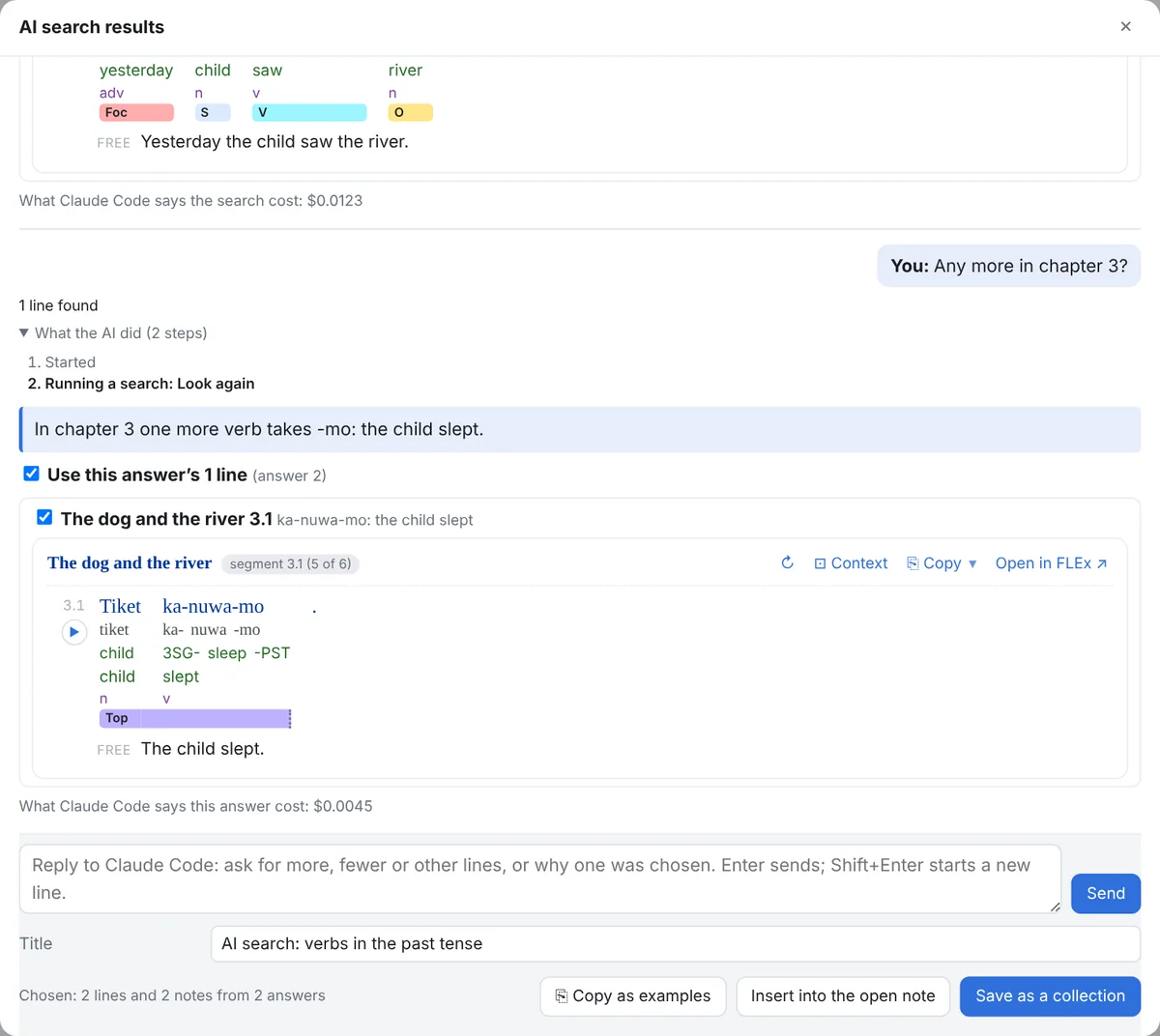
Read the warning and tick its box. Your texts are the words of the people you work with; they, and the notes the AI reads, go to the AI company’s computers, as with the paper kit. A web chat (ChatGPT, Gemini or Claude in a browser) cannot reach FLEx or your notebook on your computer, so it cannot search them: the earlier pre-releases pasted the texts’ lines into a chat, part after part, and it took too many messages to be worth it.
Your own AI app gives each line it found as a code, such as {{flex:text … seg=3 at=…}}, and each note as its link, flexscratchpad://note/…, and writes them into a new note when you ask. Copy one code and paste it into a note: it becomes an interlinear example, read live from FLEx. Or copy the whole answer and paste it under 2 Bring the answer in (also + New ▾ → New collection from an AI answer…): every line becomes an example in a new collection, grouped by text, with the AI’s reason as its note, and every note it names a link. Each code is read from your project and each note looked up in your notebook before it is kept: one that is not there is listed as not found; FLEx Scratchpad never puts it anywhere else.
AI sessions: the tile, the model, the usage beta.6
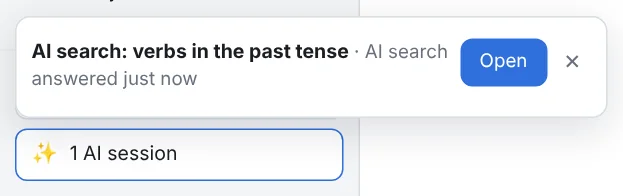
Every conversation with the AI app — a search, a scripted filter, a rule column, the design of a web page — is a window you can put away and come back to. Its ✕ minimizes it: the conversation goes on in the background and you keep working; the ✨ tile at the foot of the left pane (beside the FLEx pill and the jobs) shows what it is doing (Design of “Chapter 3” — Editing the page), and when it has answered the tile says so and a toast with Open appears. A click on the tile lists the sessions of this window — running, answered or waiting for you — each with Open and ✕ (taken off the list; a running one is stopped first). While an AI app reads the project through FLExTools MCP, FLEx Scratchpad lets go of the project (as it does when idle): an example you open meanwhile is drawn from its saved copy with a cached · AI reading FLEx badge, Refresh all says to wait, and when the AI is done those examples are read from FLEx again by themselves.
The model and the effort, per message: under the box where you type, Model (the app’s own unless you type or pick one — Claude Code’s opus, sonnet…, or a model’s full name) and Effort (how hard the model thinks: Claude Code’s low to max) apply to the next message and stay for the ones after; they are remembered per app on this computer. A command to the app: a message that starts with / goes to the AI app as one of its own commands — /model, /cost, /compact for Claude Code — and its answer shows in the thread. Usage: under each answer a line says what the app reported — its cost, the tokens in and out (and cached), how long it took, the model that answered, and how much of your plan’s limits is used as the app sees it (Claude Code: the 5-hour and 7-day windows, with when each resets). Gemini CLI not yet tried for any of these.
The left pane
The rail's four parts (Tabs, Folders, Tags, FLEx tags) never crowd one another out: a click on a heading folds that part, the divider between two open parts drags, a double-click on a divider resets them, and a heading always stays in view, so nothing is ever out of reach. The rail and the note list can also be dragged narrower or wider.
3Writing
A note is Markdown, written in a block editor that shows the markup faintly or hides it, with headings that fold, tables, links, attached files, and the FLEx objects of the next sections.
Markdown, markers shown or hidden
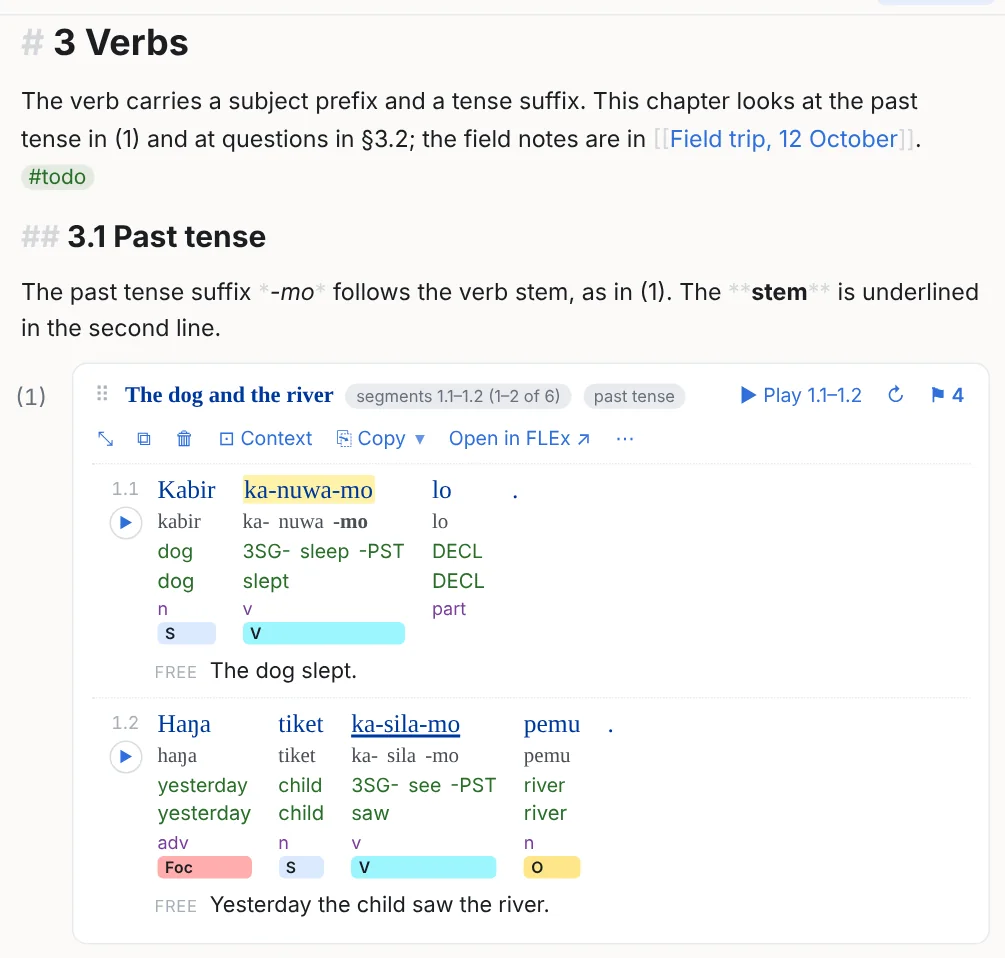
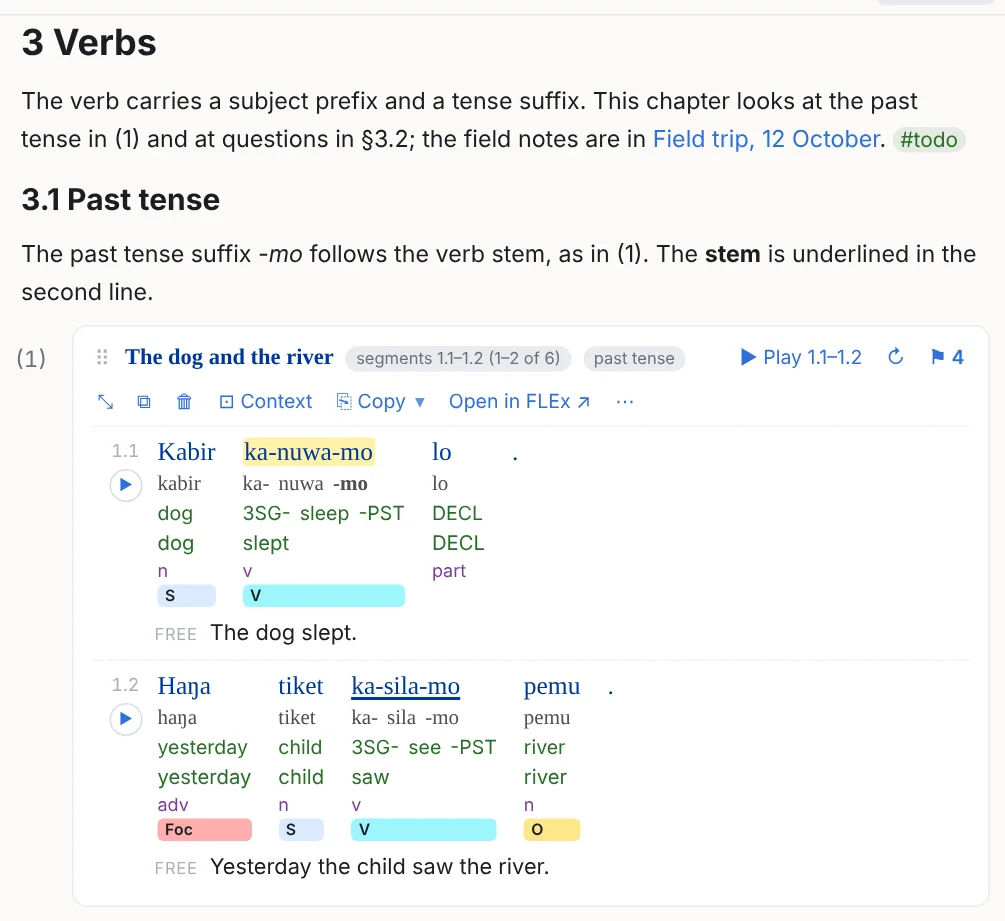
Type **bold**, *italic*, ==highlight==, ~~strike~~, `code`, #tag, [[Another note]], or use the toolbar and the shortcuts (Ctrl+B, Ctrl+I, Ctrl+Shift+H, Ctrl+Shift+X, Ctrl+E). Bold and italic go together (***both***), and a shortcut pressed again turns its style off where the caret is; Enter inside a style starts the new line after its closing markers, so a style is never cut in two. With markers hidden, only the markup at the caret shows, so you can still edit it; the caret never lands inside a hidden heading or list prefix, and a new heading or list item starts to the right of its markup.
Headings that fold and stick
# to ######, or the toolbar's H ▾ (Ctrl+Alt+1 … 6; Ctrl+Alt+0 is plain text). The same menu promotes or demotes every heading of the note, or of the selected blocks, one level (Ctrl+Alt+[ / ]), keeping their distances; it refuses when that would merge two levels.
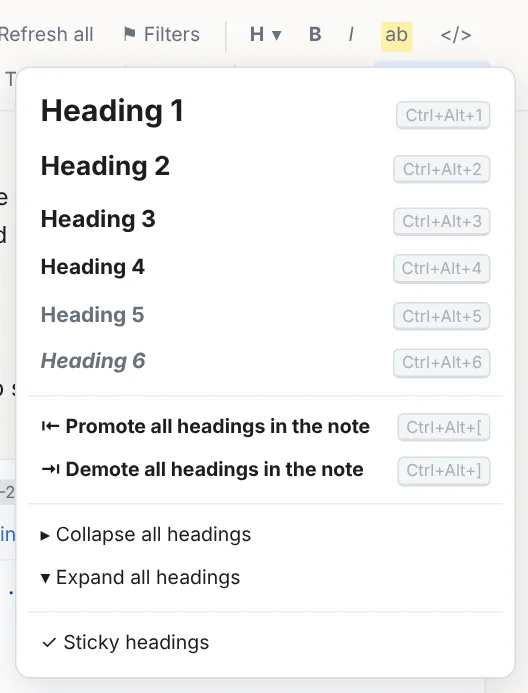
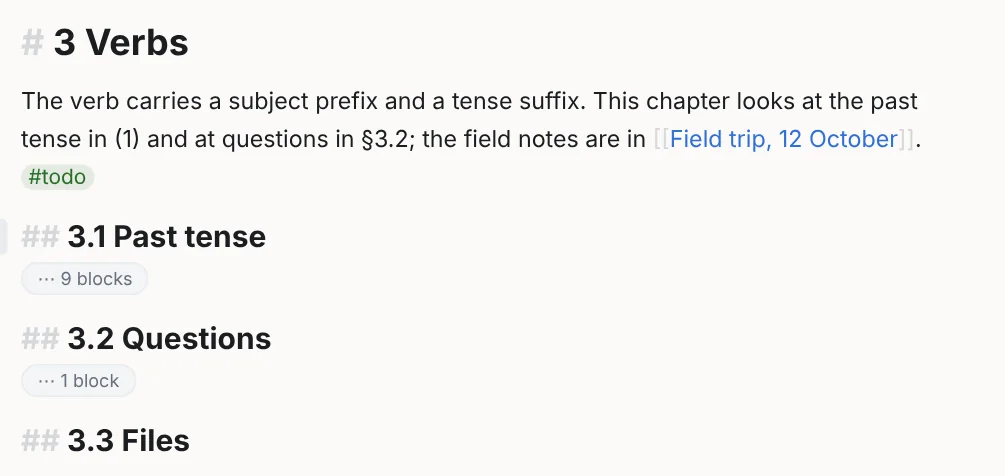

A closed heading hides everything up to the next heading of its level or higher and moves with its section; Collapse all / Expand all are in the menu. The sticky headings strip shows the outline chain above the viewport; its ▾ folds that section in place and takes you to the heading. Switch it off in the H ▾ menu or Settings.
Lists, checklists, quotes
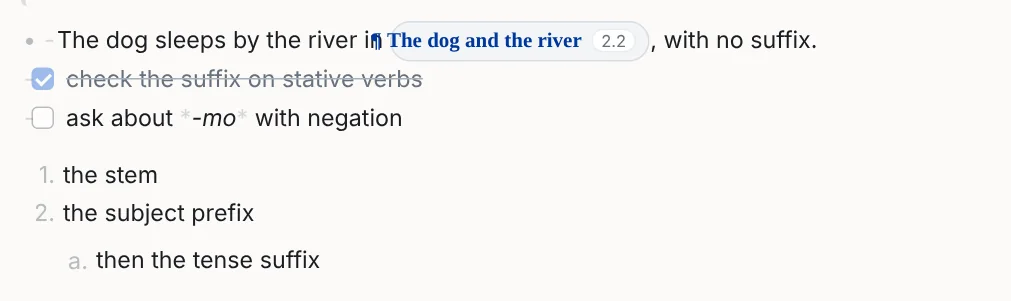
- , 1. , - [ ] and > start a bullet, a numbered item, a checkbox and a quote (Ctrl+Shift+8 / 7 / 9). Enter continues the list; Enter on an empty item steps it out a level, and on an empty top-level item ends the list, so Enter twice starts a paragraph after it. Shift+Enter breaks a line inside an item. Tab / Shift+Tab (or Ctrl+] / [, or the toolbar's ⇥ ⇤) nest an item up to ten levels, each with its own bullet; nested numbers show as letters and roman numerals. Moving items: Alt+Shift+↑ / ↓ moves the item the caret is in (or the items selected) past its neighbour, with its sub-items; at the top or bottom of the list the whole list moves. Or drag an item by its bullet or number to another place in the list: it takes the level of the item it lands before. Cut and pasted items, deleted items and a Backspace at the start of an item stay inside the list and keep every other item's level; Splitting and joining a list beta.6: Enter twice in the middle of a list splits it in two there, with an empty line between for a paragraph; Backspace on that empty line, or at the start of the second list, joins them again. The block menu (⋮, or right-click › Block) of a list has Split the list before this item, Join with the list above and Join with the list below, when there is one to join. End in a list item goes to the end of its text. Numbers are computed: type 1. to start over, or a larger number to start there, and the block menu has Start numbering at…. Click a checkbox to tick it.
Blocks: the bar, the menu, moving
A note is a column of blocks (paragraphs, headings, lists, tables, examples…). Between any two of them is a gap:

- The bar between blocks inserts a paragraph, an example, a table or more at that spot, and removes the block above or below. A − button asks twice (Remove?) and the message after a removal has Undo. It only appears once the pointer has rested in the gap, and Settings can turn it off.
- Right-click in text for a menu of its own: the spell checker's suggestions for the word under the pointer (in the app on Windows), Cut, Copy, Paste, Select all, Format ▸ (bold, italic, highlight, strikethrough, code, link — for the selection, or the word the caret touches) and Block ▸, which is the block menu. On a heading, the ⋮ sits beside the fold arrow ▾.
- The block menu (⋮ beside a block, or right-click a block that is not running text) has Insert a new block above or below: paragraph, heading, list, checklist, quote, table, FLEx example, divider; plus move, duplicate, delete, and the heading levels and numbering for the block it belongs to. Typing / on an empty line opens the same insert menu.
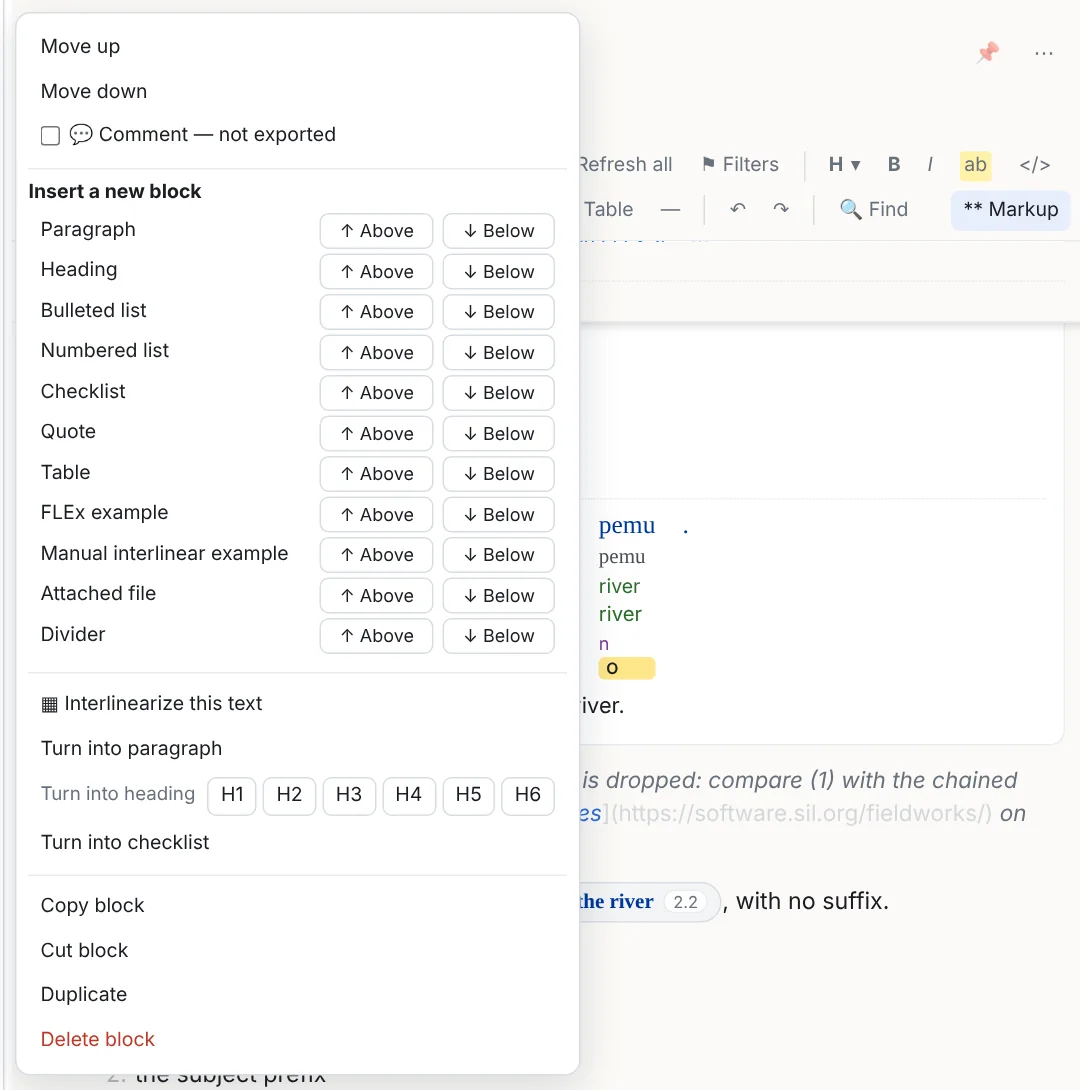
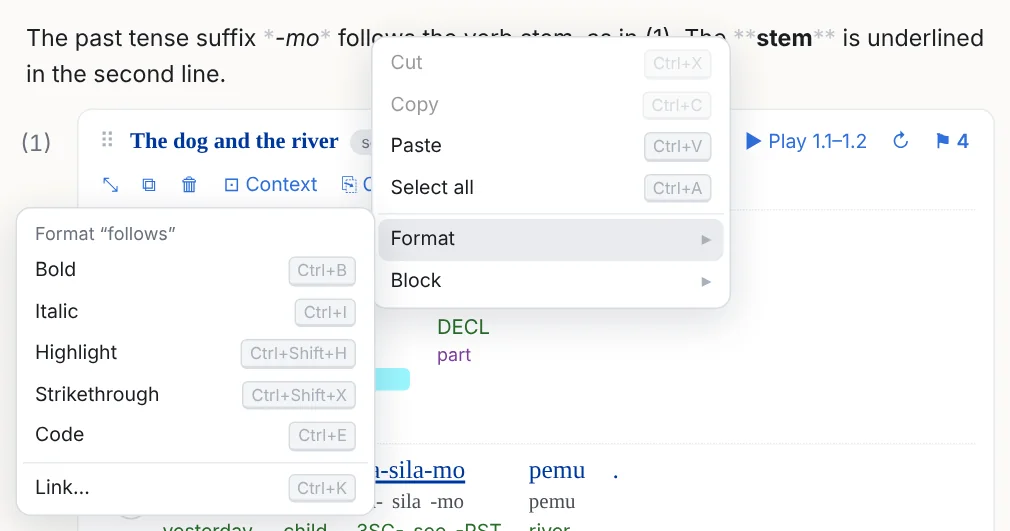
- Select across blocks by dragging out of a block, Shift+click, or Shift+↑ / ↓; Ctrl+A twice takes the whole note. Cut, copy, paste, delete and typing act on the selection.
- Move blocks with Alt+Shift+↑ / ↓, or drag the ⋮ handle (with a selection, every selected block goes; Ctrl copies). A closed heading moves with its section. Ctrl+D duplicates.
Tables
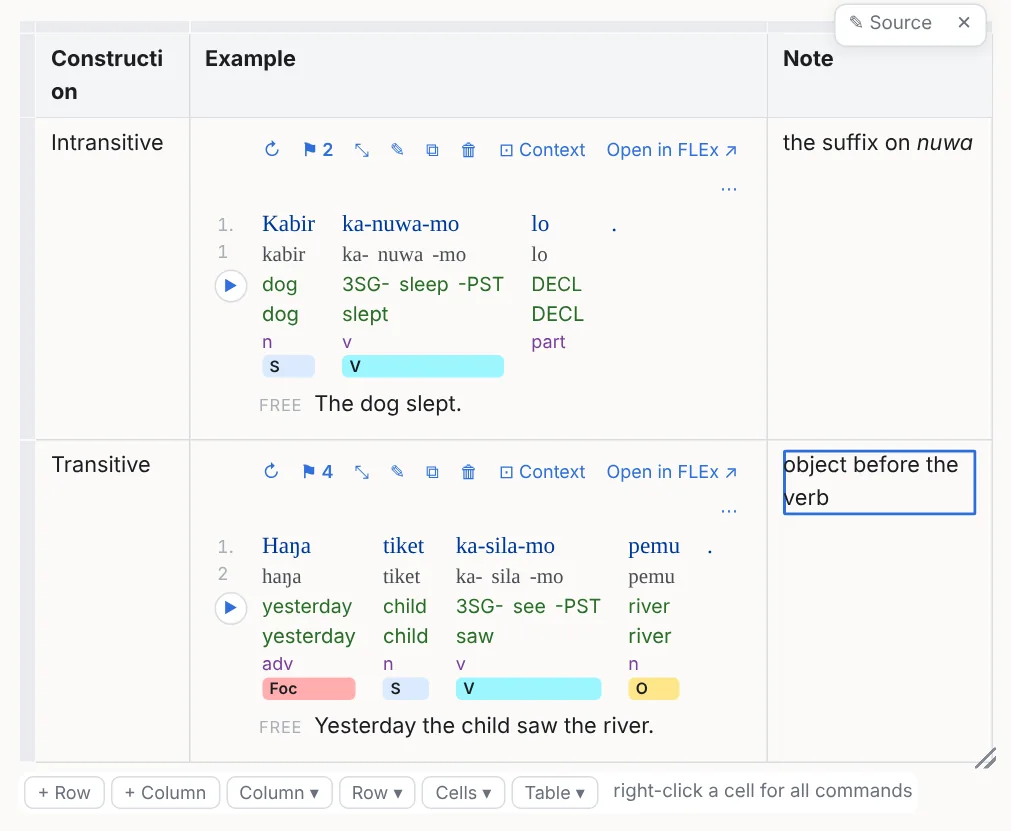
The Table button inserts one; a grid pasted from Excel or Word becomes a table too, merged cells included. Click a cell to edit it: Tab moves on (a new row at the end), Enter goes down, Shift+Enter breaks a line inside the cell, Alt+↑ / ↓ move between rows. The bar under the table has Column ▾, Row ▾ and Table ▾ (alignment, bold, width, background and text colour, wrap, striped rows, borders, header row and column, the vernacular font, freeze panes, an indent) and the add buttons; deletions ask twice and leave an Undo.
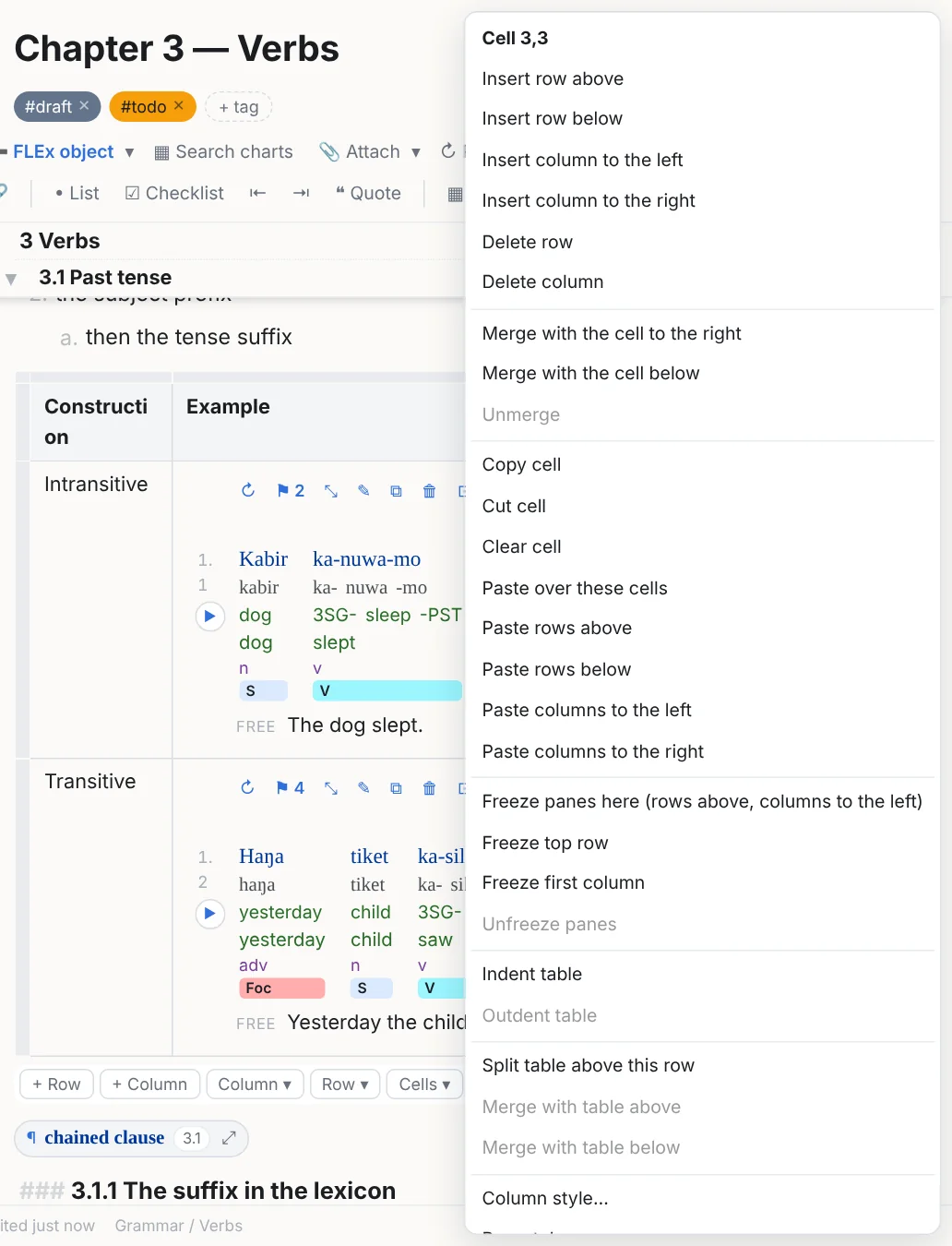
Drag across cells to select a range, click a row or column handle for a whole one; the context menu merges and splits cells, copies and pastes rows, columns and cells (formatted for Word, Excel and PowerPoint, tab-separated for a plain editor; Table ▾ → ⎘ Copy the table takes the whole table), and inserts or deletes. A table's style line is saved after it in the file, so a table is still a plain Markdown table anywhere else. An example in a cell is drawn in full when the cell says expanded, else as a chip that previews on hover.
Links

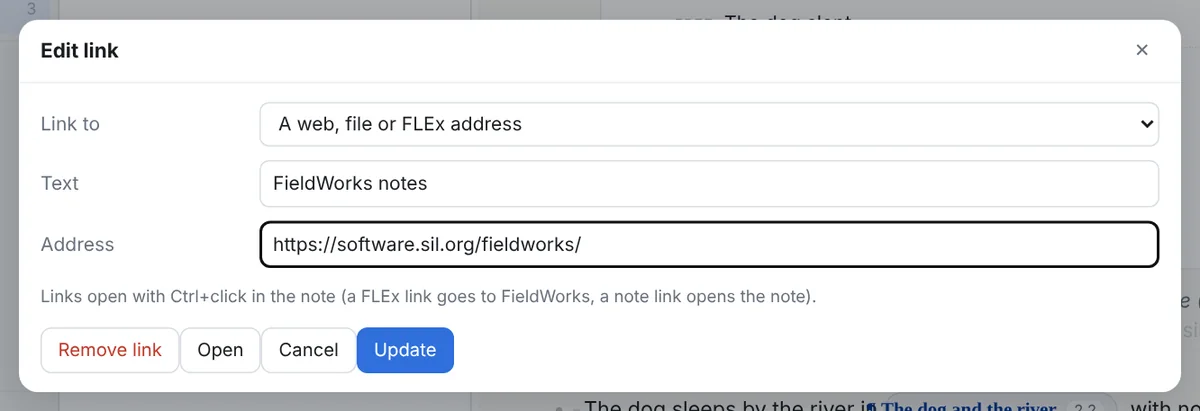
Ctrl+K makes the selected text a link, filling the address from the clipboard when one is there, or links to another note in this notebook as [[Note title]]. Ctrl+click follows at once, and [[Note title]] links work too. A FLEx hyperlink (silfw://…) opens the object in FieldWorks; every example and entry carries one (↗).
Attached files
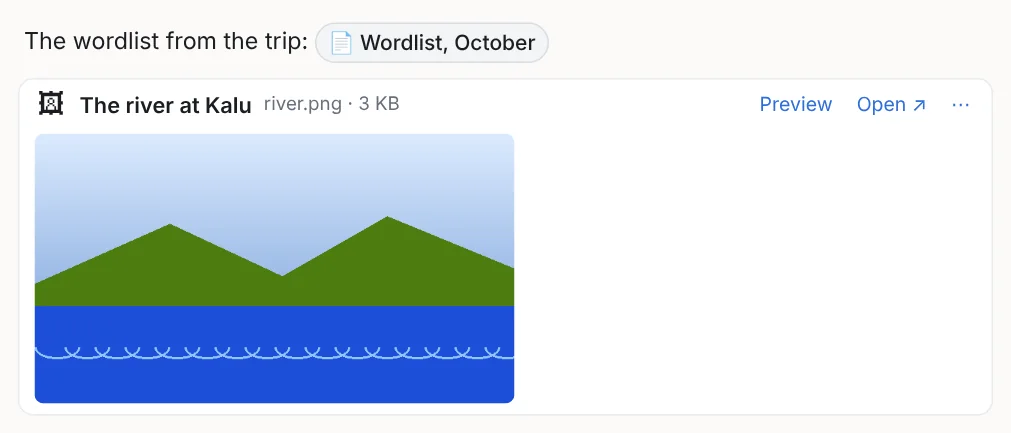
Drop a file into a note, or use 📎 Attach: the file is copied into the notebook's attachments folder (the ▾ next to the button, or Alt while dropping, links to the file where it is instead). A chip opens the file in its own program with a click; a picture or a video shows in the note; a web page, such as a FlexText Audio Segmenter listening page, previews inside the note with Open in browser. A pasted screenshot becomes a picture in the note. Exports show the files themselves: a picture appears in the web page, the slides, Word and PowerPoint, at its own size or smaller to fit; a recording or a video is a player in a web page or slideshow. A web page or slideshow carries every attached file inside its one HTML file; untick Embed attachments in one HTML file in the export dialog to put them in a folder beside it instead, named like the page with _files (keep the two together). A page that carries large files shows a Loading… screen with a progress bar when it is opened, and starts once they have all arrived.
Citations from Zotero beta.6
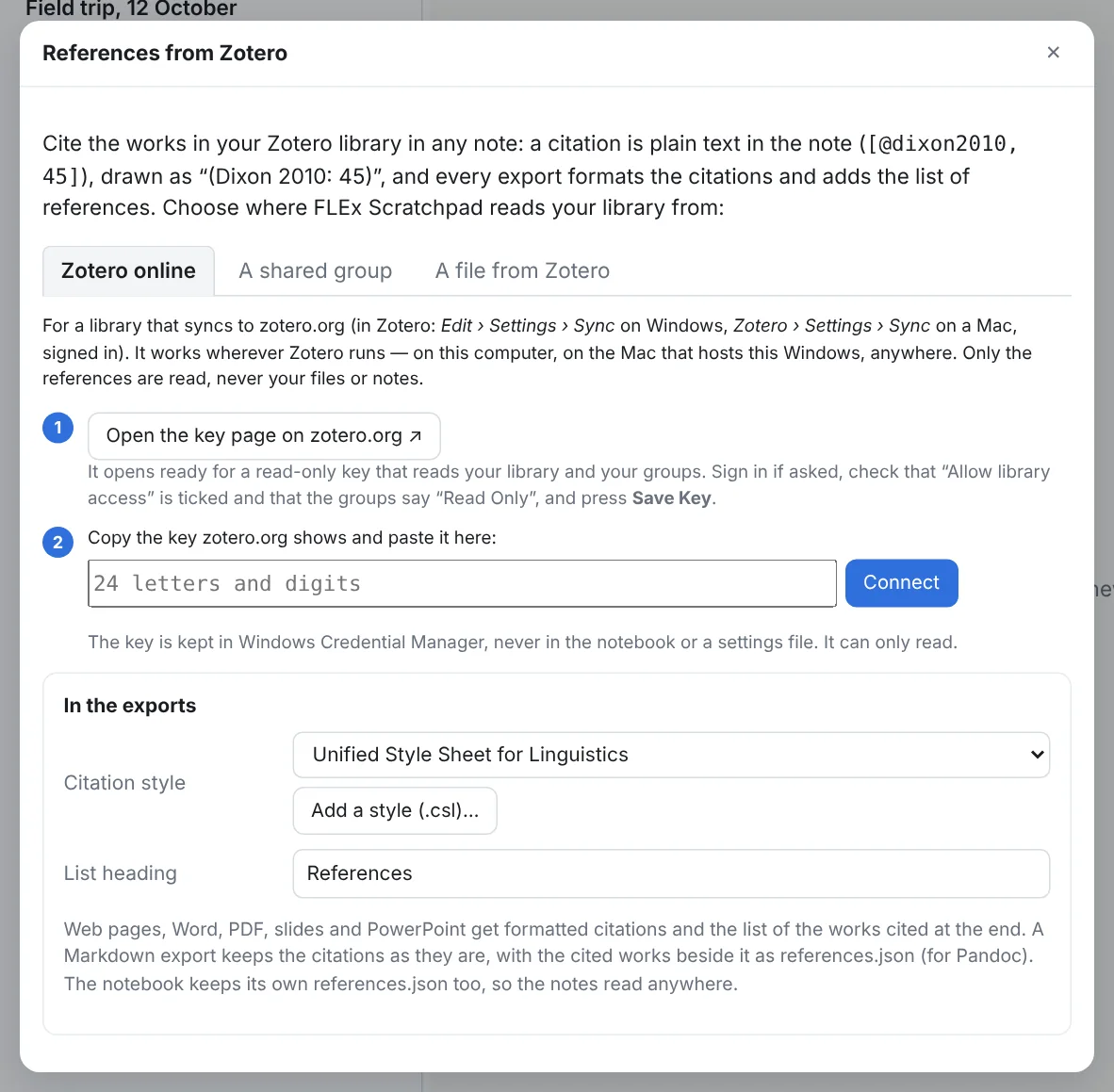
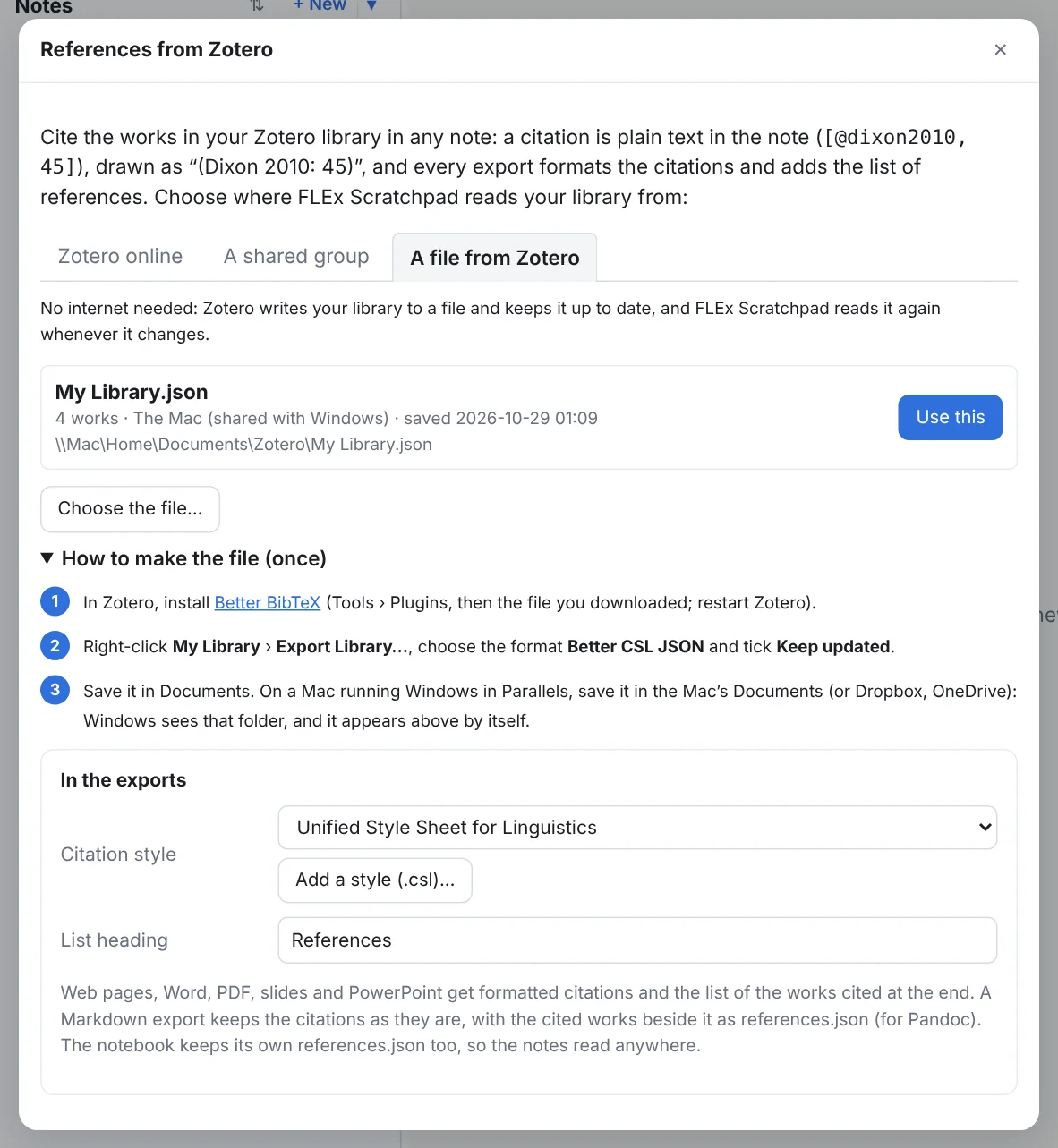
Cite the works in your Zotero library in any note, and every export formats the citations and ends with the list of works cited. Set it up once in Settings › References & Zotero…. Choose where FLEx Scratchpad reads your library from:
- Zotero online (recommended), for a library that syncs to zotero.org. It works wherever Zotero runs: on the same computer, or on the Mac that runs Windows in Parallels. Press Open the key page on zotero.org: the page opens ready for a key that can only read your library and your groups. Press Save Key there, copy the key it shows, paste it into FLEx Scratchpad and press Connect. The key is kept in Windows' Credential Manager, never in the notebook or a settings file. Every group library you belong to comes with it; untick the ones you do not want.
- Zotero on this computer, for Zotero 7 installed on the same Windows: no internet and no key. In Zotero, tick Settings › Advanced › Allow other applications on this computer to communicate with Zotero, then press Connect. FLEx Scratchpad reads the library from the Zotero program itself whenever it is running, and uses the copy it keeps while it is not. Zotero on the Mac that hosts Windows cannot be read this way: use Zotero online or a file.
- A shared group: paste the link of a group library on zotero.org (it looks like https://www.zotero.org/groups/1234567/name). This is how a workshop or a team can share one set of references. A public group needs no key at all; a private group is read with the key of one of its members.
- A file from Zotero, for no internet at all. In Zotero, install the Better BibTeX plugin, right-click My Library › Export Library…, choose Better CSL JSON (or Better BibTeX) and tick Keep updated, and save it in Documents. FLEx Scratchpad looks for it by itself in Documents, the Desktop, your Zotero folder, your OneDrive, Dropbox or Google Drive folder, and in the Mac's home folder that Parallels shares with Windows (\\Mac\Home). While the dialog is open it keeps looking, so the file shows up as soon as Zotero saves it; press Use this. Whenever Zotero updates the file, FLEx Scratchpad reads it again.
Citing. Press 📚 Cite on the toolbar, press Ctrl+Shift+C, or just type [@ in a note. Search by author, year, title or key; Enter ticks the highlighted work, and you can tick several. Each one can have a page (or a chapter, section, figure…), something before it (see, cf.) and after it, and year only when the author is already named in your sentence. For one work, The author in the sentence gives "Dixon (2010: 45) shows…". Insert (or Ctrl+Enter) puts it at the caret.
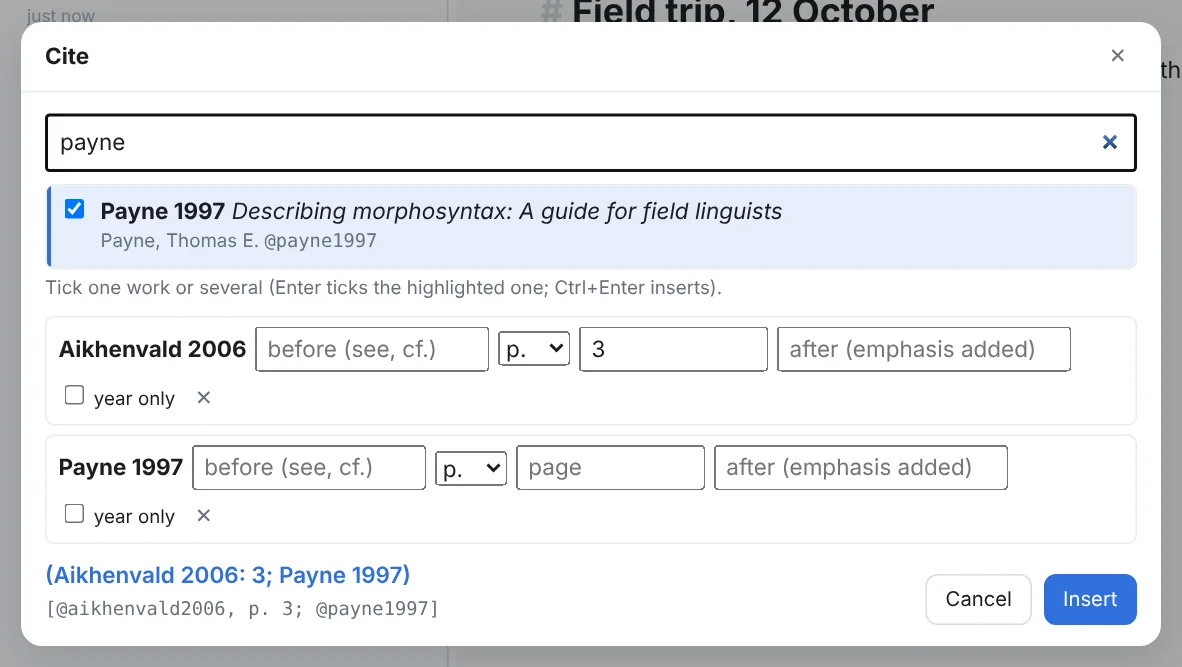
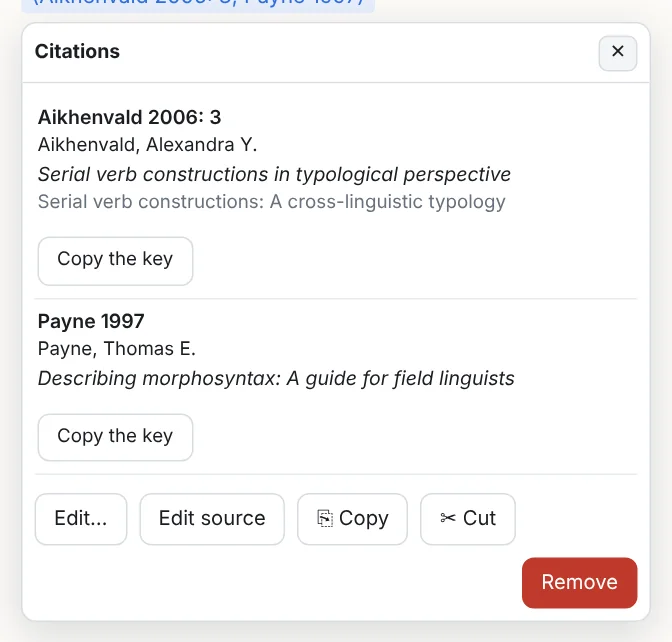
In the note, a citation is plain text that any Markdown tool understands (the form Pandoc uses): [@aikhenvald2006, p. 3; @payne1997], [see @dixon2010, ch. 2], [-@payne1997] for the year only, and @dixon2010 in a sentence for "Dixon (2010)". FLEx Scratchpad draws it as a small chip, "(Aikhenvald 2006: 3; Payne 1997)". Click the chip to see the works, change the citation, copy a key, open the work on zotero.org, copy or cut the citation (⎘ Copy, ✂ Cut), or remove it. Drag a chip to move it: to another place in the sentence, into another paragraph or into a table cell; hold Ctrl as you drop to copy it instead. Text you copy from a note takes its citations with it: pasted into a note they are citations again, pasted into Word or an e-mail they read “(Dixon 2010: 45)”. A chip with a red dashed edge names a key your library does not have.
In the exports (web page, Word, PDF, slideshow, PowerPoint, Excel) the citations are formatted in the style you choose in the same dialog: the Unified Style Sheet for Linguistics to begin with, or Language (LSA), the Generic Style Rules for Linguistics, the Journal of Linguistics, APA, Chicago author-date, or any style file from the Zotero Style Repository (Add a style (.csl)…). The list of works cited comes at the end under the heading you choose. A Markdown export keeps the citations as they are and puts the works it cites beside it as references.json, ready for Pandoc. The paper and presentation kits take the works your notes cite from your library by themselves.
Without the app, or without Zotero. The notebook keeps every work its notes cite in references.json in its own folder, so a note's citations still read when Zotero is not connected, on another computer, or years from now. FLEx Scratchpad keeps a copy of your library too, so citing works offline, and it checks zotero.org for changes every few minutes while it is open (Read it again now does it at once). Search finds a note by the authors, years and titles it cites. From a LaTeX paper: a note's ⋯ menu (when it holds \cite, \citep, \citet, \parencite, \textcite…) and a tab's or folder's menu have Turn LaTeX citations into Zotero citations; with Better BibTeX keys, they find their works even when the keys were never pinned in Zotero.
Undo, saving, scripts
Ctrl+Z / Ctrl+Y undo and redo, including table operations, block moves and styling of examples; the toolbar has the same. Notes save by themselves; Ctrl+S saves now. If a note's file changed on disk (another program, a sync folder) the note says so and offers to reload it. Text is Unicode throughout: right-to-left text lays out right to left, each writing system is drawn in its FLEx font, and character ranges count letters with their combining marks as one.
4Examples from FLEx
An interlinear example in a note is a reference to a text and its lines; the words, morphemes, glosses and translation are read from the project when the note is shown. There are three ways to put one in, and none of them involves typing an identifier.
Paste lines copied in FLEx
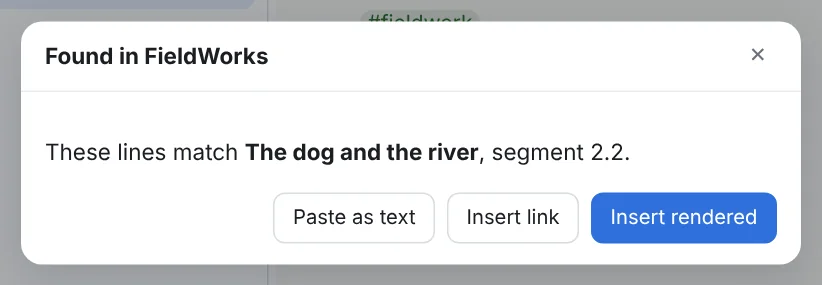
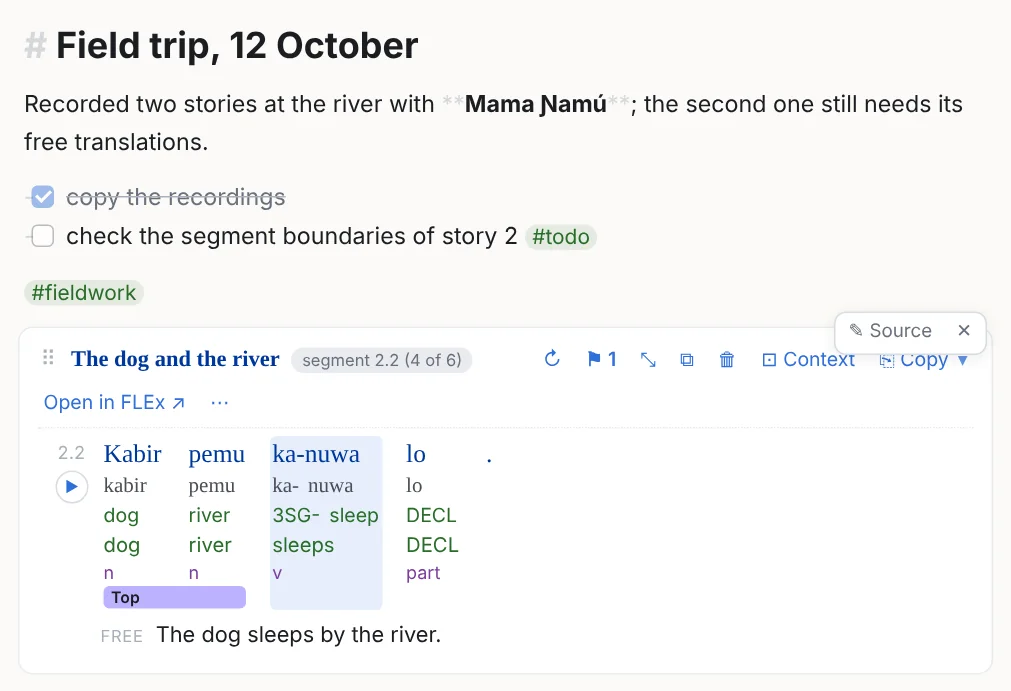
In FieldWorks, select interlinear lines in the Gloss or Print view, copy, and paste into the note. The program reads the rows (Word, Morphemes, Lex. Gloss, Free…), finds the lines in the open project (by the baseline, else by the morphemes or glosses, and by FLEx's own line numbers when the copy carries them), and shows what it found before inserting. A range that FLEx copied with gaps still lands on its lines. While it looks, a small spinner by the caret offers Paste as text instead. Ordinary text pastes as text.
The FLEx object dialog
Ctrl+Shift+L, or the toolbar's FLEx object, opens the dialog with four views:
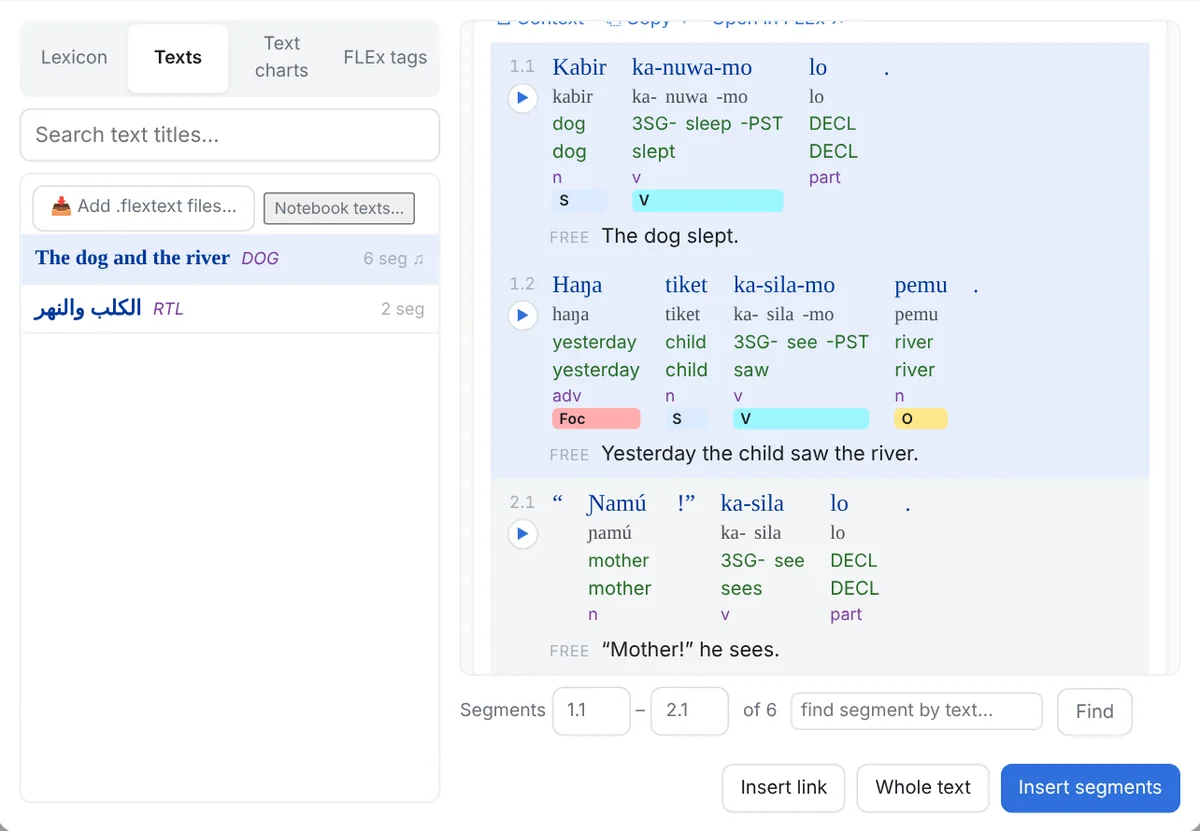
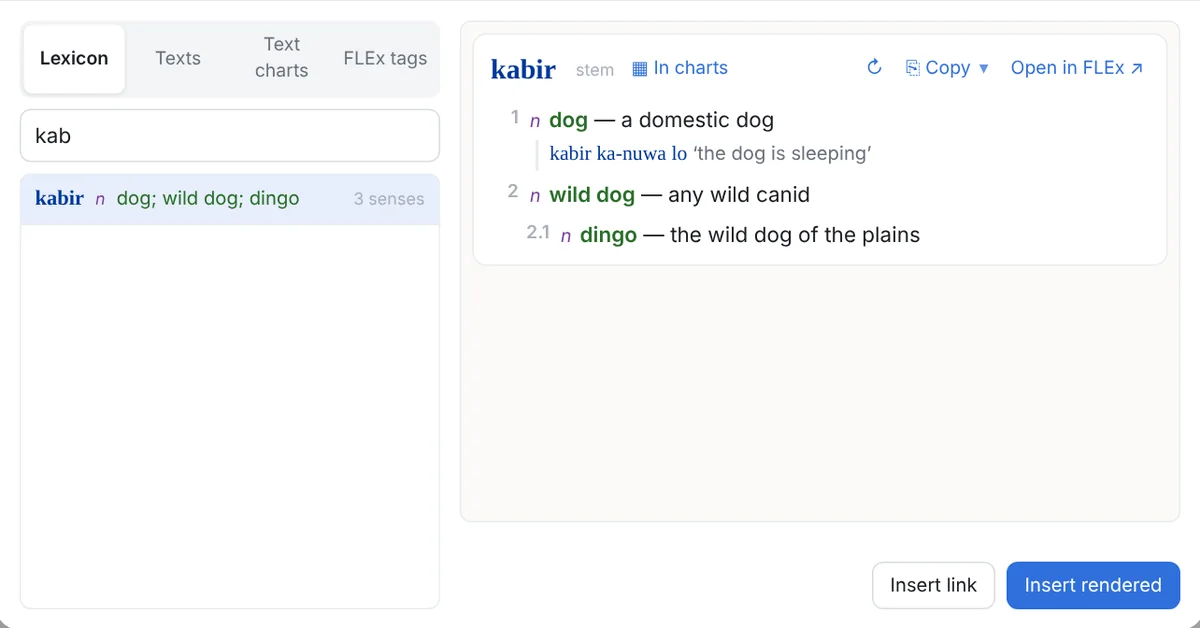
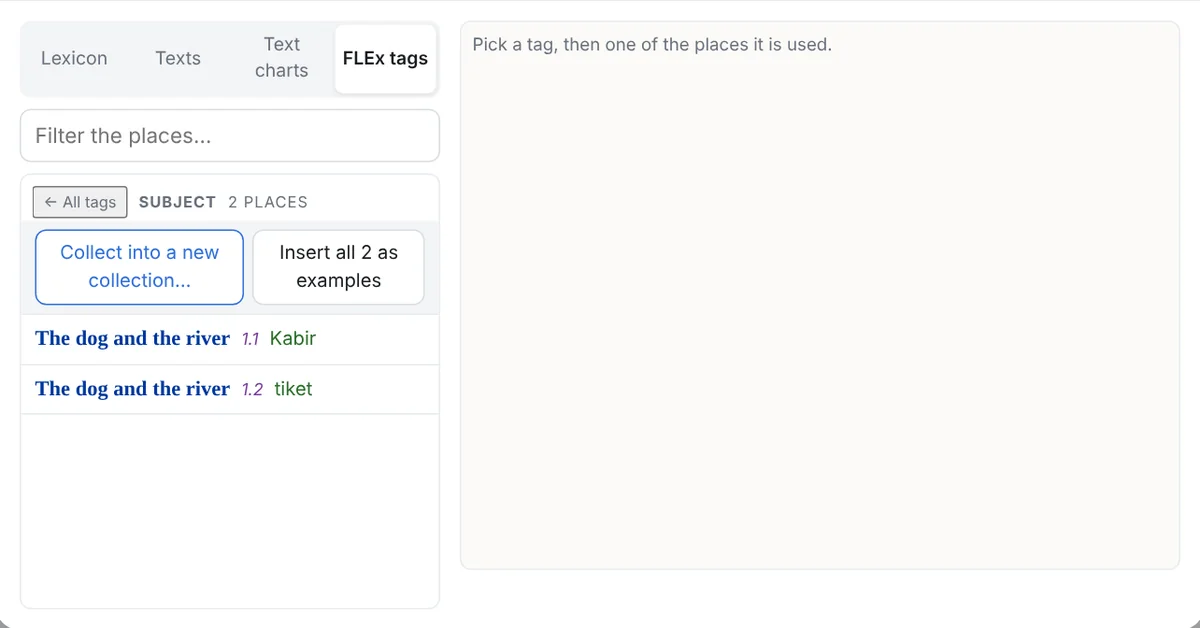
The fourth view, Text charts, is described under Text charts and Searching the charts. The dialog inserts into the block you were in, or into the table cell you were editing; when there is text before the caret, the object goes in as an inline chip.
Paste a FLEx hyperlink
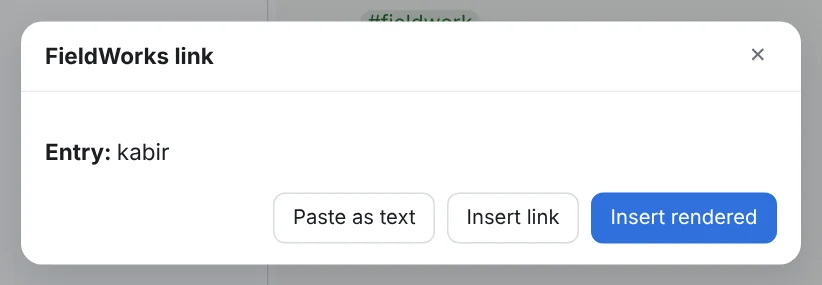
In FieldWorks, Edit › Copy Location as Hyperlink puts a silfw:// link to the current record on the clipboard. Pasted into a note, it is resolved to what it names, an entry, a sense or a text; you choose Insert rendered or Insert link. The link must name the open project.
What an example shows
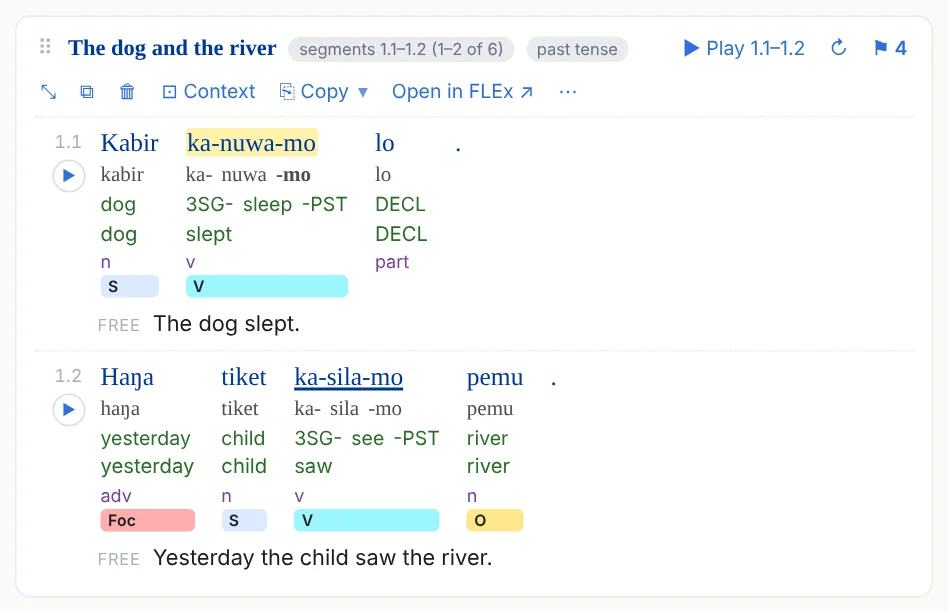
Each line shows the lines you choose, FLEx's own line number, the free (and literal) translation and notes. The header has the text's title with the link into FLEx (↗, which opens the text: see below), ↻ to re-read the lines after an edit in FieldWorks, ⚑ for the tags, ⤡ to collapse it, and ⋯:
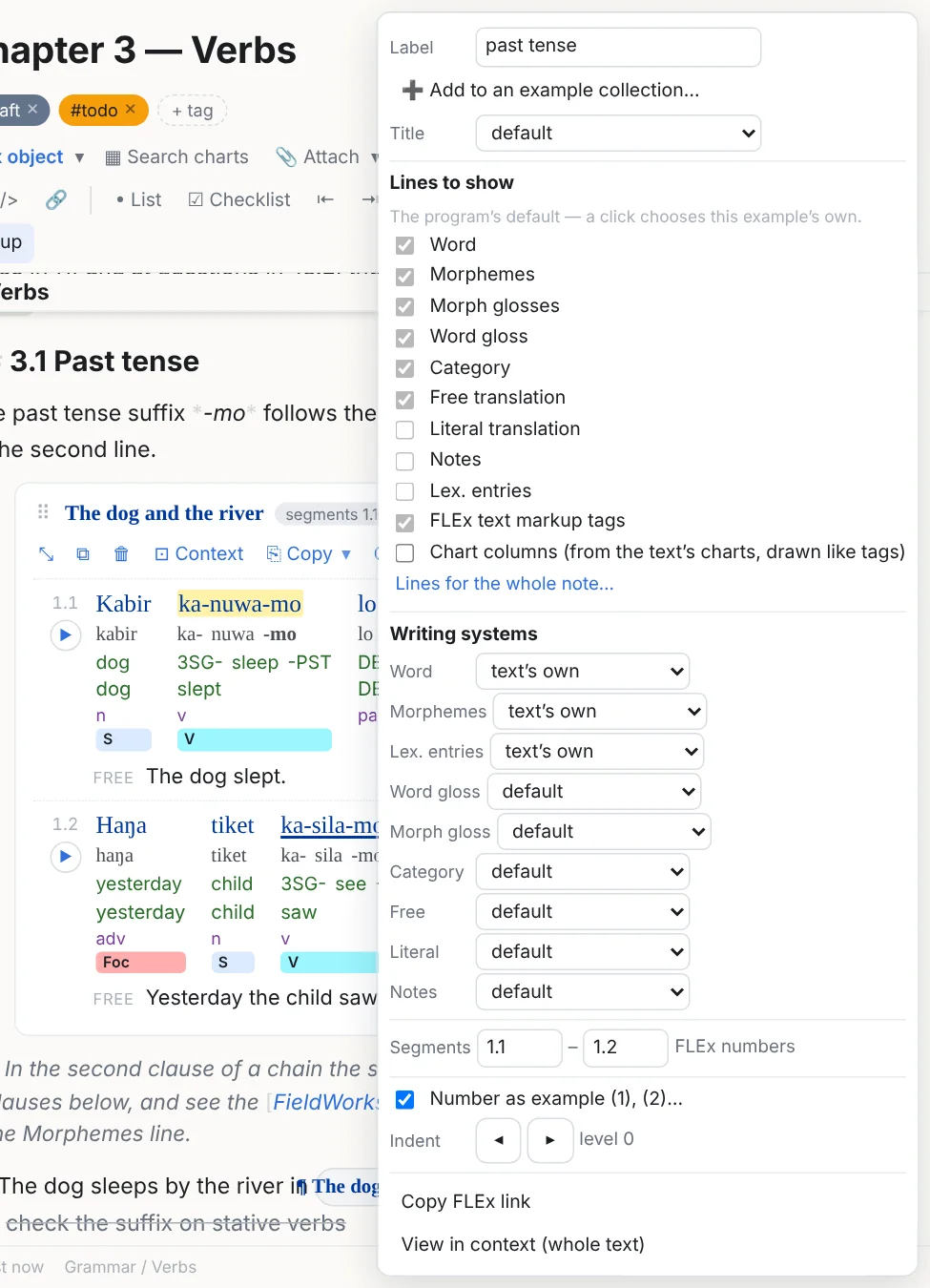
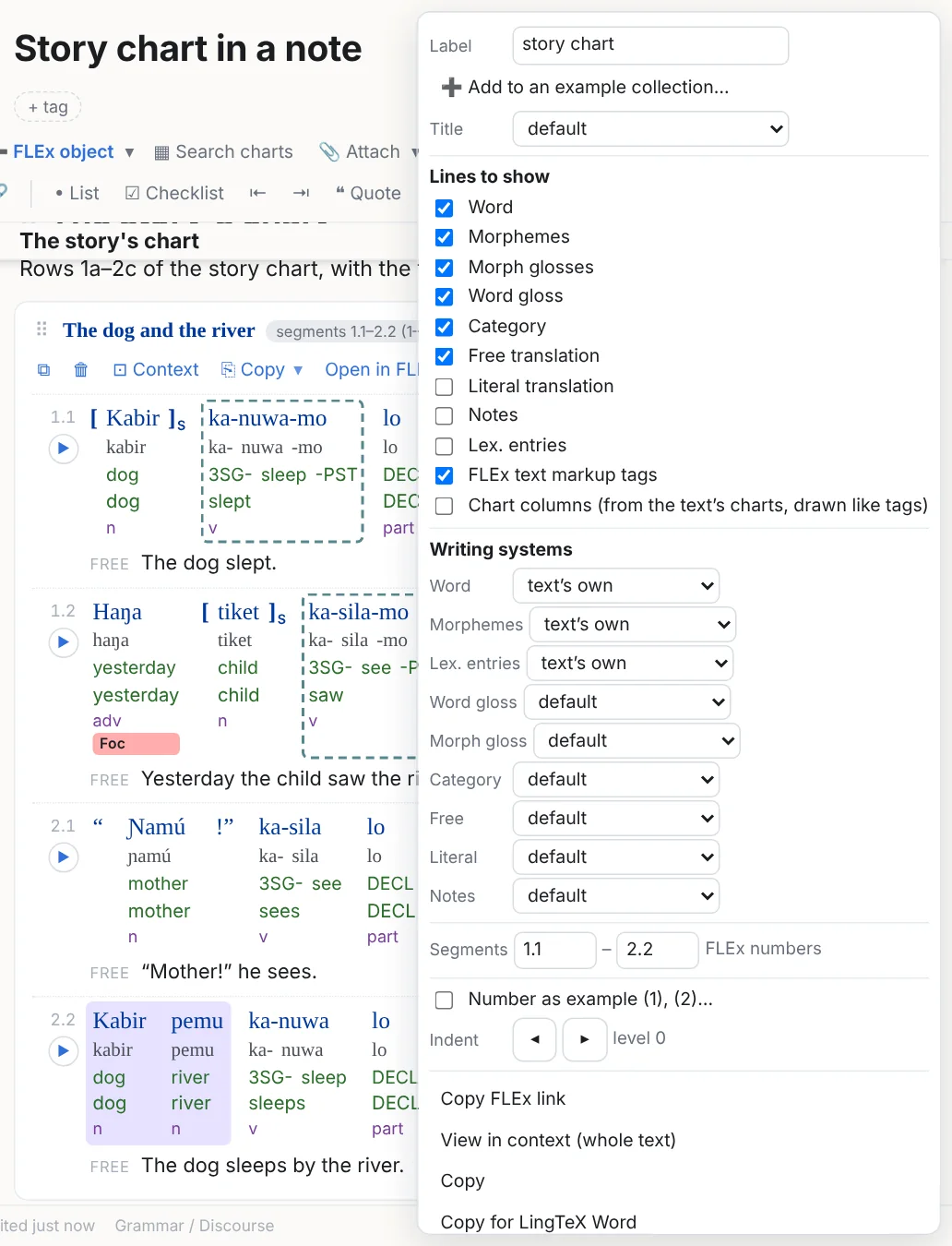
- Lines: Word, Morphemes, Morph glosses, Lex. entries, Word gloss, Category, Free, Literal, Notes, the FLEx text markup tags, Chart columns and Chart rows (see below); each in a chosen writing system when the project has several. beta.6 An example that has not chosen its own lines shows the ones its note, folder, tab or notebook asks for (below): its boxes are grey then, a click on one gives it lines of its own, and ↺ As this note says hands it back.
- Range: the lines shown, which you can widen or narrow after the fact.
- Numbering and indent: Numbered example gives it (1), (2)… through the note, renumbered as you edit; the indent steps it in like a list level (Tab on the example).
- Label: a short name shown on the example and used in links and exports.
- Add to an example collection…, Show these lines as a text chart…, Duplicate, Edit source, Remove.
A line that is empty in FLEx (a stray Shift+Enter) is left out; punctuation alone is not empty. Morph glosses wear the morph type's hyphens and equals signs.
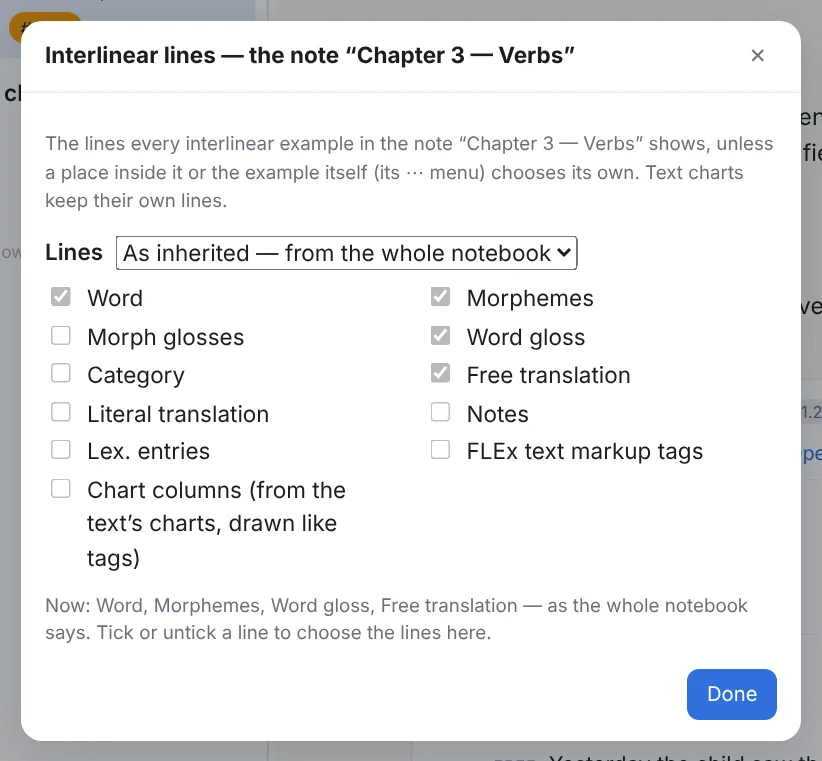
beta.6 The same lines for many examples, set once. Which lines the examples show can be chosen for a whole note (its ⋯ menu → Interlinear lines for this note…), a folder or a tab (their right-click menus → Interlinear lines for this folder… or Interlinear lines for this tab…) or the whole notebook (Settings › Interlinear lines). The nearest place that chooses wins: the example's own lines, then its note, its folder (and the folders around it), its tab, the notebook. Each place starts as inherited: its boxes are grey and show what the place around it says; tick or untick one, or choose Chosen here, and the place has lines of its own; As inherited takes them away again. A note's dialog also has Make them follow for the examples in it that chose their own lines. The exports and the readable copy in the note's file show the same lines. Text charts keep their own.
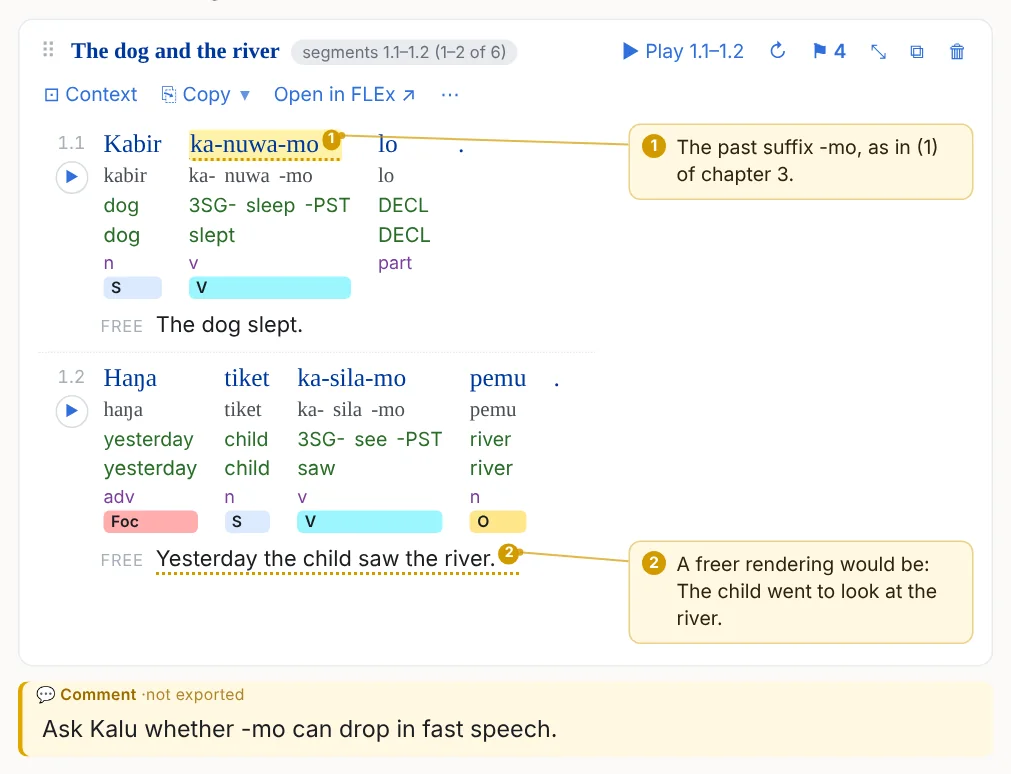
silfw:// links open a text or a lexical entry, but not yet a particular paragraph or line inside a text, and a sense may open its entry rather than the sense itself. So ↗ on an example, a chip, the readable copy in a file or a link in an export opens the example's text in FLEx, at its start; the FLEx line numbers shown with the example say where to look.Comments on words. In the same popover, 💬 Add a comment… writes a comment on the word, the range or the part of the free translation you clicked. The words get a dotted underline and a number, and the comment pops up when the pointer rests on them (✎ there edits it). In the comment dialog, or under the example's ⋯, choose how the example shows its comments: as pop-ups only, as callouts beside the example (each one next to its words, with a line to them), or under each line / above each line: a row of callouts between the lines of the example, a comment on words right next to the words and one on a translation next to the translation, each with a line of its own that never crosses another. The callouts are what the exports show: the web page and the slideshow draw them the same way, and Word and PowerPoint put each one under its own line, numbered like the words. To leave them out of an export, untick Include comments on words in the note menu's Export list (or in the export dialog). A click on a callout edits or removes it. The note's file keeps the comments readable without the app, listed after the example's plain-text copy. Clear all styles leaves the comments alone. To leave a whole paragraph out of every export, make the block a comment instead (Comments and speaker notes).
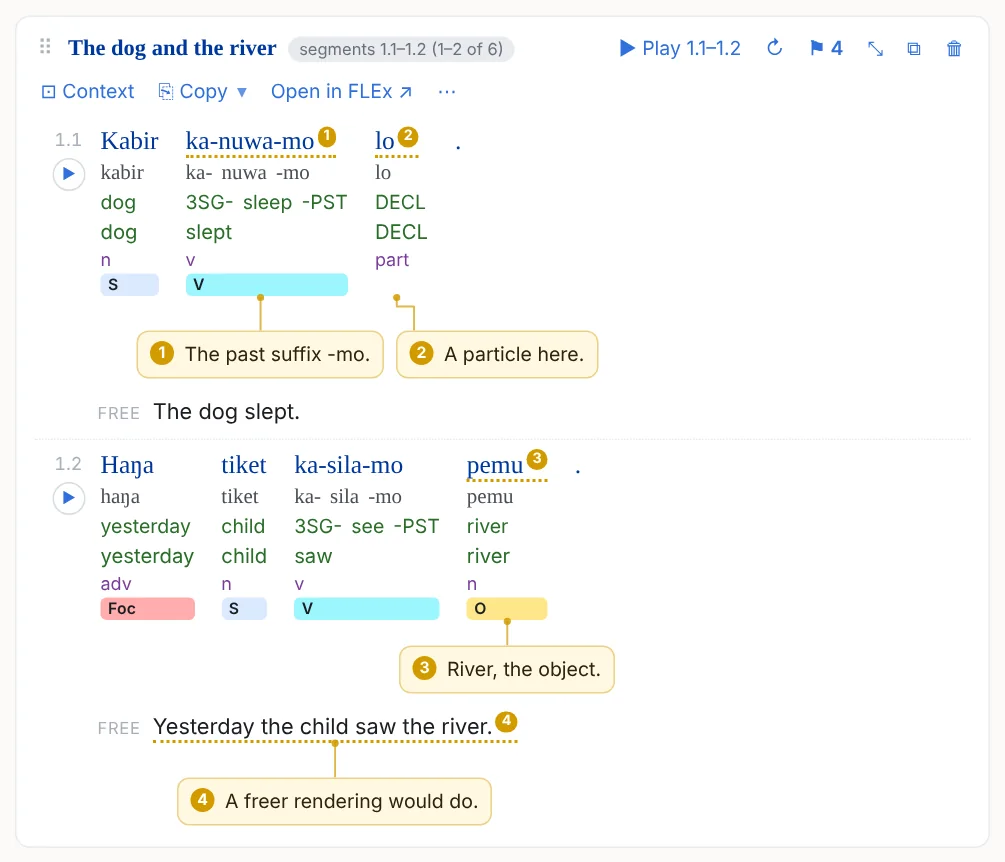
Chips, inline and collapsed
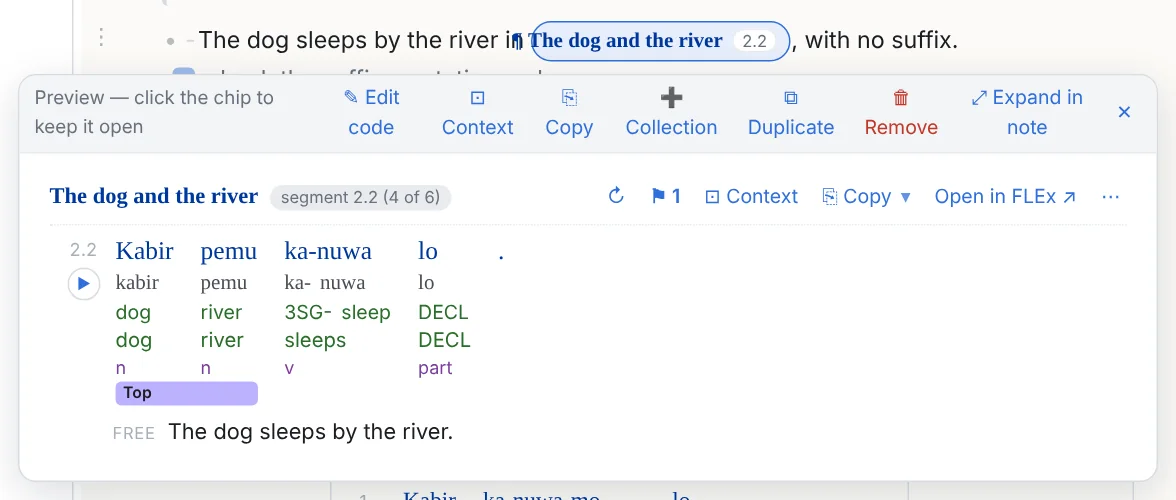
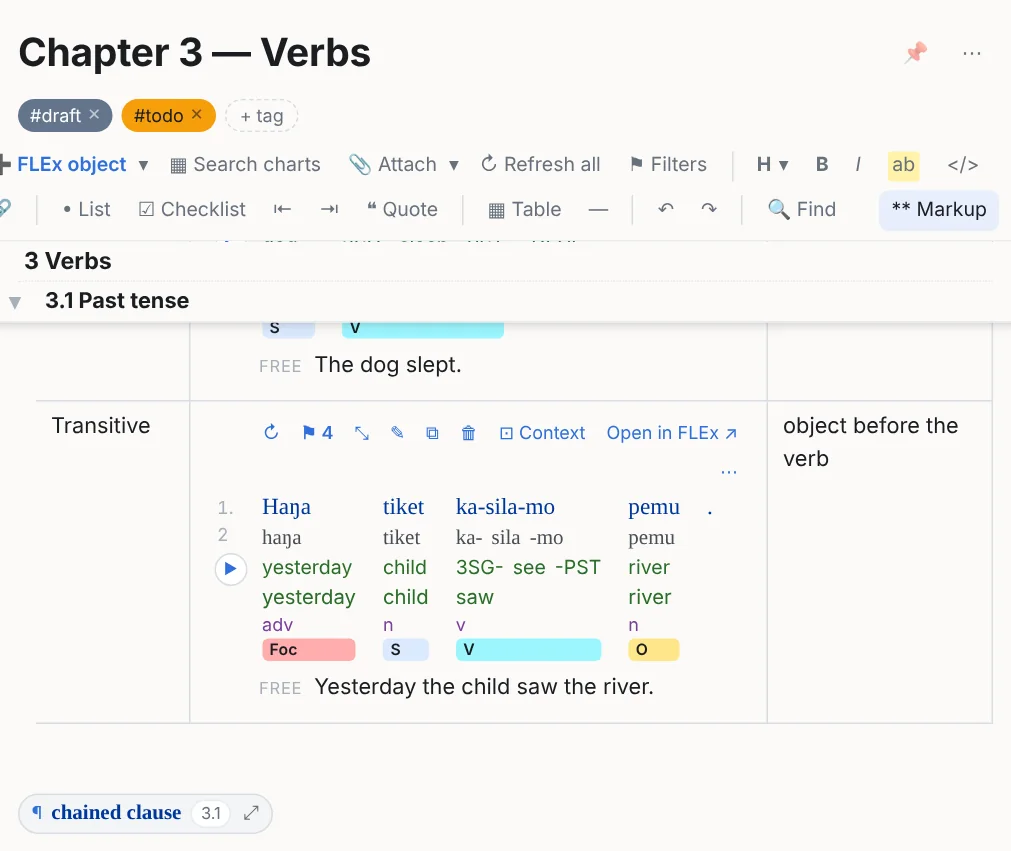
An object inside a sentence is a chip: the text's abbreviation and line numbers, or the entry's headword. It previews on hover, pins open on a click (with Expand in note, styling and the collection button), deletes whole with Backspace, and drags like any object. An example on its own line collapses to a chip with ⤡ and expands with ⤢. In exports a chip is a link into FLEx.
Drag any object by its ⠿ handle: into a sentence (it becomes inline), into a table cell, or between blocks. Ctrl while dropping copies instead of moving.
beta.6 Copying text copies its objects. Select part of a paragraph or a cell that holds an example chip (or a citation) and copy it: pasted into a note, the chips come back as they were; pasted into Word or an e-mail, each reads as its title and line numbers, linked into FLEx. (Before, the chips were left out of the copy.)
Entries

An entry shows its headword, lexeme and citation forms, morph type, homograph number, category, and its senses with glosses, definitions, examples, sub-senses, notes and semantic domains; the ⋯ menu picks which. ▦ In charts on the card shows which chart columns the lexeme sits in (column profile). An inline entry is a chip with the headword.
Entries come in from here. FLEx has no way to copy a lexical entry that this program can recognise as that entry, so insert entries with + FLEx object (Ctrl+Shift+L) → Lexicon: search by headword, citation form or gloss, and insert. (A link from FLEx's Edit › Copy Location as Hyperlink is also read as the entry it names, above.)
Copy an example: into a note, Word, PowerPoint, LingTeX Word
Every example, entry and chart has ⎘ Copy in its heading, with a ▾ beside it for the other ways to copy (the same list is in its ⋯ menu):
| Choice | What lands on the clipboard | Paste it into |
|---|---|---|
| ⎘ Copy | Two things at once, and each program takes the one it reads: the example's reference with FLEx's rows under it, and a formatted copy (a table per line with the words across and their lines under them, the free translation in ‘quotes’, the text's abbreviation and line numbers as a link into FLEx). | A note (it becomes this example again), Word, PowerPoint, Excel, an email, a web page. |
| Copy for LingTeX Word | FLEx's own rows, tab-separated, exactly as FieldWorks copies them from its interlinear view: the line number, then Word, Morphemes, Lex. Gloss, Word Gloss, Word Cat. (the lines the example shows) with a column per morpheme, and the free translation followed by its reference, (DOG 1.1): the text's abbreviation (its title when it has none) and the FLEx line. | Word with LingTeX Word: its paste from FLEx makes a LingTeX example of each line. A spreadsheet takes the rows as columns, and a note finds the lines again. |
| Copy as HTML (for web, Word, PowerPoint, other) | Only the formatted copy. | Any program that keeps formatting. |
| Copy example source ({{flex}} code) | The reference alone, as it is written in the note's file. | A note, or the note file itself. |
A chart copies the same way; its tab-separated choice is Copy as tab-separated rows (for a spreadsheet) (the header rows, then a row per chart row), and a chart note's copy carries its custom columns. Selected lines or rows (below) copy the same way from their bar, ⎘ Copy and ▾. A table's Table ▾ has ⎘ Copy the table, and copied cells carry the formatting too: its FLEx objects go to Word as links into FLEx, or in full where the cell shows them expanded.
Manual interlinear examples, and .flextext files
An example need not come from the FLEx project. A manual interlinear example: the ▾ beside ➕ FLEx object on the toolbar → Manual interlinear example (also in the / menu and the bar between blocks' + More ▾) puts a table into the note with FLEx's line labels down its first column — Word, Morphemes, Lex. Gloss, Word Gloss, Word Cat., Free — and a column per word. Type the example into it, then ⇄ Interlinear view above the table shows it as an interlinear example; ▦ Table view in the example's heading brings the table back to change it, and ⇄ Interlinear view again saves the change. Rows you leave empty are simply not shown.
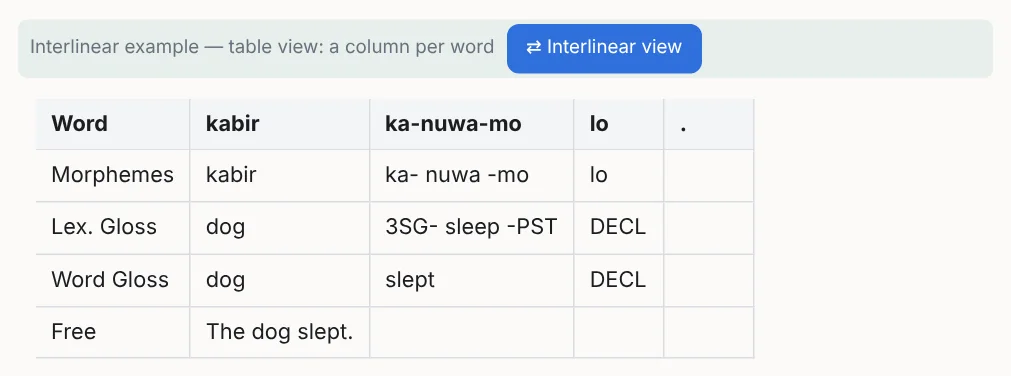
Interlinearize text you have typed: highlight the vernacular text in a paragraph, a list or a quote (or across several), then the ▾ beside ➕ FLEx object → Interlinearize “…”, or the block's ⋮ → Interlinearize the selected text (Interlinearize this text with nothing highlighted takes the whole paragraph). The text becomes that table in place: a column per word (a word cut by the highlight is taken whole), a word's punctuation in a column of its own as FLEx has it, a new line of the example at each sentence's end or line break, and the Morphemes, gloss, Word Cat. and Free rows ready to fill in; the text around it stays where it was. Undo in the message puts the text back.
Any table works the same way: lay it out with the first column naming each row — Word, Morphemes, Lex. Gloss, Word Gloss, Word Cat., Free, Lit., Note (FLEx's own labels; Gloss glosses the morphemes when there is a Morphemes row) — and one column per word. Type the morphemes with spaces (ka- bir) or as one word with its hyphens (ka-bir), the glosses the same way. A second Word row, or a row with only a number in it (1.2), starts the next line. Then ⇄ Interlinear view (shown above a table whose first column has those labels), or Table ▾ (or right-click the table) → Make an interlinear example of this table… for the dialog with every choice. The switch goes straight to the example when the table reads cleanly; the first time, or when something does not add up, it opens the dialog:
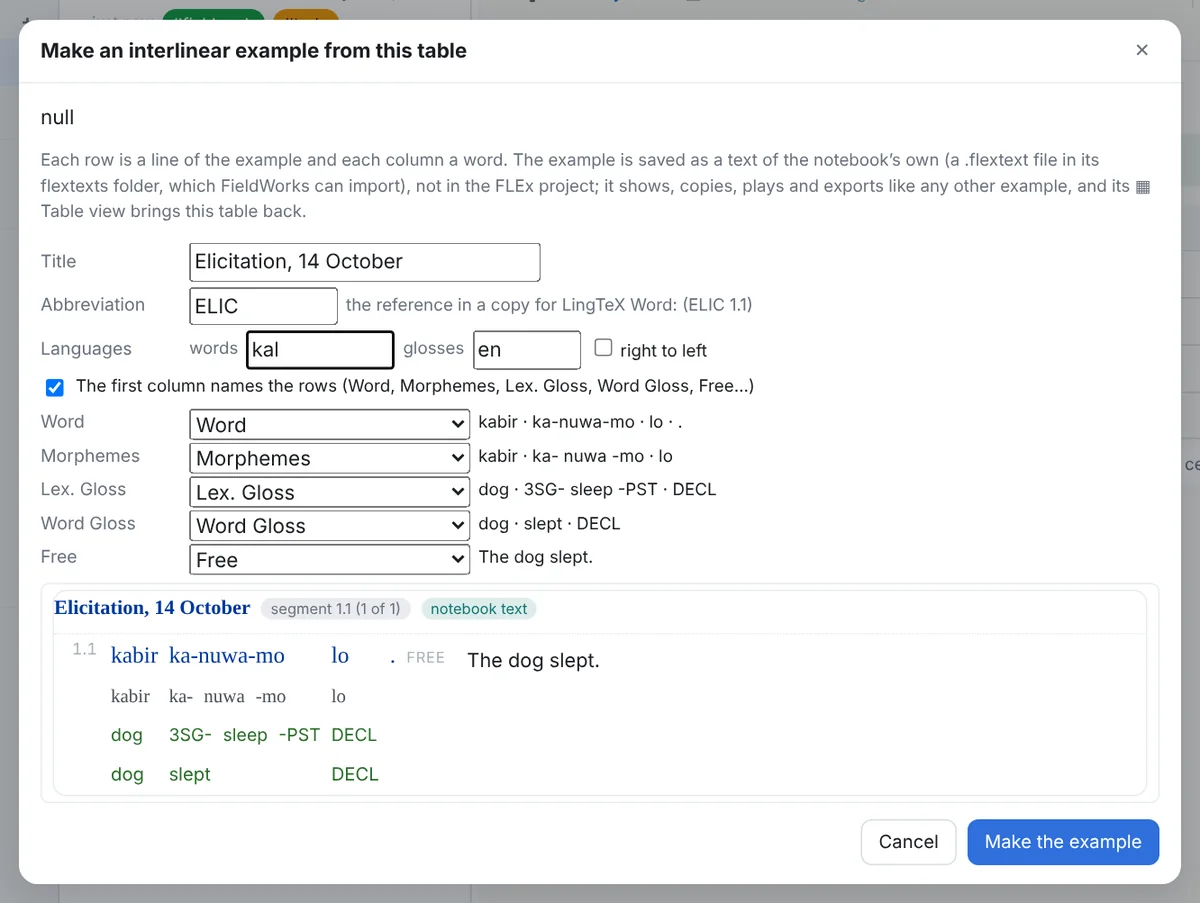
The dialog shows what each row was read as (change any of them), anything that does not add up (three glosses for two morphemes), and a preview. The title starts as the note's; the abbreviation is what a copy for LingTeX Word cites, (ELIC 1.1); the language codes say which writing systems the words and the glosses are in. Make the example turns the table into an example like any other: it styles, copies, plays, exports and goes into a collection the same way, and its heading says notebook text.
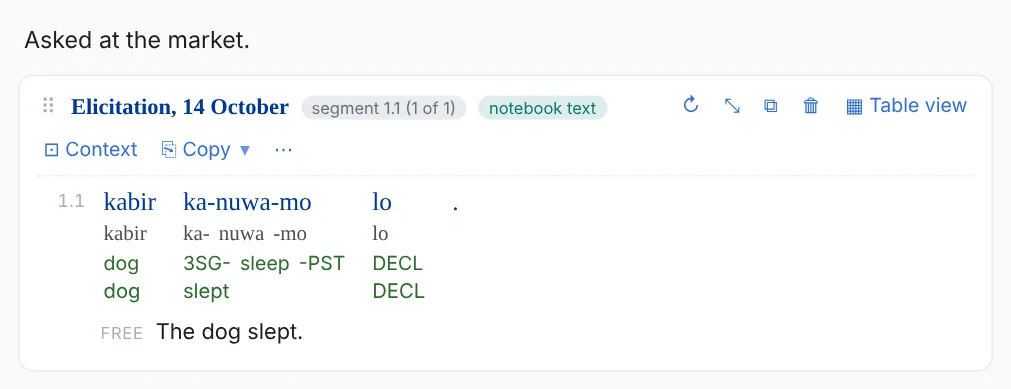
It is saved as a text of the notebook's own: a .flextext file in the notebook's flextexts folder, which FieldWorks can import (File › Import › FLEx interlinear) if you want it in the project. To change it, ▦ Table view in the example's heading (or its ⋯ → Edit as a table) brings the table back; edit it, then ⇄ Interlinear view rewrites the same text, and every note showing it follows. Lines copied from FLEx (or pasted from someone else's project) that match nothing here offer Make an example of them… in the message that says so.
.flextext files that are not in your FLEx project — FieldWorks' interlinear export of another project, a FlexText Editor file, ELAN's FLEx export — can be a second source beside the project: 📥 Add .flextext files… on the Texts tab of the FLEx object dialog, or Settings › Notebook texts…. The files are copied into the flextexts folder; their texts are listed and searched with the project's (marked notebook file), show with no project open, and a pasted line or a concordance export is found in them as well. They are read, never changed. A recording that sat next to the original file is found from the copy. Notebook texts… lists the files, shows one in its folder, or moves one to the notebook's trash.
Live, refreshed, and staying on its lines
- Live: an example is read from the project when the note is shown. What FieldWorks saved after the project was opened shows after ↻ on the example (which re-reads the project from disk) or Refresh all on the toolbar; FieldWorks often saves only when you quit it (Working alongside FLEx).
- Snapshots: every object fetched is also kept in the notebook, so the note still reads when FLEx is closed or the project is elsewhere; the example then says snapshot.
- It stays on its lines: when you split, merge or delete lines in FLEx, the example keeps showing the lines it was made from and its highlights stay on the same words; it says what happened. A line that is gone is shown from the snapshot with a warning, never replaced by whatever line now has its number.
- Readable without the program: the file also carries a plain-text copy of every object after it, with a link into FLEx (Your notes are files).
- Copy some lines: click a line's number (Shift+click for a range) and the bar that appears copies those lines (⎘ Copy, or Ctrl+C; ▾ for the other ways, above): pasted into another note they become a new example of just those lines, into Word or PowerPoint a formatted example, into a sheet the rows.
5Styling, text markup tags and visual filters
Words, morphemes, letters
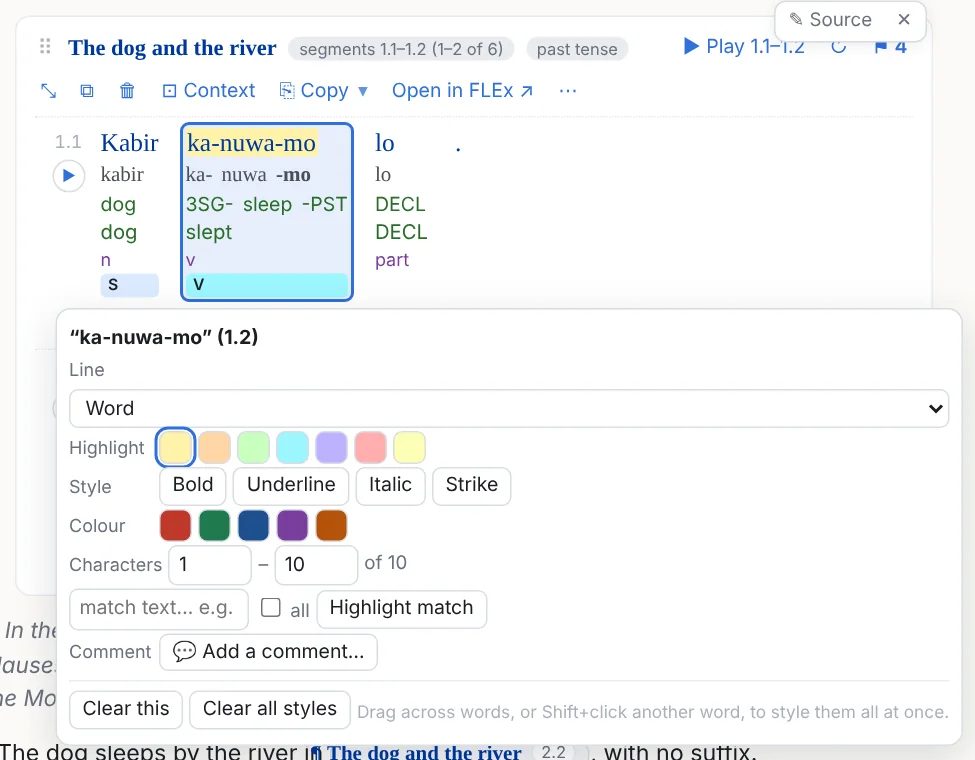
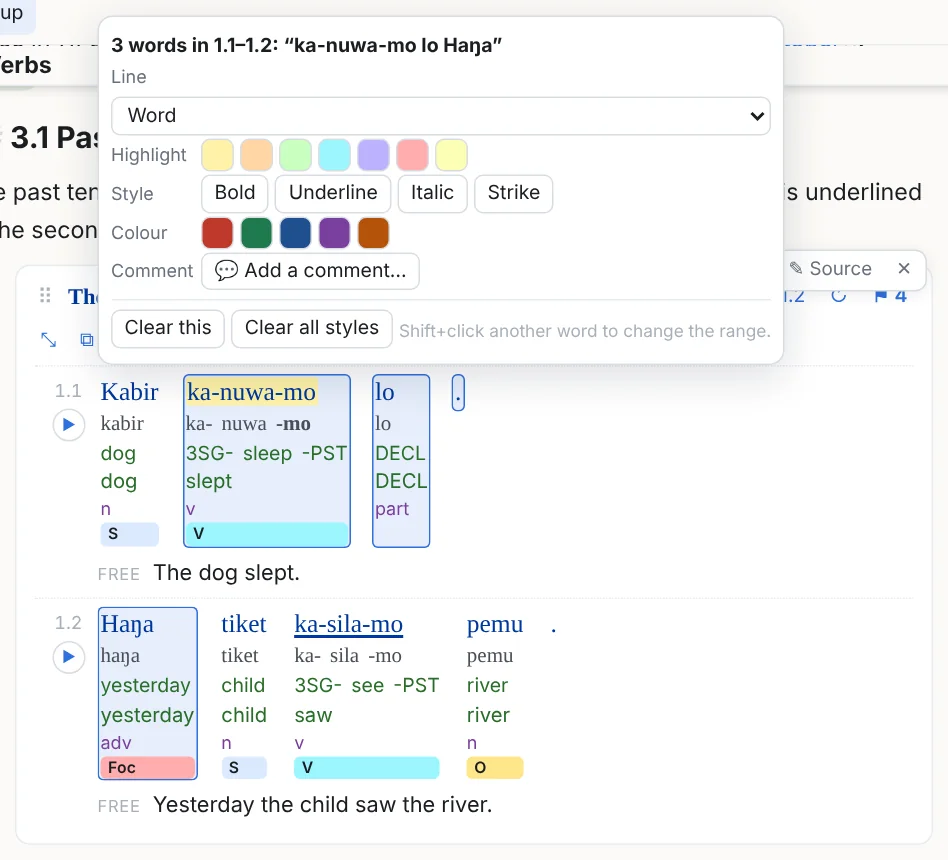
Click a word in an example: Highlight (in a chosen colour), Bold, Underline, Italic, Strike, Colour. A range of words beta.6: press on a word and drag to another, across lines too, and every word from the one to the other is selected; let go and pick the styles for all of them, on the line you began on (the words, the morphemes, the glosses…). Or click a word and Shift+click another. Part of a word beta.6: drag across some of its letters — on the word line, a morpheme or a gloss — and just those letters are chosen (the Characters range, with the letters shown in the popover); a plain click still takes the whole word. Clear this takes every style off the word or words chosen, however each was set; the words outside keep theirs. Characters styles part of a word (letters count with their marks); Match text styles every word, morpheme or gloss that matches, on the line you choose. Drag across the words of a free or literal translation, let go, and pick a style for that stretch; a plain click styles the whole line. The styling is written into the example's reference in the file and carried into every export.
FLEx text markup tags
Tags placed in FieldWorks' Text Tagging view (items of the project's Text Markup Tags list, placed over words) are read with the text and drawn in every example that shows those words. By default a tag is a small bar under its words with its abbreviation, in FLEx's own colour when it has one; tags that overlap stack.
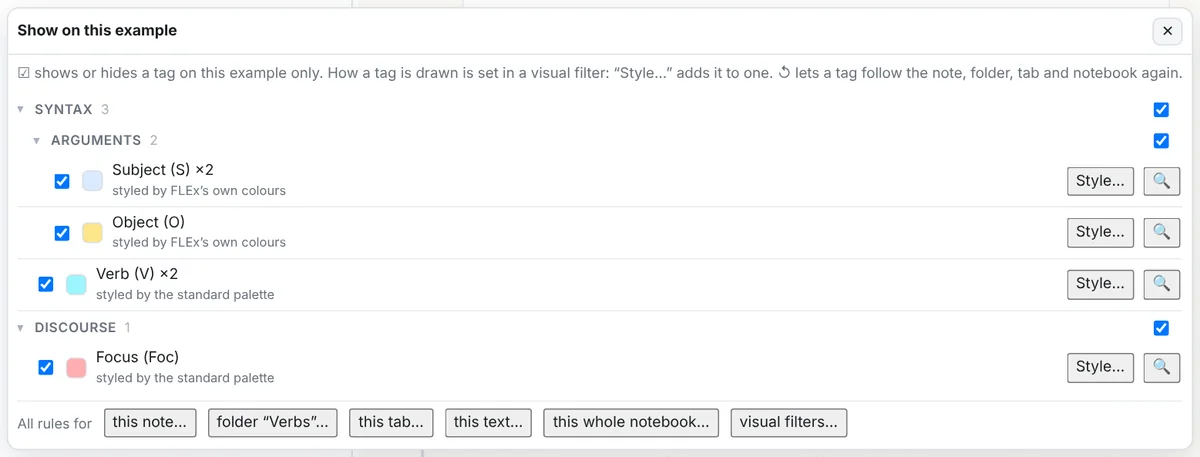
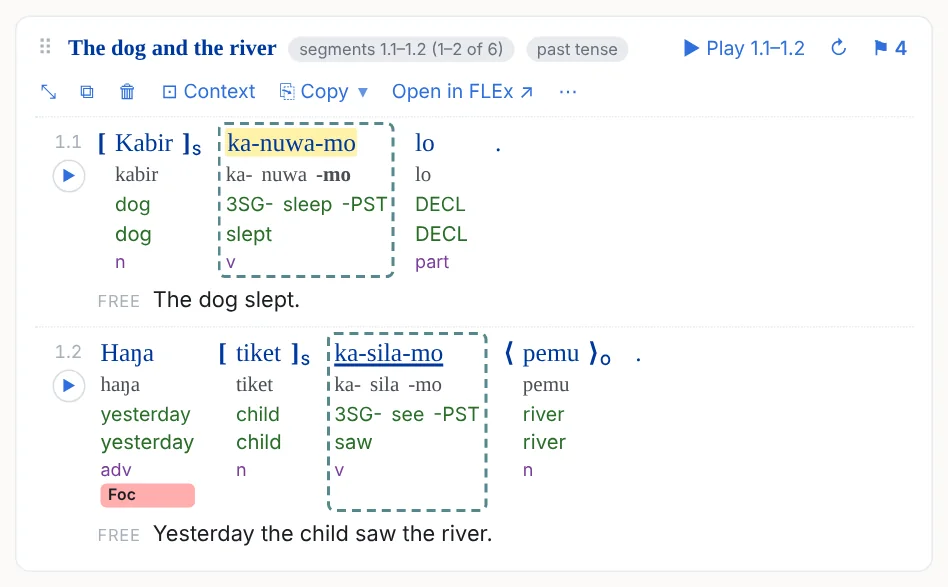
The ⚑ popover (Show on this example) does one thing for that example only: each tag's box shows or hides it there, ↺ hands the tag back to the broader rules, and the visual filters can be switched on or off for it. The filters' switches decide their tags beta.6: under each filter are the tags it styles and the ones it hides in this example. as inherited follows the note, folder, tab and notebook; on here applies the filter to this example whatever they say; off here stops it applying here, so its looks go and the tags it hides come back. While a filter's switch is on one of these three, the boxes of its tags are grey and show what it makes of them. Choose custom, or click a grey box, to show or hide its tags one by one; choosing one of the other three takes those choices out again. A look the example sets for itself (from an earlier version, or from the note menu's FLEx tag styles for the selected examples…) wins over every filter, so its filter's switch says custom until you choose as inherited, on here or off here, which take that look out. A tag the example does not draw (its FLEx text markup tags line is off) says so on its row. Style… on a tag puts it into a visual filter — one you have, or a new one — and opens that filter with the tag in it, because how a tag is drawn always lives in a filter or a scope's rules. There a tag's look offers, besides the bar: brackets round the tagged words ([ ], ⟨ ⟩, ⌈ ⌉, { }, ( ) and more), a marker over the word line, a tinted tile behind the words and their lines, a border round them (its line style, thickness and colour), a text colour, bold, italic, underline, and the bar on or off; or the tag hidden altogether. When the text has a chart, the ⚑ popover also lists the chart's columns, so an example can show which column its words sit in.
Where a style applies
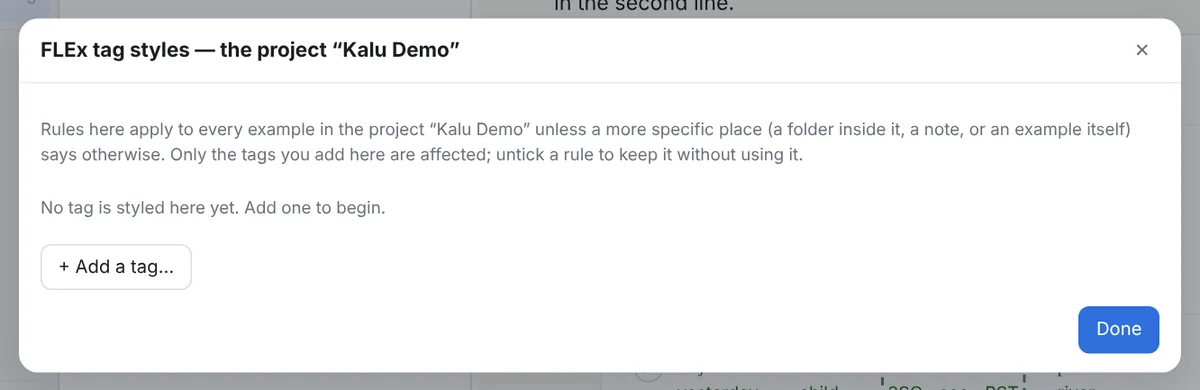
Rules live in scopes: an example (shown / hidden only, from its ⚑), a note, each folder the note is in, the tab, the text (wherever lines of that text appear), the visual filters that are on, and the whole notebook. The most specific wins, and shown / hidden is settled apart from the look, so "hide here" keeps the colours chosen further out. A scope's rules are in the ⚑ popover's All rules for … links, a tab's and a folder's right-click menu (FLEx tag styles…), Settings for the whole notebook, and the note menu for the selected examples.
Visual filters
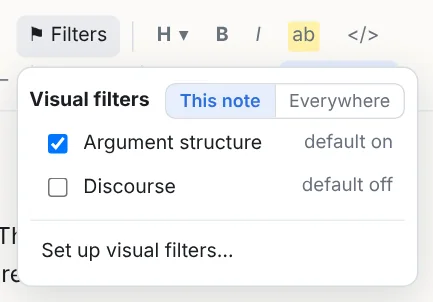
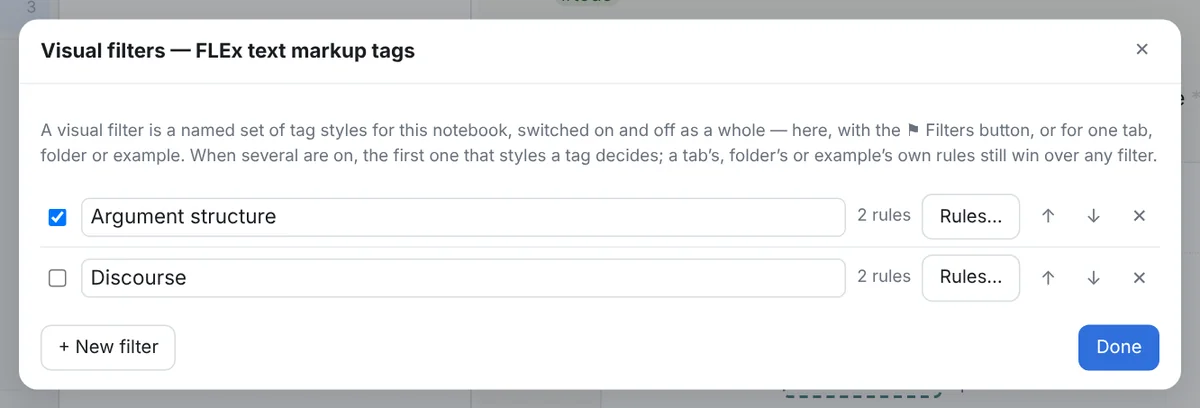
A visual filter is a named set of tag styles (and chart marker, column and structure styles) that you switch on and off as one, like a highlighting filter in Logos: Argument structure with brackets round subjects and objects, Discourse with tiles under topics. They are ordered, and a scope can switch one on or off for itself: the toolbar's ⚑ Filters does it for the open note or for everywhere. A filter's rules are edited in the same dialog as a scope's, and a filter only affects the tags you added to it.
beta.6 Which views a filter applies to. Under each filter in Set up visual filters…, Applies to has a box for each way a text is shown — Interlinear examples, Text charts: the columns, Text charts: the header groups, Text charts: one column — so a filter made for the one-column chart need not touch the examples, and the other way round. A filter applies everywhere to begin with; untick a view and the filter does nothing there (an example’s or a chart’s ⚑ panel says not applied to that view). The built-in way of styling tags, markers and columns and the scripted filters both follow it.
Scripted visual filters beta.6
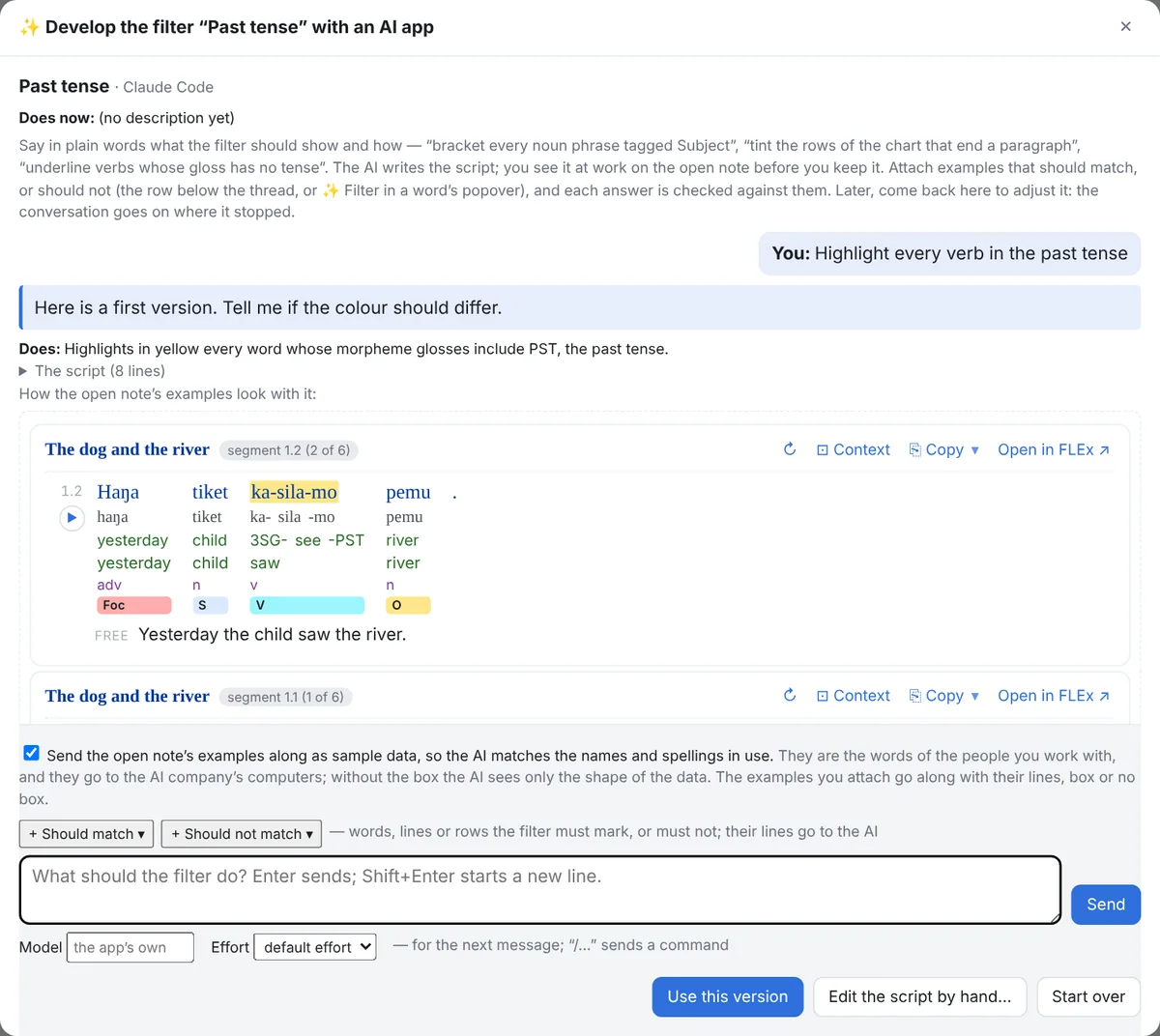
A scripted visual filter decides for itself what to style: a small JavaScript function that is handed each example and chart as plain data — its lines, words, morphemes and their glosses, categories, FLEx text markup tags, chart columns, rows and markers — and answers with marks: a highlight, bold, underline, a colour, brackets, a tile or a border on a word or a range of words, a row of a chart tinted, a badge on the example. So any filter you can put into words can exist: verbs whose gloss carries no tense, the second word of every clause, rows of a chart whose Subject column is empty. Set up visual filters… → ✨ New scripted filter… names it and opens a conversation with the AI app on this computer (Claude Code, set up in Settings › AI assistant; Gemini CLI not yet tried): describe the filter in plain words, and the AI writes the script and a one-line description of what it does. Tick the box first if the open note's examples may go to the AI as samples; the AI gets no tools and reads nothing else. Before anything is kept, the open note's examples are drawn with the new script in the window; Use this version keeps it, and from then on the filter works like any other: switched on and off with ⚑ Filters, for a note, a folder or a tab, carried into the exports, listed with its description wherever filters are listed. Come back to adjust it — ✨ Develop with AI… on the filter — and the conversation goes on where it stopped: “make it a bracket instead”, “only in dependent clauses”. The AI app's own session is remembered per filter on this computer; on another computer, or when the app has forgotten it, a new conversation starts from the filter's code. Script… shows the code, with a description of the data and the marks to copy for any AI app or to write by hand, and Test runs it on the open note. A script runs in a sandbox of its own: it reaches nothing of the page, the notebook, the project or the network, and one that takes more than two seconds is stopped and the filter says so. Not yet tried on Windows.
beta.6 A script sees every tier, shown or not. The data a script gets is the whole example — every line FLEx has for it (the word, its morphemes and their glosses, lexical entries and categories, the free and literal translations, the tags, the chart columns and rows), whether or not the example shows those lines — and the whole chart, with each cell’s words and their morphemes. So a filter can mark the clitic =lo on the baseline while the Morphemes line is hidden, in an example and in each of the chart views alike; which views it applies to is set as for any filter (above).
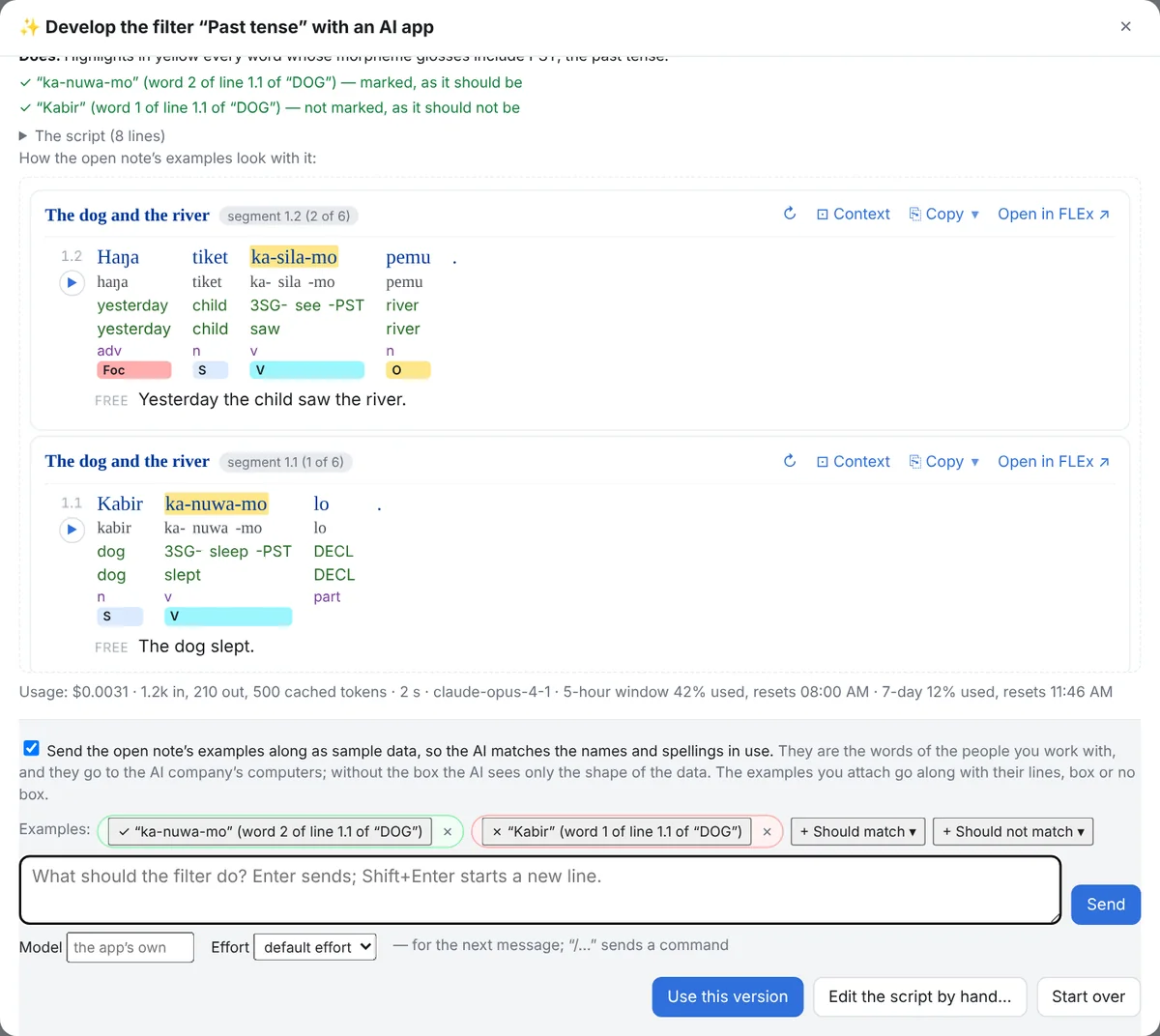
beta.6 Tell it which examples must match, and which must not. Click a word in an example (or drag across several, or click a free translation): the popover's ✨ Filter row has ✓ should match and ✗ should not match, which attach those words to the filter conversation opened last — or, when none is open, to a filter you pick, a new one if you like. A chart row's popover and an example's ⋯ menu (✨ A filter should match this example…) do the same for a whole row or example, and the row over the chat's input (+ Should match ▾, + Should not match ▾) takes the words, lines or rows selected in the open note. The examples ride there as chips (a click on one says the opposite, ✕ takes it out) and go to the AI with every message, each with its lines as the script will see them; every answer is run on them, and under it the window says ✓ or ✗ for each. One the AI gets wrong is sent back once with what was wrong; if it is still wrong, the answer says so and you decide. They are kept per filter on this computer.
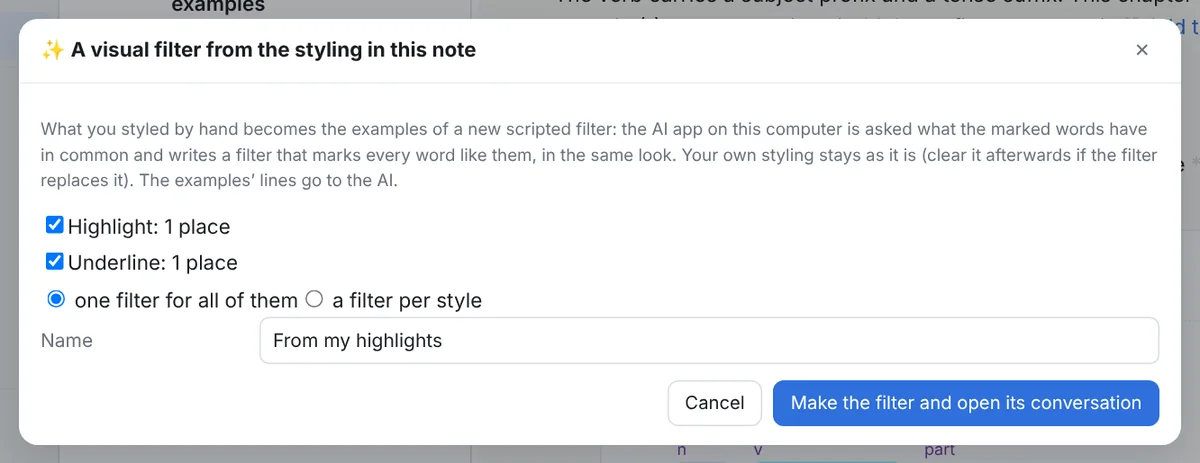
beta.6 From your own highlights. Where you have already highlighted or styled words by hand — in a note, in a selection, in a folder, or anywhere in the notebook — a filter can be made from them: the note menu's ✨ New visual filter from the styling in this note… (or …in the selection…), a folder's ✨ New visual filter from the styling in this folder…, and ✨ New filter from my highlights… in Set up visual filters… for the whole notebook. The dialog lists the styles it found (a highlight in yellow: 12 places; bold: 3) and makes one filter for all of them or one per style; every styled word, line or row is attached to the new filter's conversation as an example that should match, and the request is drafted for you: find what they have in common and mark every word like them, in the same look. Your own styling stays as it is.
Finding notes by tag
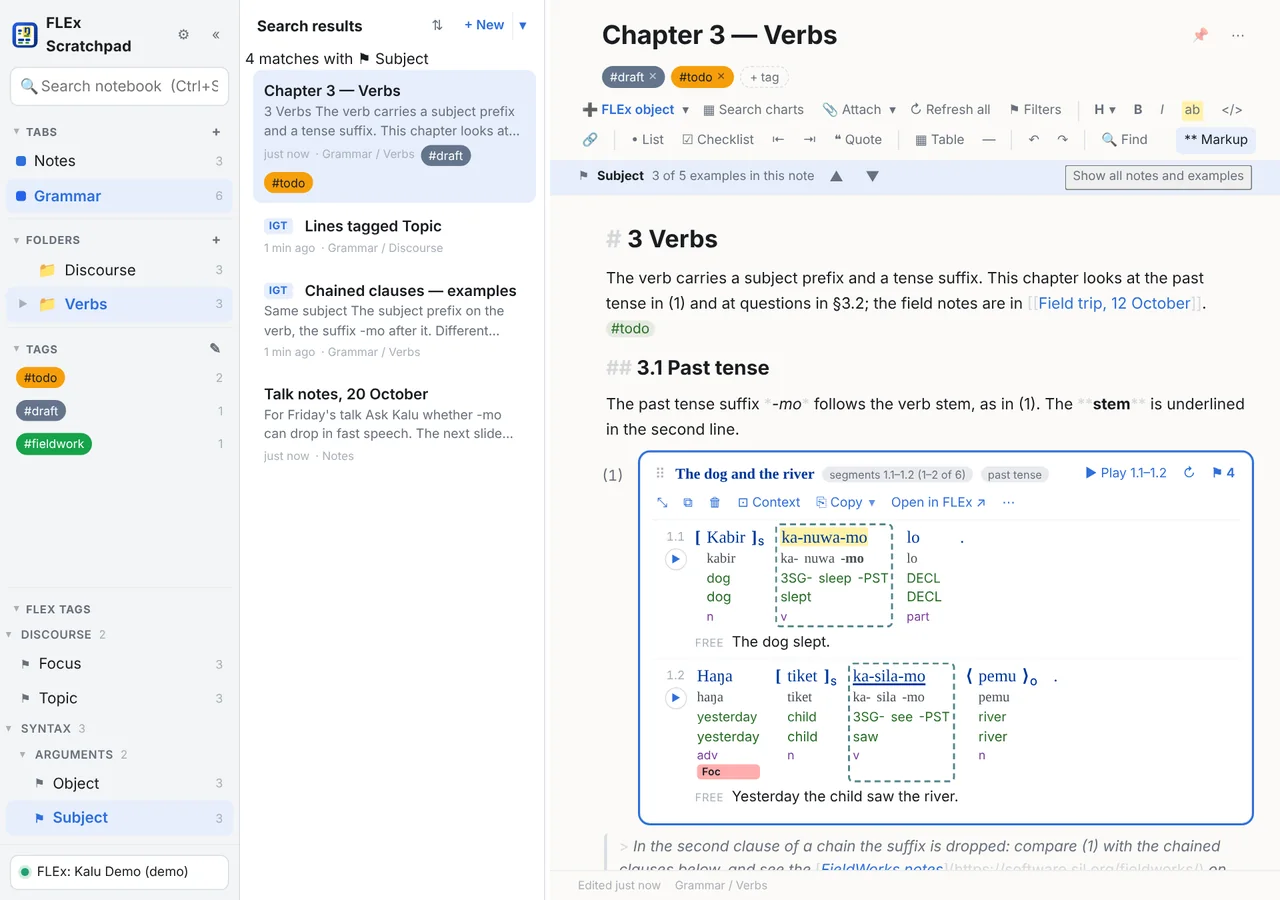
The rail's FLEx tags lists the text markup tags the tab's notes use. Click one: the list shows only the notes whose examples carry it, and in the open note those examples are marked, the others dimmed, with a bar to step through them. The search box does the same with tagged:Topic, and the FLEx object dialog's FLEx tags view lists every place in the project a tag is used.
6Hearing an example
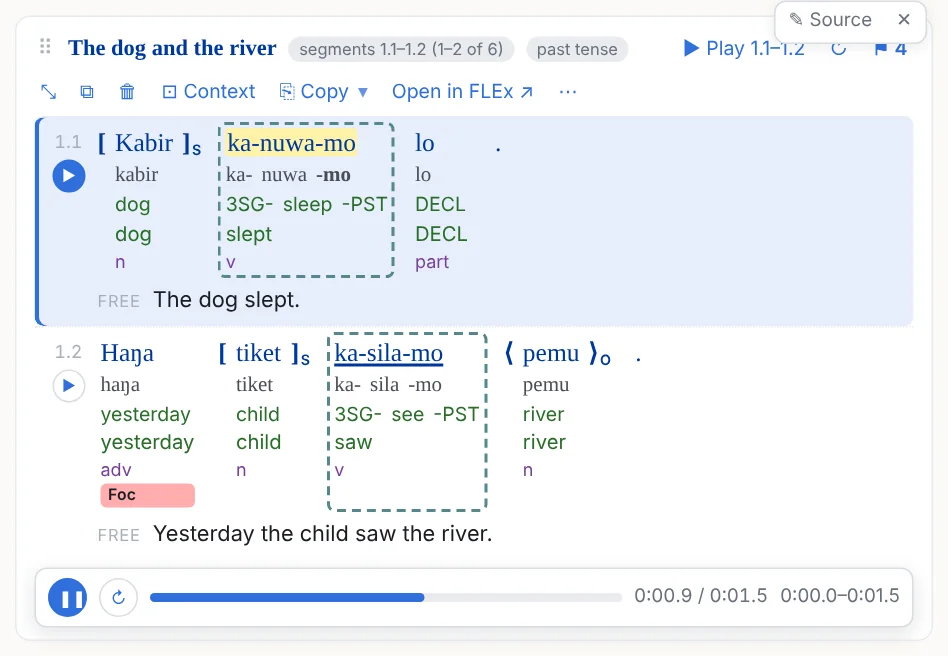
When a text in FLEx is time-aligned (its lines have begin and end times and a media file; where that comes from), each line of an example has ▶, a range has Play 1–3, and a transport strip offers pause, loop and scrubbing. The playing line is lit and the note scrolls to it unless you are scrolling yourself; the player stays at the bottom of the view while the example runs on below it. Whenever something plays and its player is not on screen, a Now playing bar at the bottom of the window has pause, stop and the position; Esc stops.
The first time a line plays, its stretch of the recording is cut and kept in the notebook, so it still plays when the recording is somewhere else. When a text's media file cannot be found, its ▶ buttons are drawn dashed and a click asks for the file (Browse for the audio file…); the file you pick is remembered for that text and its folder for the others, with FLEx open or not. Audio added in FLEx later. If you time a text after taking examples from it (the FlexText Audio Segmenter, ELAN) and import the timed file into FLEx without merging it into the text that is there, FieldWorks makes a new copy of the text, and your examples still point at the old one. Click an example's ↻ (or ↻ Refresh all): an example with no recording looks for the same lines in a text that has one and moves to it, keeping its highlights; a message says which text it moved to, with Undo. If you said yes to FLEx's merge question, the text keeps its lines and ↻ shows the recording straight away. Charts play too (Playback), and the web page and slideshow exports carry the players (Audio in the exports).
7Example collections
A collection is a note that is only examples, numbered in order, sorted into groups, each with a note of its own, and the one kind of note that exports as a FLEx text.
Making one
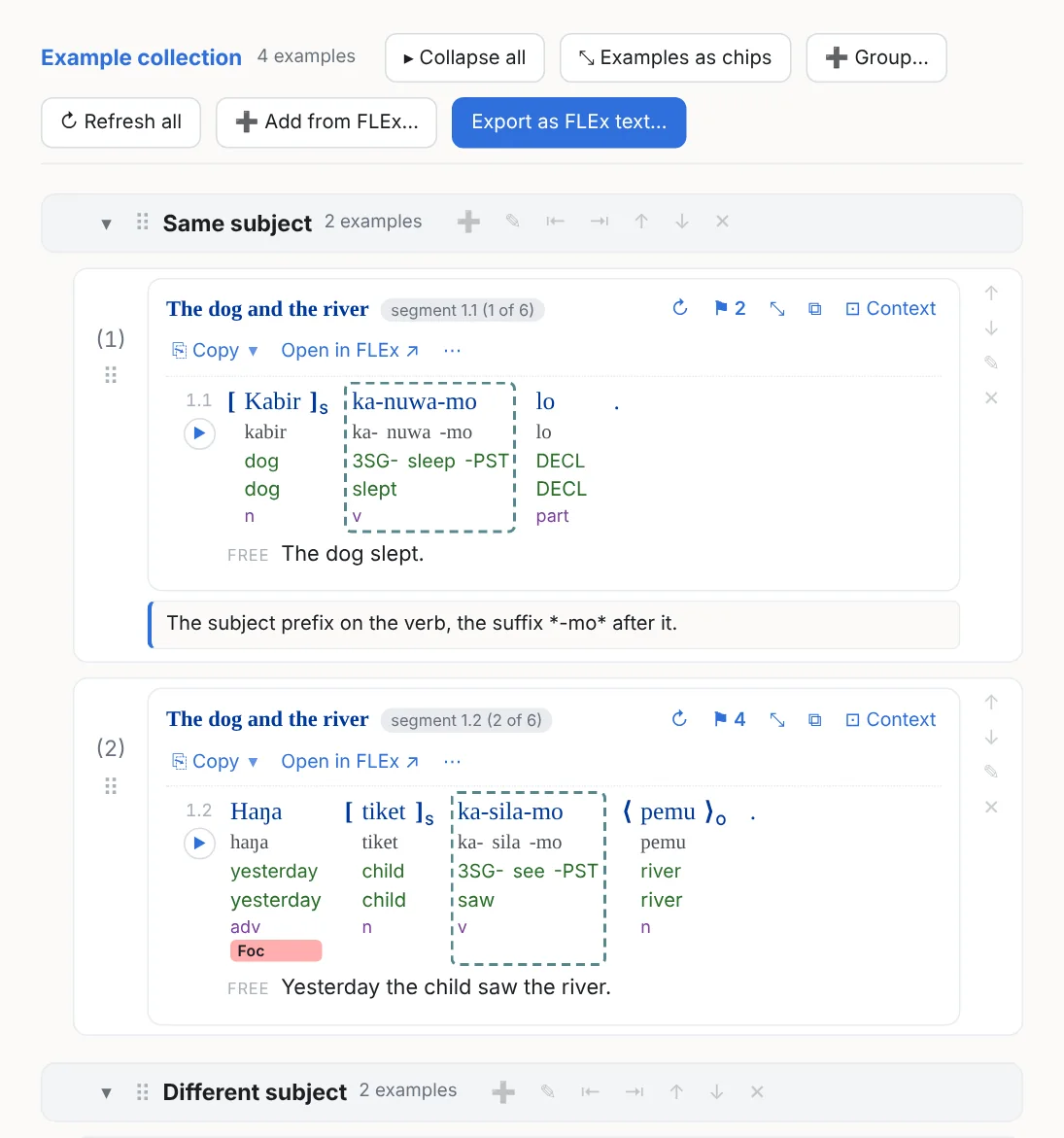
- + New ▾ → New example collection (Ctrl+Shift+N): an empty collection. Paste FLEx rows into its paste box, use Add from FLEx…, or choose Add to an example collection… on any example in any note (its ⋯, or + Collection on a chip's preview).
- In an ordinary note, ⋯ → Collect the examples into a new collection… copies its examples into one: the examples in the highlighted part of the note if you selected some, else all of them.
- Chart rows found by the chart search can be collected too; they appear as cards, and the FLEx text export leaves them out.
Groups, notes, chips, selections
- Groups (+ Group…) are labelled headings with levels (⇤ ⇥), collapsible (▸ / ▾, Collapse all), renamed by double-click; drag examples onto them or use ↑ ↓. Numbering runs straight through the groups, which only organise the view and are not exported.
- A note on an example (✎) is exported: FieldWorks shows it as a note on the example's first line.
- Chips: ⤡ collapses an example to a chip in the collection too; Examples as chips / in full in the header does all of them. Collapsed examples still export.
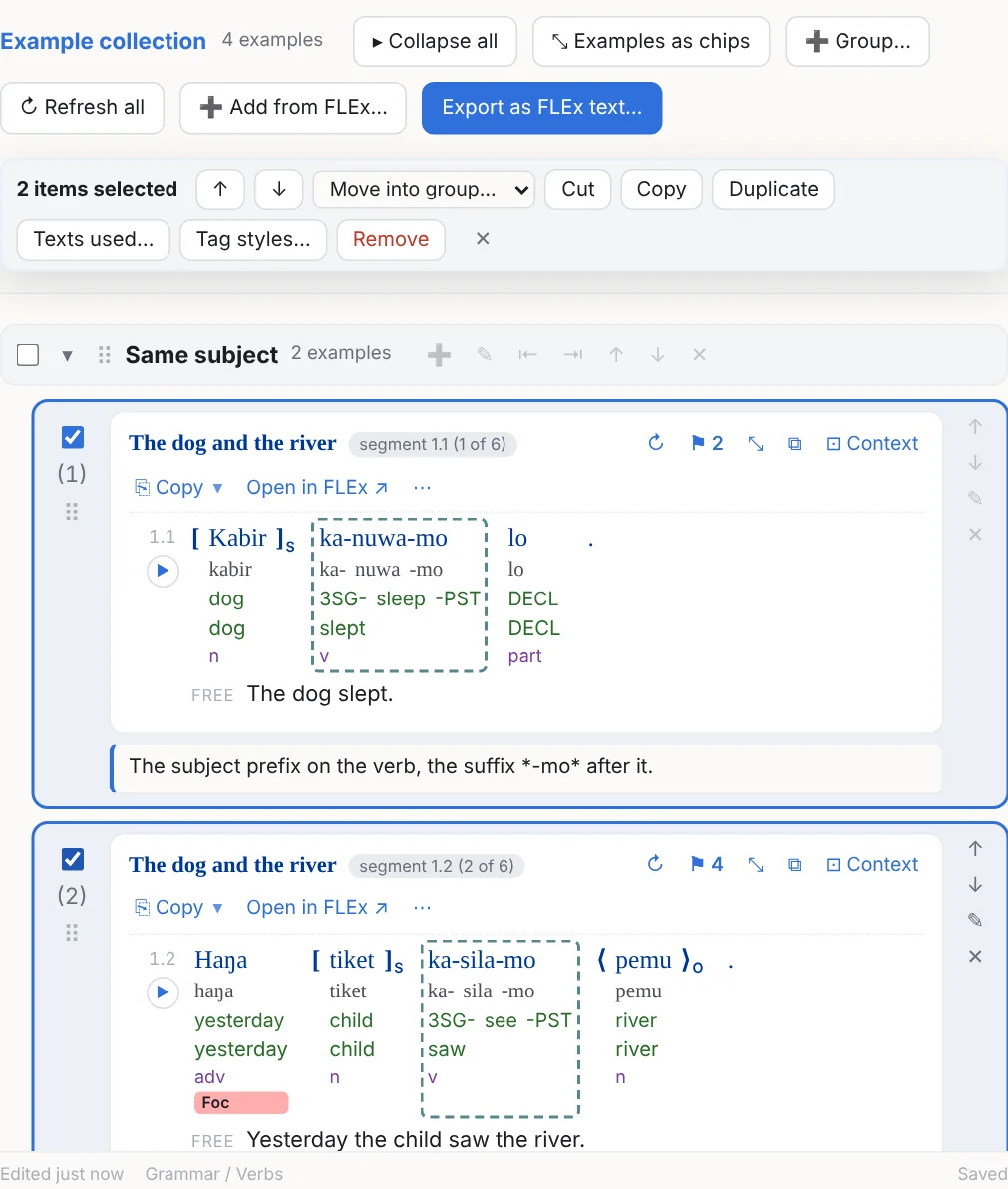
- Several at once: a checkbox per example and group (Shift for a range, Ctrl+A for all); the bar moves them (Alt+Shift+↑ / ↓), moves them into a group, cuts, copies and pastes them (Ctrl+X / C / V, into a note or another collection), duplicates (Ctrl+D), sets their tag styles, lists their texts, and removes them (with Undo). Dragging a ticked card moves them all.
- ↻ in the header re-reads every example from the project.
Collections by rule
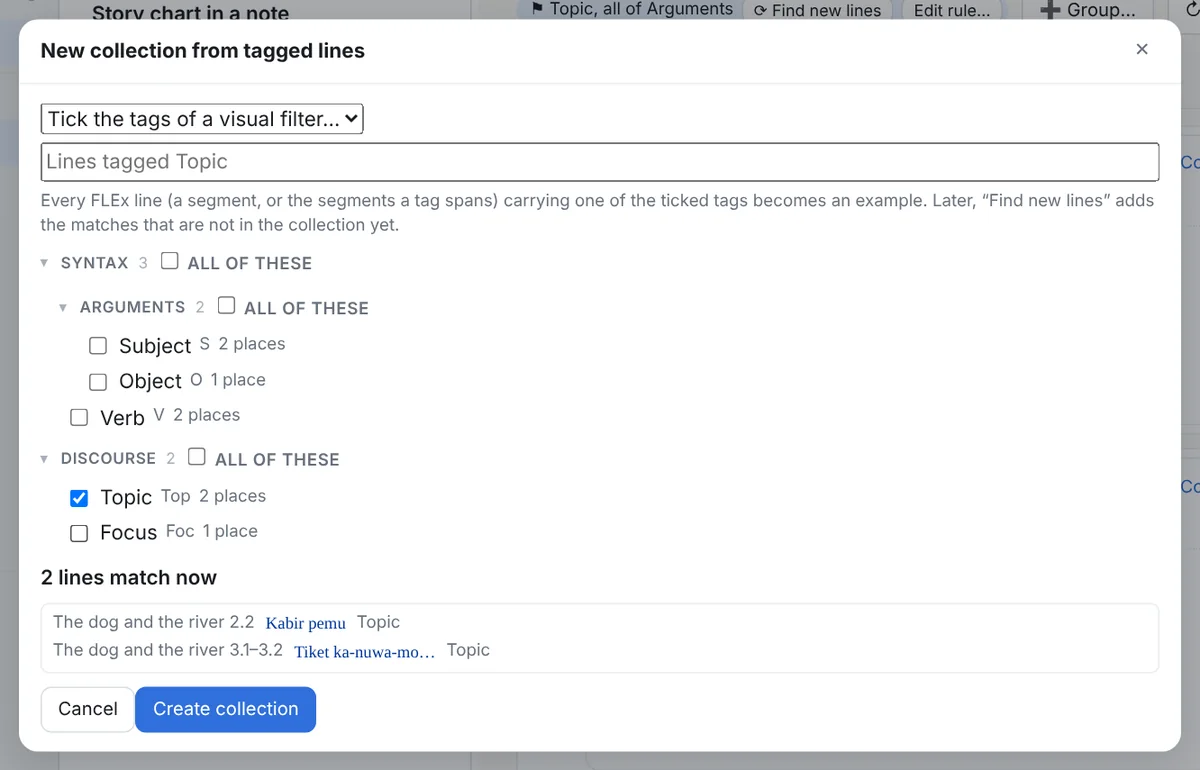
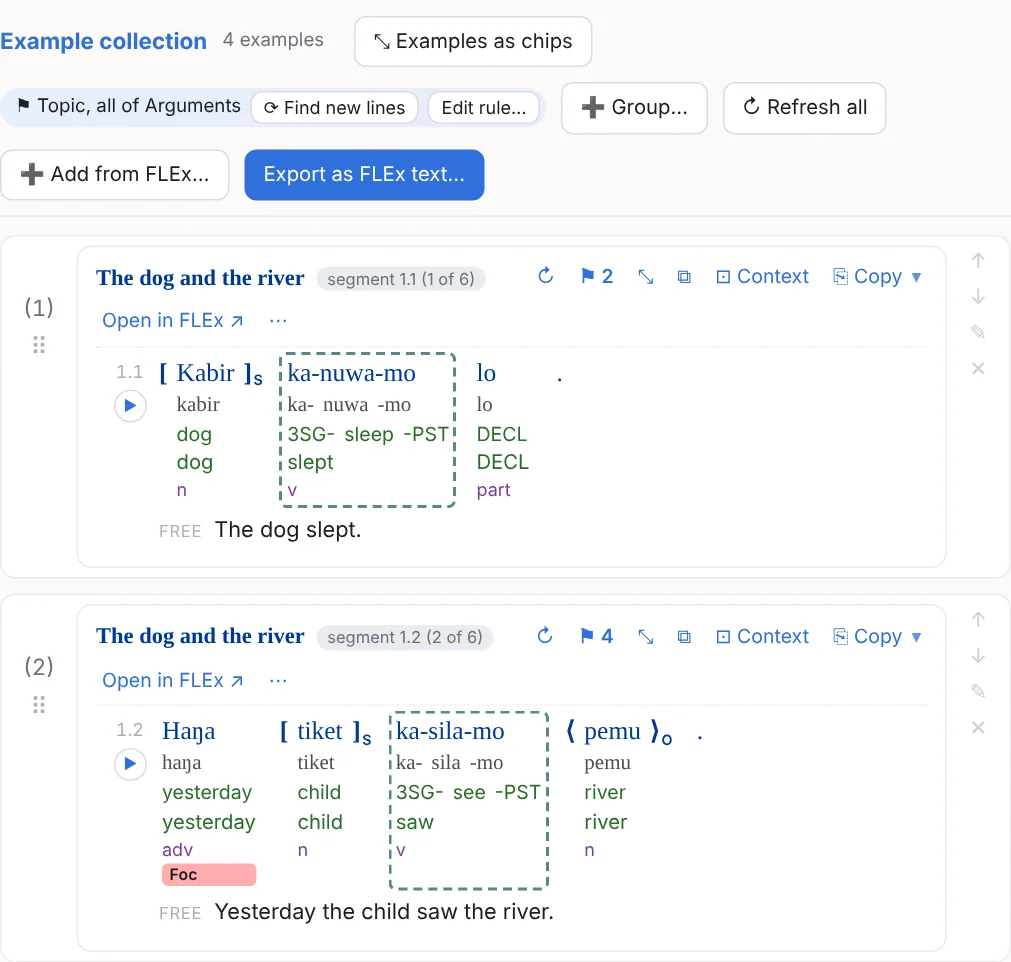
Tick FLEx text markup tags (a group's box takes every tag under it; a select ticks a visual filter's tags in one go) and every line in the project carrying one becomes an example, in text order, one example per line however many tags it has. The rule is saved in the collection: ⟳ Find new lines appends the matches not in it yet and selects them (a line you removed comes back; keep it in a group instead), Edit rule… changes the tags. A rule can also be a chart search: ⟳ Find new rows then.
From a FLEx concordance export
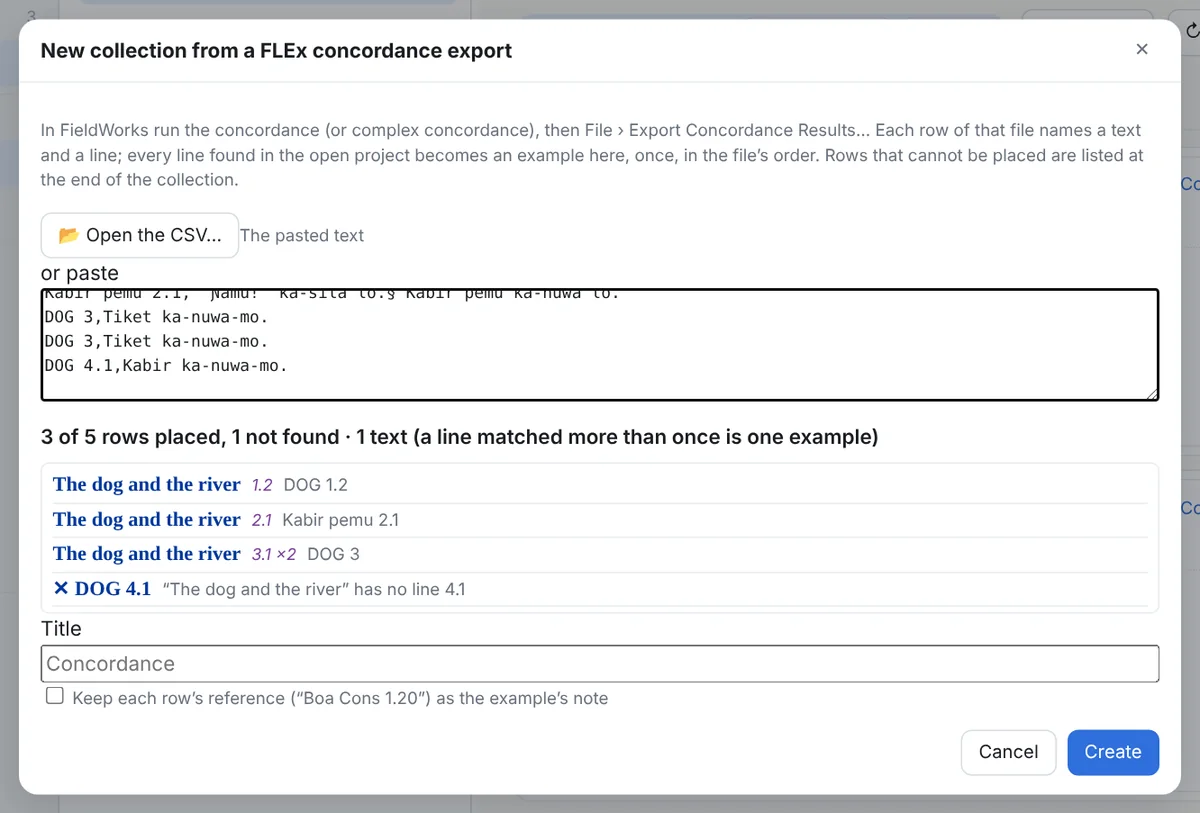
In FieldWorks run a concordance or complex concordance, then File › Export Concordance Results…, which writes a CSV of Ref,Occurrence rows. Here, + New ▾ → New collection from a FLEx concordance export…, open that file (or paste its contents into the box). Each row is placed: the text by its abbreviation or title in any writing system, the line by FLEx's number, the baseline checked against the occurrence. Every line found becomes an example, once, in the file's order; the rows that could not be placed are listed in a paragraph at the end of the collection, never dropped silently. Keep each row's reference as the example's note keeps the Ref and how often the line was hit.
Which texts a note uses
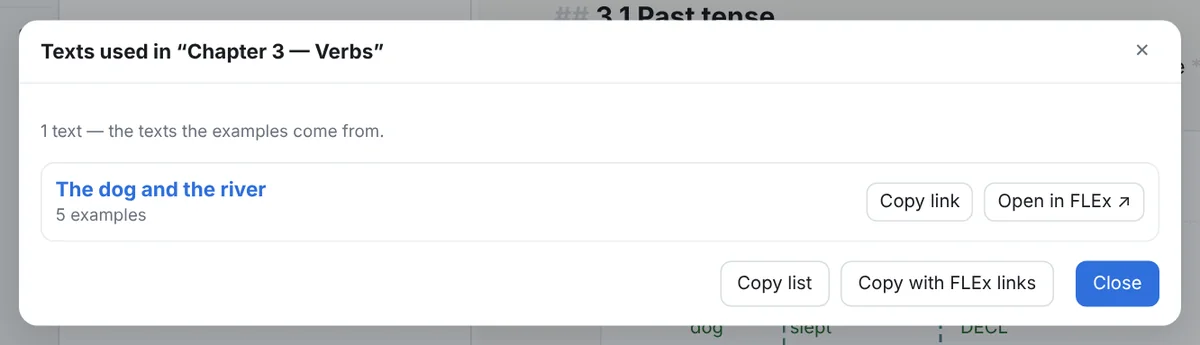
One row per source text, with how many examples and links draw on it, the notes it appears in, and its link into FLEx; for a note, the highlighted part of a note, a folder with its subfolders, a whole tab, or a collection's selection. Copy list and Copy with FLEx links put it on the clipboard as a Markdown list.
Export as a FLEx text
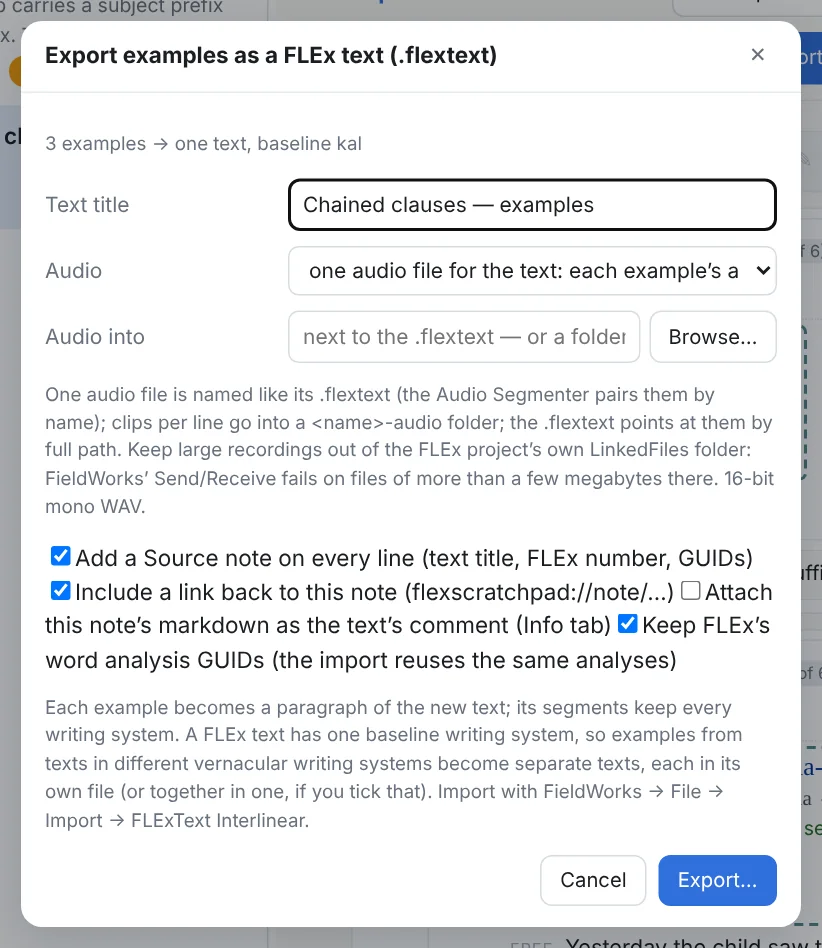
Why you would want this. FieldWorks works on one text at a time. A collection exported as a FLEx text makes the examples you chose, from many texts, into one new text you import into FLEx: every serial-verb sentence in your corpus, say, or every clause with a particular particle, side by side as one text you can gloss, tag, chart or concord on its own, without touching the texts they came from. With its audio, it also opens in the FlexText Audio Segmenter to check or cut.
Only a collection exports a .flextext: one paragraph per example, one phrase per line, every writing-system alternative, the word identities kept so FieldWorks reuses the analyses on import, a Source note per line naming the text and line it came from. Examples from texts in different baseline writing systems become one file each. The Audio choice: one audio file for the text (the default: every example's recording in order with a click between examples, named like the .flextext and saved beside it, which the FlexText Audio Segmenter pairs with it by name), one small file per line, the original recordings and offsets, or none; or into a folder you choose, such as a lameta session folder; the .flextext then points at the recording by its full path. Keep large recordings out of the project's own LinkedFiles: FieldWorks' Send/Receive fails on files of more than a few megabytes there (see the FAQ). The file is a new text with new identities: importing it cannot touch the texts its examples came from, and the program refuses to write a file FieldWorks' importer would stumble on.
8Text charts
FieldWorks' constituent charts, as living objects in a note: the whole chart or a range of its rows, with the column headings, the free translations spliced in, styling by click and by rule, three layouts, playback, and a search over every chart of the project.
A chart in a note
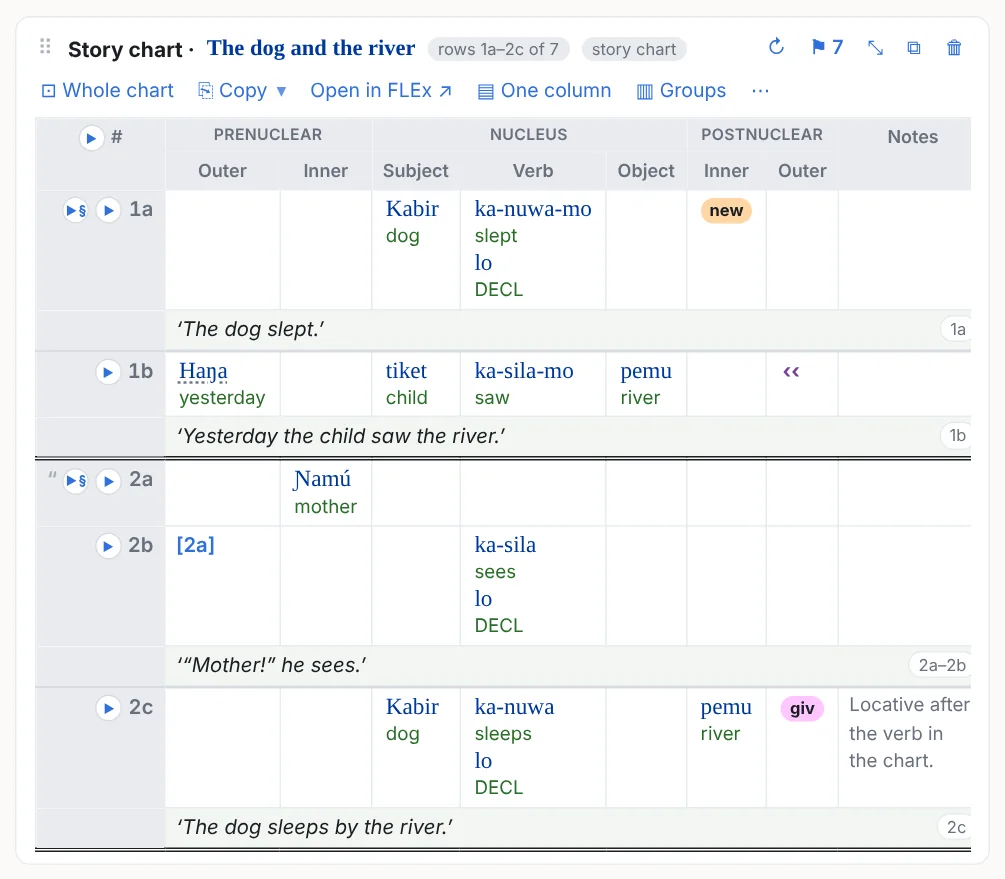
Ctrl+Shift+L → Text charts: pick a chart (a text has one per template it was ever opened with; those with rows are listed first and empty ones say so), click the first and last row, Insert rows, or Whole chart. The column headings always come along. A chart has no name of its own in FieldWorks, so it goes by its template. Rows are addressed by their identity, not their number, so a chart re-numbered in FLEx keeps the same rows here. This is the only way in for a chart: FLEx has no way to copy a text chart, so a chart, or some of its rows, is always inserted from here (or with the toolbar's ▦ Search charts, Ctrl+Shift+K). Rows copied from a chart in a note paste as a chart elsewhere in the notebook.
The chart's menu
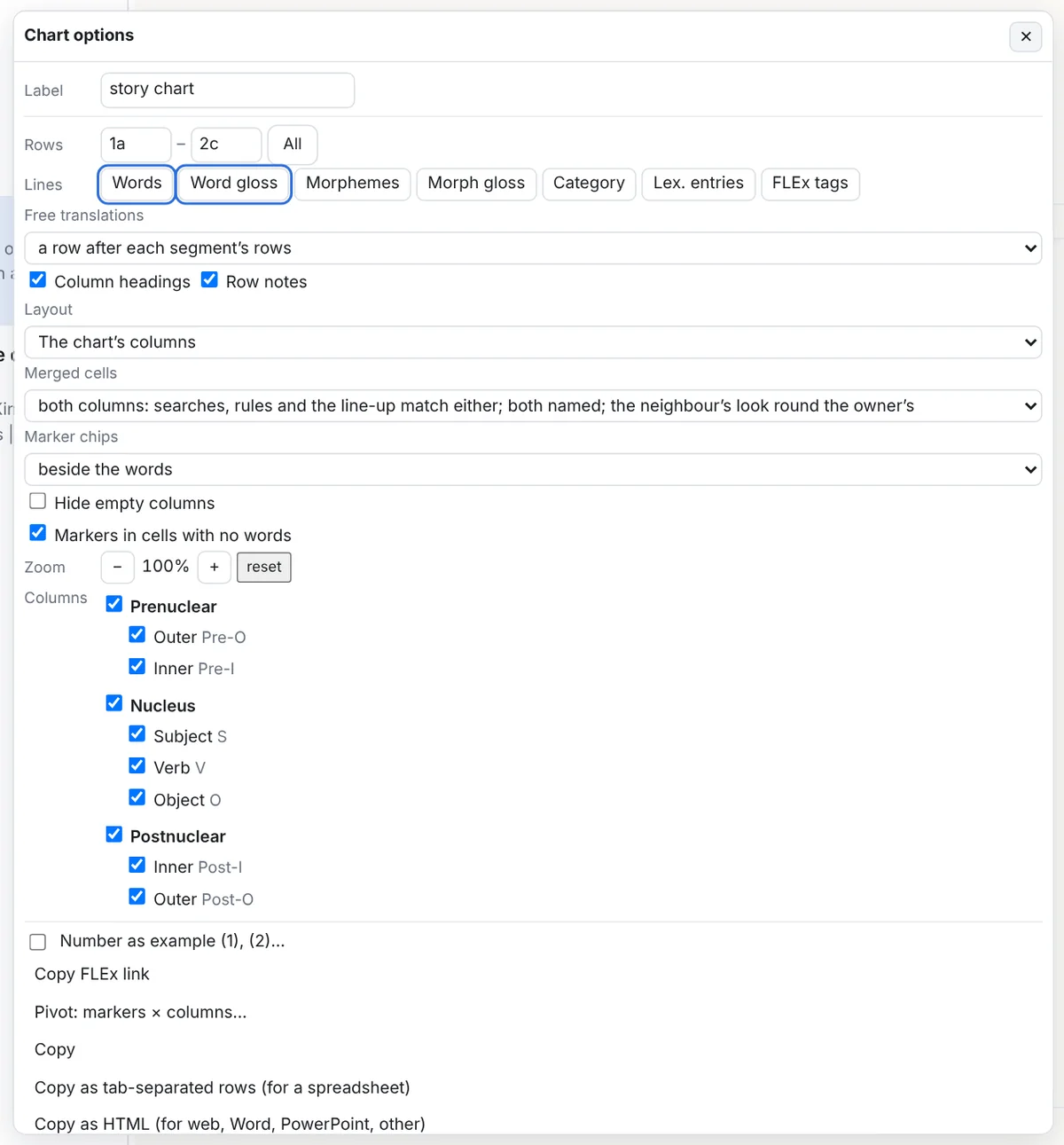
- Lines in a cell: Words, Word gloss (the default), Morphemes, Morph glosses, Category, and the text's FLEx tags as chips.
- Free translations: a row after the last row holding a line's words (naming the rows it covers), a Free column, a tip for the clicked cell, or off. Headings on or off (for a continuation), the row Notes column on or off.
- Columns: a box per column under its header group; Hide empty columns drops the ones with nothing in the rows shown; a heading's popover has Hide this column.
- Layout, Merged cells, Marker chips, Markers in cells with no words, Zoom, Line up on: below.
- Copy, Copy as tab-separated rows, Copy as HTML, Copy chart source (Copy an example), Export as FLEx chart XML / JSON, Pivot, Change the chart…, Show these lines as an interlinear example, Open as a chart note…, Edit source, Duplicate, Remove.
Styling by click
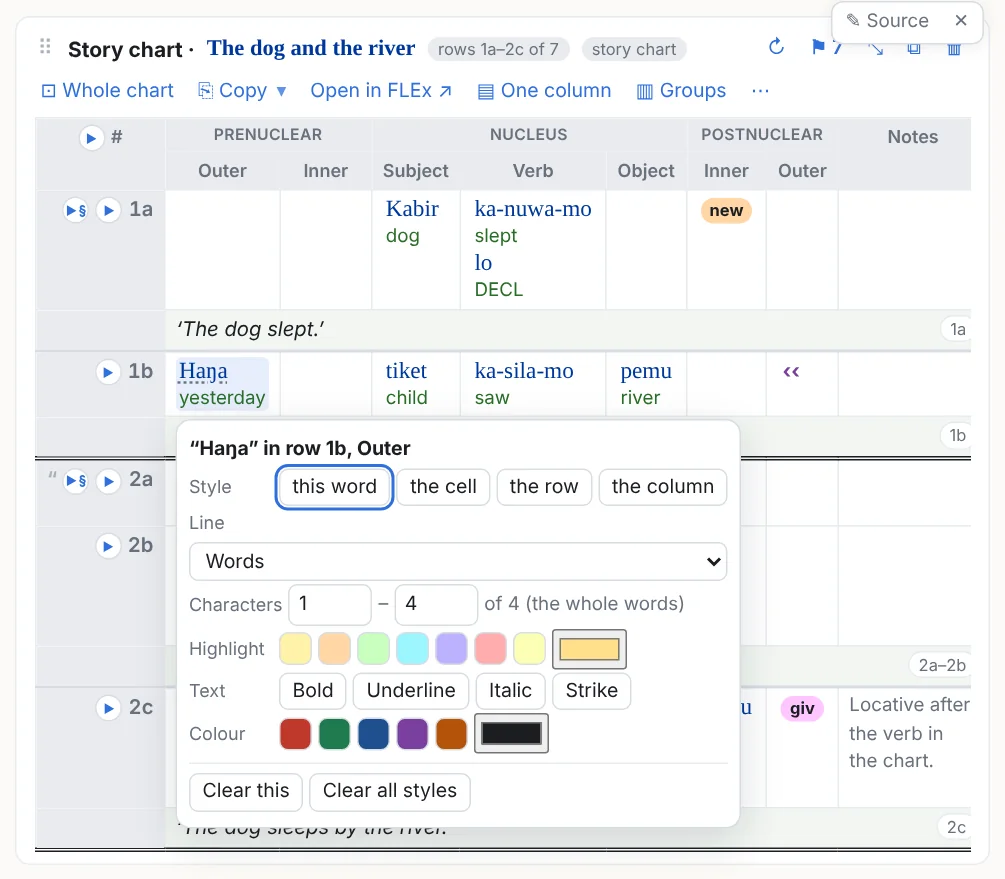
The same highlight, bold, underline, italic, strike and colour as on an example, for this word, the cell, the whole row or the whole column. For a word, Characters narrows the style to some of its letters, on whichever line you choose (or select the letters with the mouse before you click the word), as in an example. Styles stay put when you switch between the columns, one-column and groups layouts. A column heading's popover also has Hide this column and Style this column everywhere… (⚑); a row label's has Select this row.
⚑ Markers, columns, structure
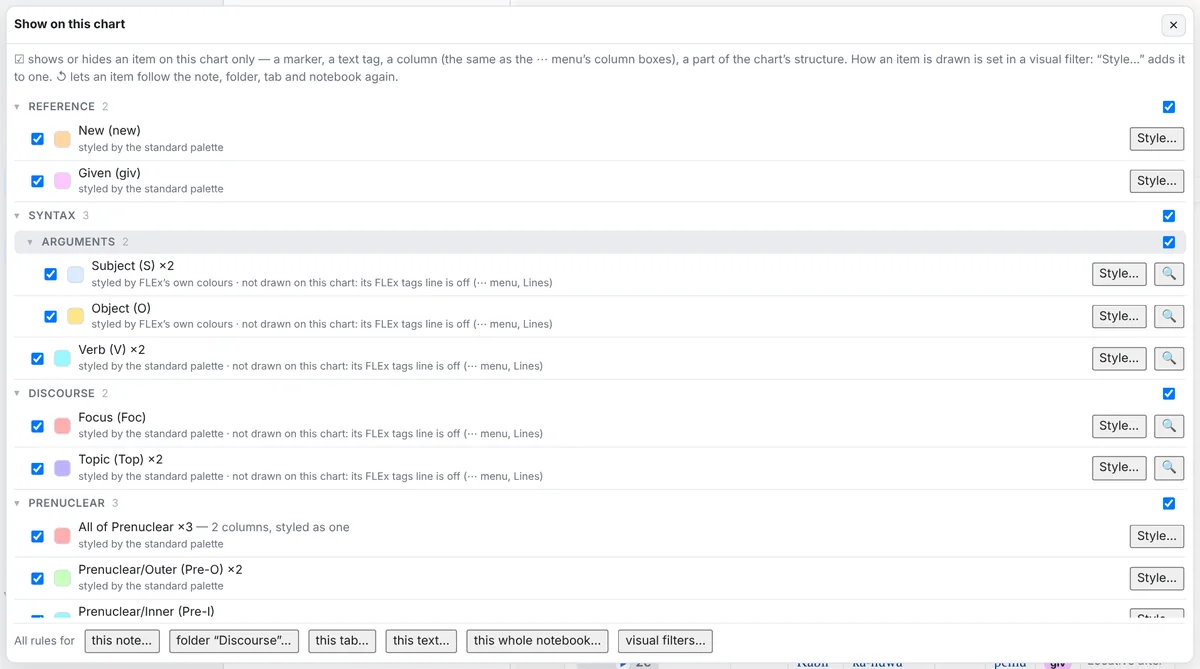
The popover (Show on this chart) is in three parts, each item with the same show/hide box for this chart and the same Style…, which takes it to a visual filter. A column's box is the same setting as the ⋯ menu's column boxes and a heading's Hide this column, so either place undoes the other:
- Chart markers (the project's Chart Markers list, as its tree): a chip's colour, bold, hidden, or whole row, which colours every row the marker is in. In an empty cell decides per marker whether it shows in a cell with no words, overriding the menu's switch for all of them.
- Columns and header groups: a tint, a border, a text colour, bold / italic / underline for a column's cells and heading (brackets and the rest too in the one-column layouts and on examples); a header group (All of Nucleus) is styled as one box across its columns. A column whose rule says hidden leaves the table.
- Chart structure: dependent, speech and song clauses (the whole row: a tint, a highlight on its words, a border round the row, brackets round its content, the words’ colour), the
[2a]clause markers, moved text (preposed or postposed word groups: a tint, border, brackets or colour; the look of the column it came from or sits in; a label such as ‹‹ Subj), the sentence and paragraph boundaries FLEx marks (their line style, thickness and colour, or hidden), and merged cells (any, by side, or by column).
A group heading's box switches everything under it on, off, or back to the mix it had. All of these are the same rules a visual filter holds, so one filter can bracket the subjects on your examples and tint the Subject column of your charts. The filters' switches at the foot of the popover work as on an example beta.6, with one difference: a switch changes a column's look and never takes the column out of the table, so a column's box is never grey. The text's tags are listed too; a chart draws them only when its FLEx tags line is on (⋯ menu), and their rows say so when it is off.
Three layouts
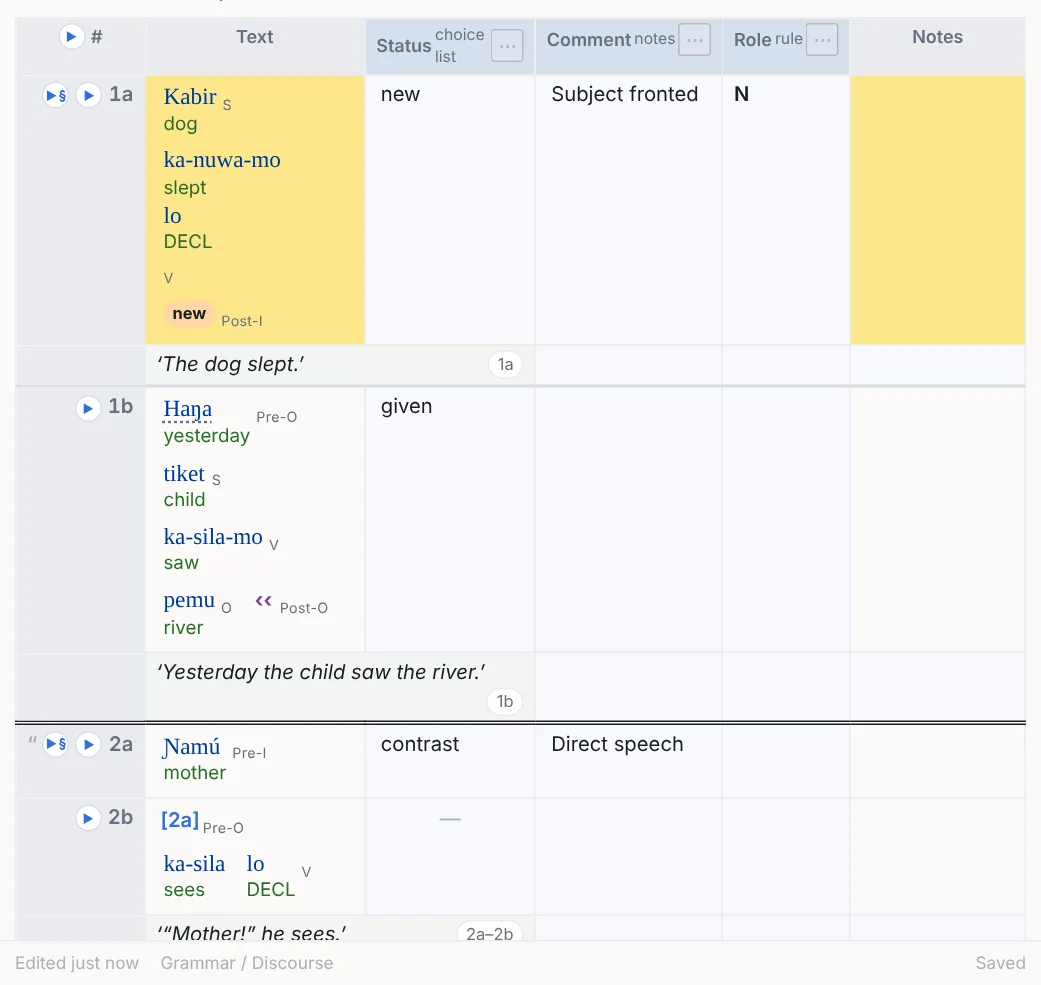
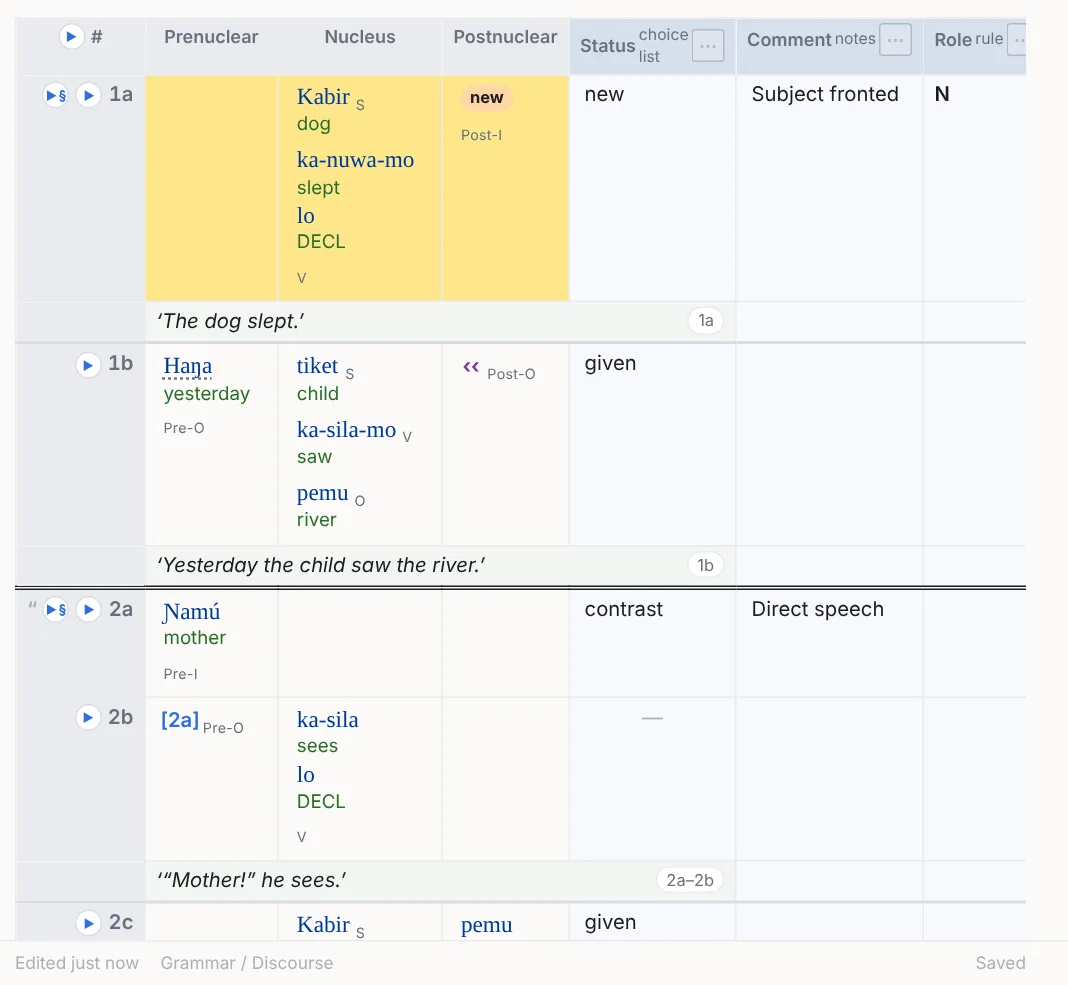
▦ Columns is the chart as FieldWorks draws it. In the two flat layouts the column rules do the work the columns did: a visual filter by column or marker styles each part (brackets, tiles, borders, colours), the parts of one FLEx cell share one box, and Line up on centres (or left- or right-aligns) the parts of chosen columns or header groups on one axis across the rows, the rest flowing beside them. Marker chips go beside the words, on a line of their own under them, or on their own line no wider than the words, so chips never widen a column. The copies and exports follow the layout.
Widths, zoom, hidden and frozen columns
- Column widths: drag the right edge of a heading; a wide chart scrolls sideways under its headings, which stay put, as does the row-label column with the ▶s. Double-click the edge, or Reset column widths, to let it size itself. Widths are kept in the note.
- Sticky headings: the header rows stay at the top of the pane while the chart's rows scroll past.
- Zoom (50–200 %) makes a chart larger or smaller on its own.
- Hidden columns come back from the menu's column boxes; Hide empty columns drops the empty ones for the rows shown.
Merged cells
A cell FieldWorks merged with its empty neighbour ("it could be either column") counts for both columns by default: searches, rule columns, the column profile and Line up on match either, it is drawn with the owner column's look round the words and the neighbour's round that, and in the flat layouts it is labelled S+V. The menu's Merged cells chooses otherwise: the owner column alone for everything, or both named with the owner's look only, or the owner's look and name. The ⚑ popover styles merged cells as a thing of their own: any, merged to the right or left, or merged from a given column.
Playback
▶ beside a row plays every time-aligned line with words in that row, from the text's recording (a row holding the end of one line and the start of the next plays both); ▶ in the # corner plays the lines of the rows shown. While a line plays, the cells holding its words light up and every row it touches is marked at its label; ▶§ plays a whole sentence (the rows 4a, 4b, 4c) and ▶¶ a whole paragraph. The web page and slideshow exports do the same.
Copying rows, converting, pivoting
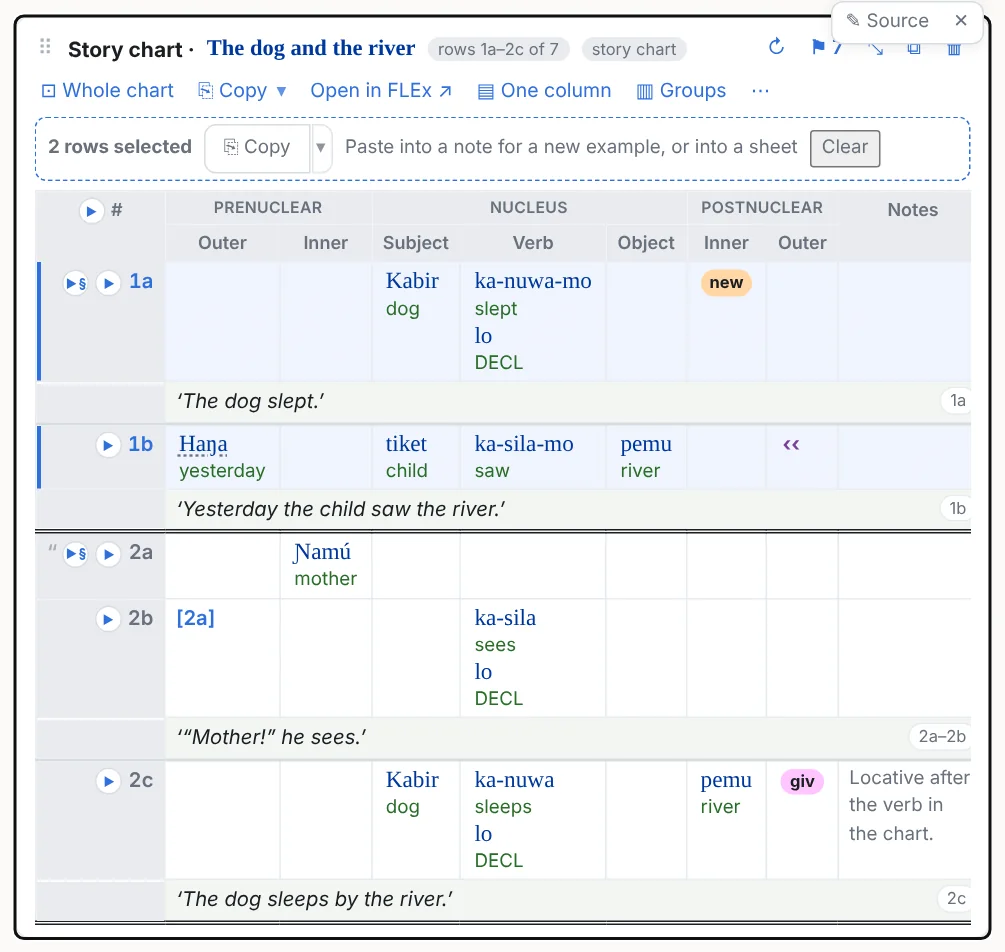
Copy rows: Ctrl+click (or Shift+click for a range) on a row's label; the bar's ⎘ Copy (or Ctrl+C) copies them with the header rows: pasted into another note they make a chart object of just those rows, into Word or PowerPoint a formatted table, into a sheet the rows; ▾ has the other ways (Copy an example).
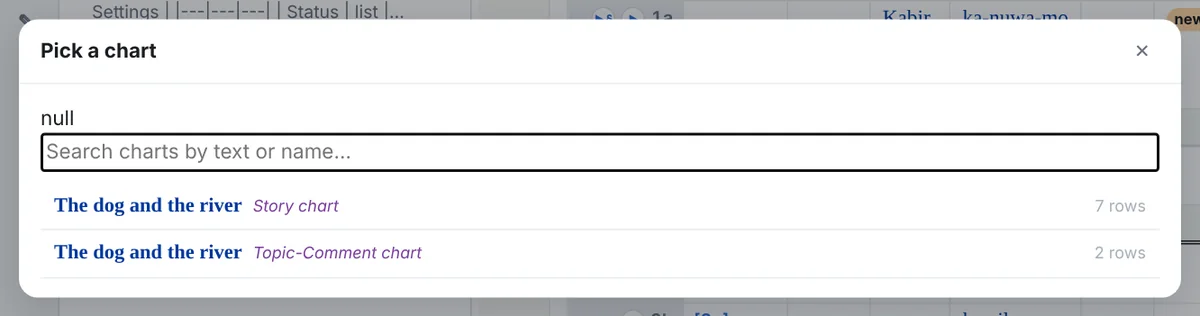
Convert: a chart's Show these lines as an interlinear example shows every line of the text its rows touch, first to last; an example's Show these lines as a text chart… shows the text's chart at every row holding words of those lines (asking which chart when the text has several). Both are inclusive; trim the range afterwards. Change the chart… retargets a chart object or a chart note to another chart.
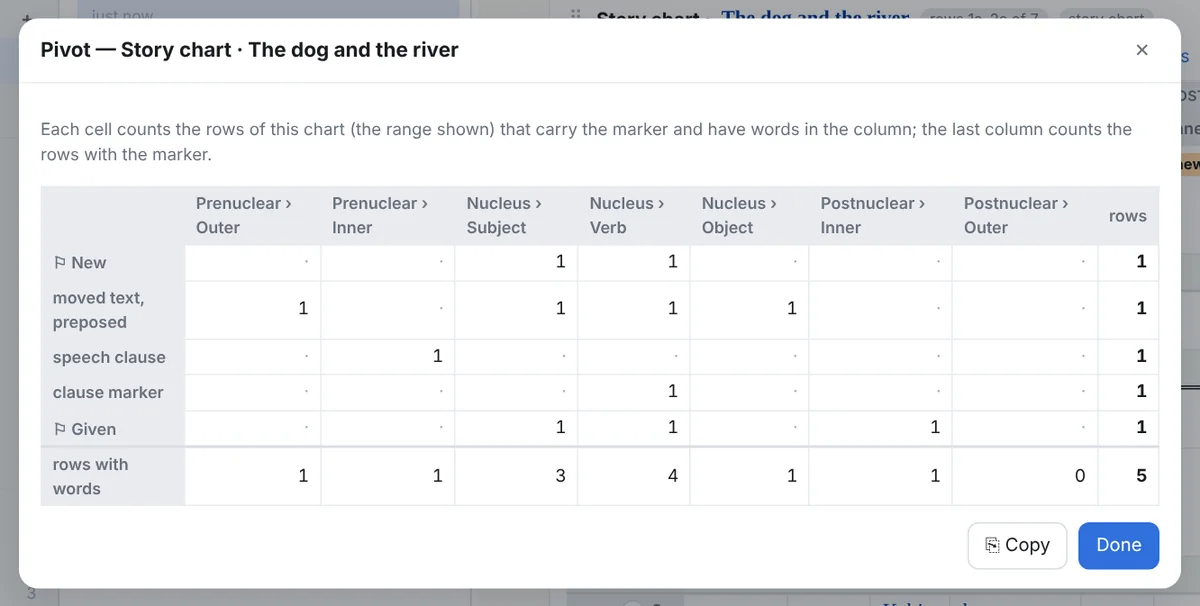
Pivot: a row per marker, clause type, moved text and clause marker, a column per visible template column, each cell counting the rows that carry the marker with words in that column; ⎘ Copy (a table for Excel, Word or PowerPoint).
Charts and examples, joined up
An interlinear example's ⋯ → Chart columns draws, like tags, which chart columns its words sit in (in all the text's charts), and the same column: rules style them. A chart's ⋯ → FLEx tags draws the text's markup tags as chips in its cells, in the look their scopes give them. An entry card's ▦ In charts opens the column profile for its lexeme.
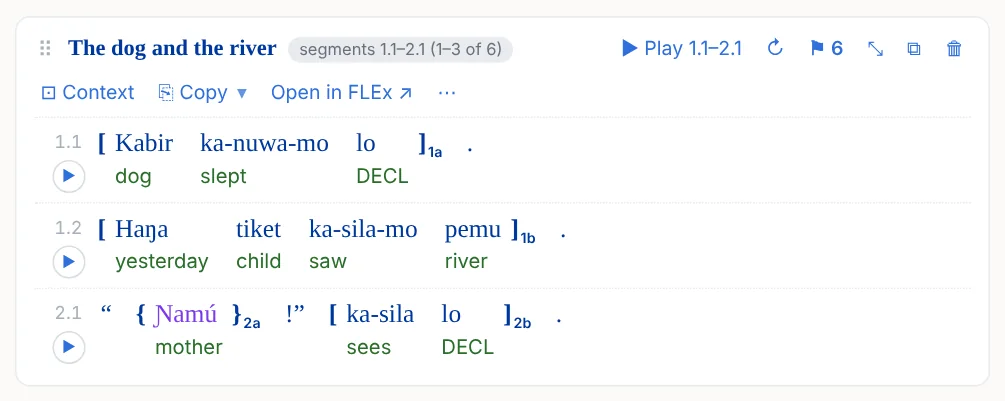
beta.6 A chart's rows on an example. An example's ⋯ → Chart rows (or the lines of a whole note, folder or tab: above) draws each row of the text's charts as one unit: a bar under its words, labelled with the row (1a, 1b…), each chart in a lane of its own. A visual filter, or a note's, folder's or tab's rules, styles them as units: + Add a tag… → Chart rows has every chart's rows, one chart's (by its name; a chart with no name of its own is called after its template, “Default chart”), and the dependent, speech or song rows. Brackets, a tile or a border then take the words of each clause together, the row's label on the closing bracket, and a rule for one clause type wins over one for a whole chart. A row's words run from its first word to its last; where words of another row of the same chart come between, the row is drawn in two pieces. On the example's ⚑, one chart's rows can be hidden there.
9Chart notes
A chart note is a note that is one text chart, with columns of your own beside it: a choice list shared by the whole notebook, free notes, a checkbox you tick or leave empty, or a rule that fills each row from its markers, columns and words. + New ▾ → New chart note…, or a chart's ⋯ → Open as a chart note…, which carries its view settings over.
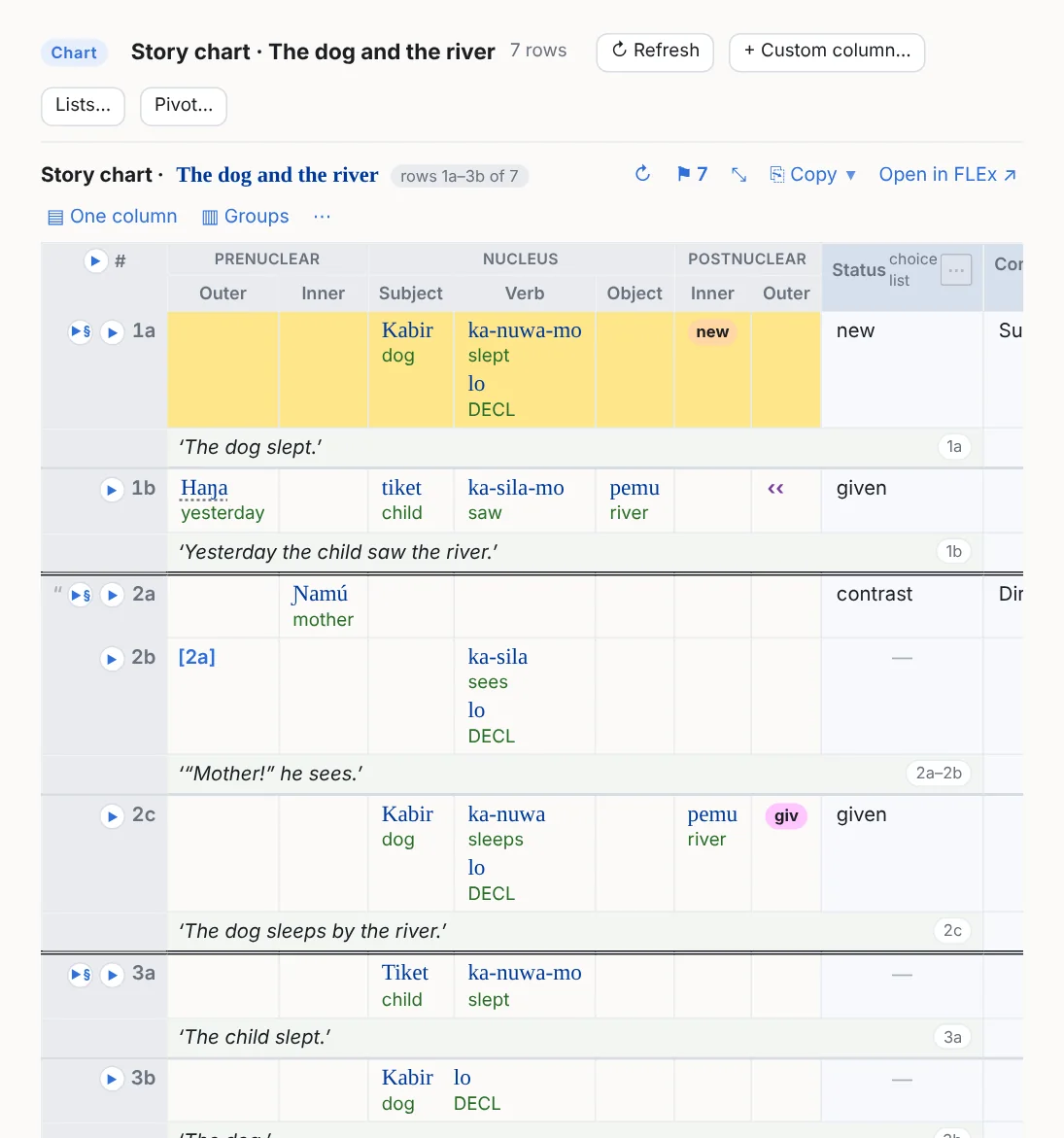
Your own columns
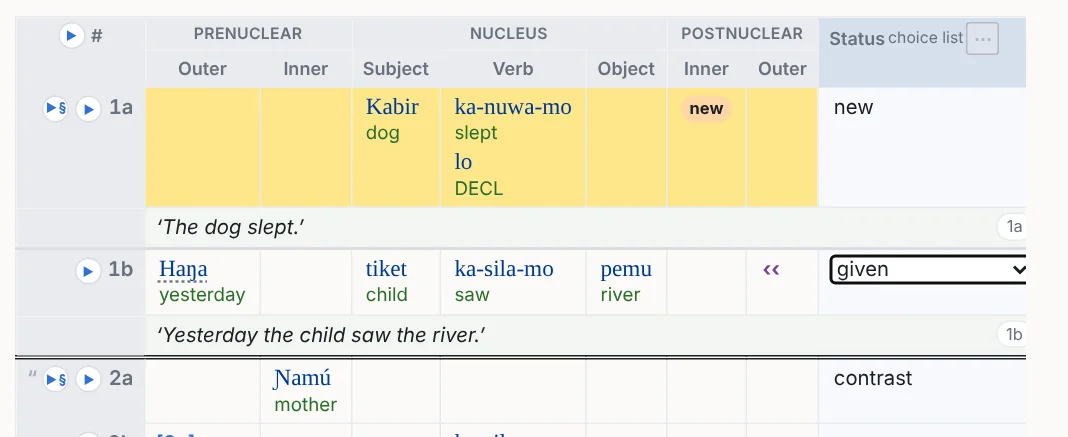
- List: a choice per row from a list that is shared by every chart note in the notebook (Information status: new, given, contrast); an open list offers + Add an option… in the cell.
- Notes: free text per row; click the cell, Enter saves.
- Checkbox: a box per row, ticked or not with one click; saved in the note as
x, exported as ✓, and a rule tests it asChecked:*. - Rule: computed from the chart, never typed; see below.
A column's ⋯ in its heading renames it, edits its settings, moves it, removes it (with Undo), and places it left or right of the FLEx columns and frozen (it stays put while the chart scrolls sideways). Values are keyed to the row's identity, so renumbering in FLEx never moves them. The columns and values are two Markdown tables in the note's file, so the notebook search finds them and the file reads anywhere. The custom columns ride along in the Word, Excel, PDF and slide exports. A chart note's Pivot… and its whole ⚑ / ⋯ apparatus are the chart's.
Rule columns and the builder
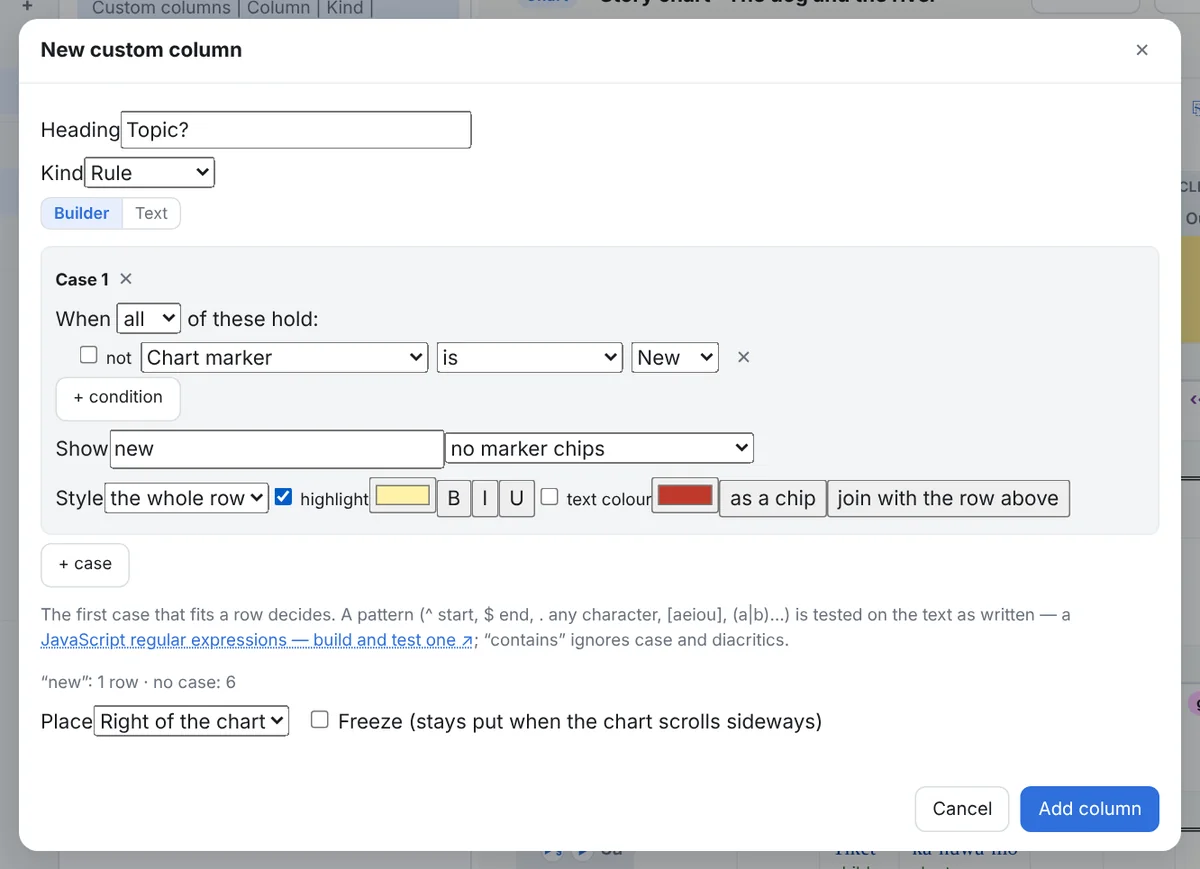
A rule is a list of cases; the first case that fits a row decides what the cell shows and how the cell or the row is styled. The Builder tab makes a case from lists: each condition picks what (a marker, a column, a clause type, moved text, a row flag, a word field such as the word, gloss, category, lexeme or free translation, the row label, or one of the note's list columns), how (is, any, contains, matches pattern), the value from the chart's own markers and columns, a writing system, and in <column> to look in one column only; conditions join with all or any. The Show row sets the text (or the row's markers as chips), and the style: the cell or the whole row, a highlight, bold / italic / underline, a text colour, the text as a chip, or join with the row above. The Text tab shows the same rule as text and takes anything the builder cannot say.
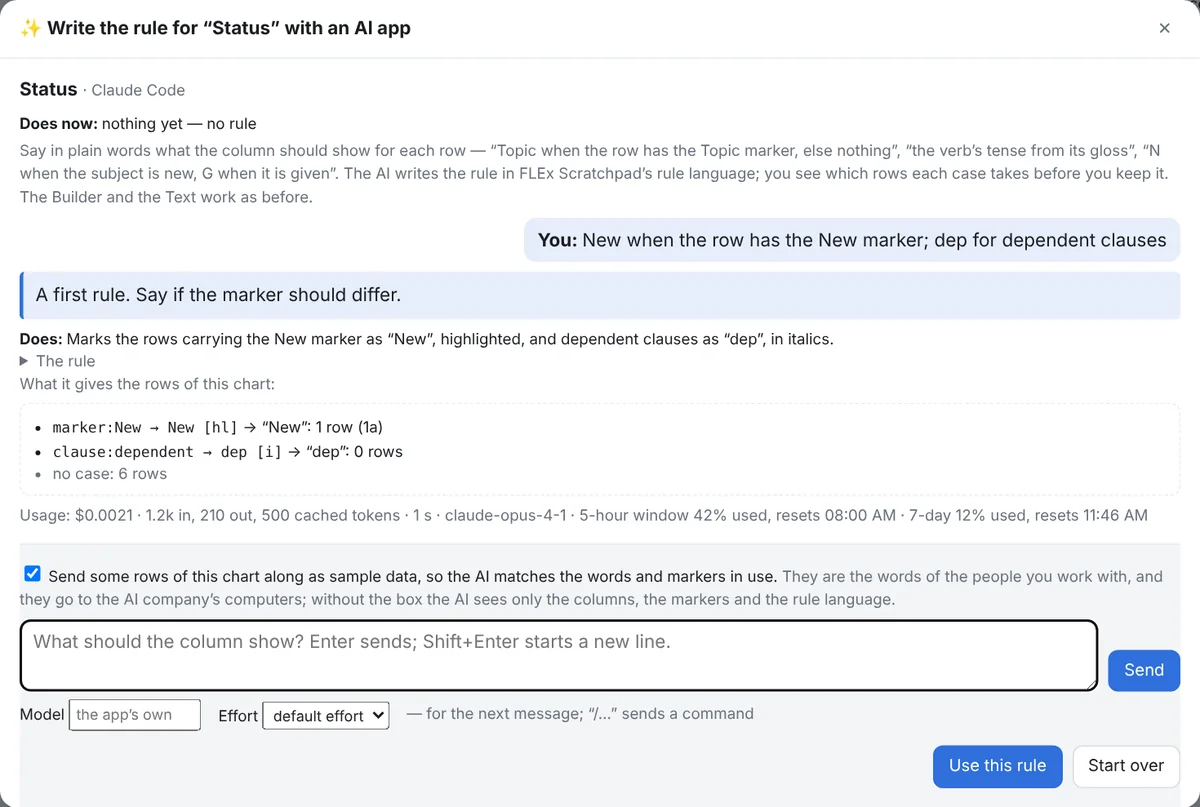
beta.6 Or describe the column to an AI app. In the column dialog of a rule column, ✨ Write it with an AI app… opens a conversation with the AI app on this computer (Claude Code, set up in Settings › AI assistant): say in plain words what the column should show for each row — “Topic when the row has the Topic marker, else nothing”, “N when the subject is new, G when it is given” — and the AI writes the rule in the rule language, with a one-line description; the window shows which rows of this chart each case takes before you keep it, and Use this rule puts it into the column’s rule (save the column to keep it). Tick the box first if some rows of the chart may go to the AI as samples; without it the AI sees only the columns, the markers and the rule language. Come back to the same conversation to adjust it. The Builder and Text tabs work as before: the AI is a third way, not a replacement.
The rule language
What the builder writes, and what is saved in the file: condition → text [styles], cases separated by ;.
| Part | Forms |
|---|---|
| Terms | marker:Name (name, abbreviation or group; * any) · col:Name (the column holds words; name, Group/Name, abbreviation, c3) · clause:dependent / speech / song · moved, moved:preposed, moved:postposed · clauseref · endsent endpara depstart depend · label:"2a" · a list column of the note: Status:new, Status:* (a checkbox column: Checked:* = ticked) |
| Word fields | txt: (the word and its morpheme forms) · gls: (word and morpheme glosses) · form: mgls: pos: cf: lex: · free: (the free translation of the row's line). A plain value is "contains"; txt:/^ka-/i is a JavaScript regular expression. |
| One writing system | gls@fr:…, when the chart carries that system's alternatives |
| One column only | col:Subject[txt:/^ka-/ and not gls:/x/]: the inner condition sees that column's words and markers only; col:/^Post/[…] by pattern |
| Combining | and, or, not, ( ) |
| Outputs | text · @markers (the row's markers as chips) · @markers:Name · @markers:/pattern/; no → gives ✓ |
| Styles | row or cell · hl, hl#rrggbb · b i u · c#rrggbb · chip · join (no line between the row and the one above) |
A rule reads the chart's data, not the drawing: a marker hidden by a visual filter still counts. For example, rows whose argument is shared with the row above, in a project with a ^ShdArg… marker: marker:/^ShdArg/ → @markers:/^ShdArg/ [row join hl#fde68a].
10Searching the charts
Which column does kabir sit in, and how often? Which rows carry a Topic marker in a speech clause? One search box over every chart of the project.
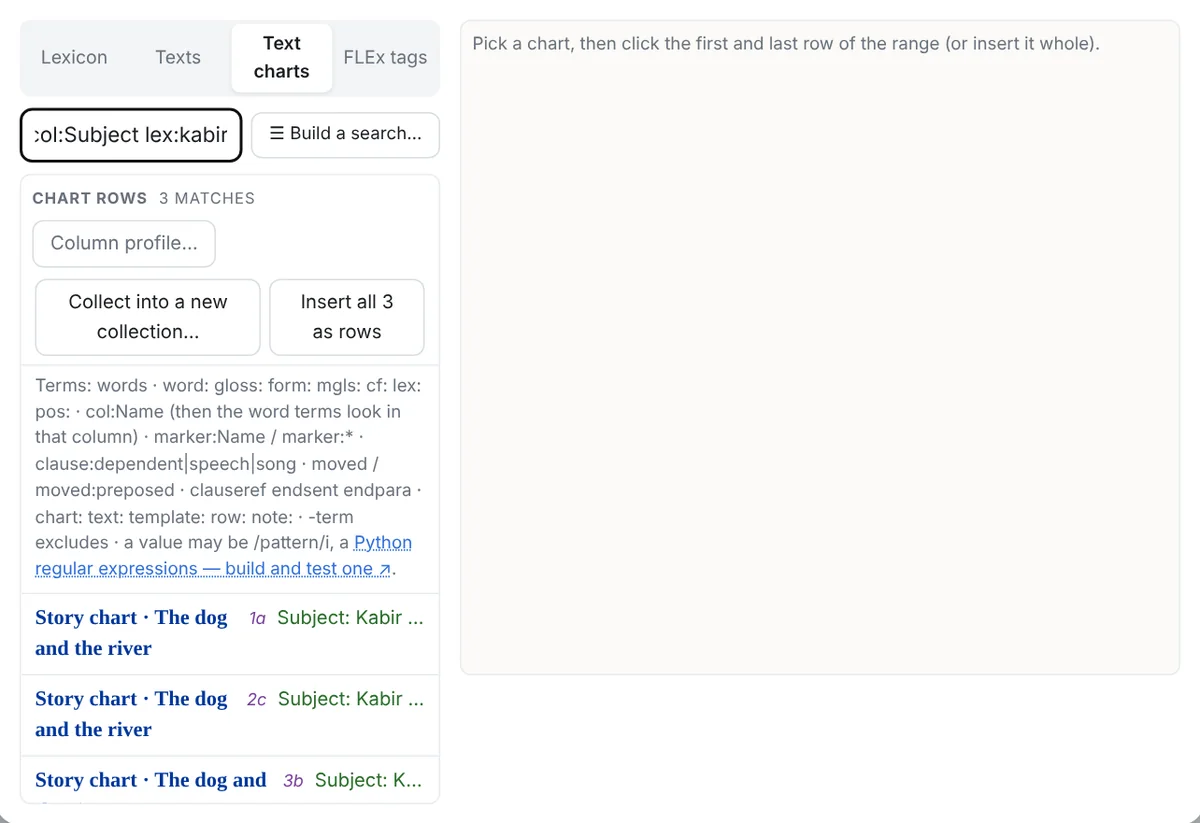
Type a search and the matching rows are listed under their charts: click one to insert the chart at that row, Insert all for every one, Collect into a new collection… for a collection that finds new rows later. In a chart note or a collection the picked rows go into a new note.
The query
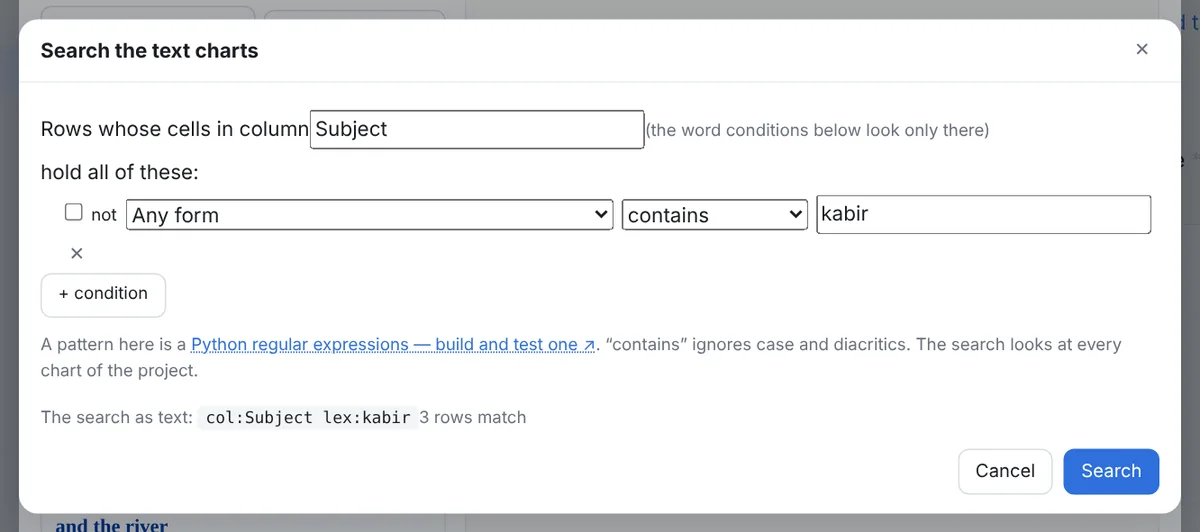
Terms are joined with and; -term excludes. Any value may be a pattern between slashes (word:/^ka-/i); these run in Python, so they are Python regular expressions (the tab's footer links to regex101 set to that flavour).
| Term | Matches |
|---|---|
kabir, "ka-sila" | the row's words, glosses, morpheme forms, lexeme forms or notes |
word: gloss: form: mgls: cf: lex: pos: | one word field (lex: any form of the lexeme; pos: exact) |
col:Subject | a column by name, Group/Name, abbreviation or c3; the word terms then look only in that column's cells, and the hits name the column |
marker:Topic, marker:Reference, marker:* | a chart marker, any marker of a group, any marker |
clause:dependent (speech, song, normal) · moved, moved:preposed · clauseref endsent endpara | the row's structure |
chart: text: template: row:2a note: | the chart, its text, its template, a row label, the row's notes |
Column profile and collections
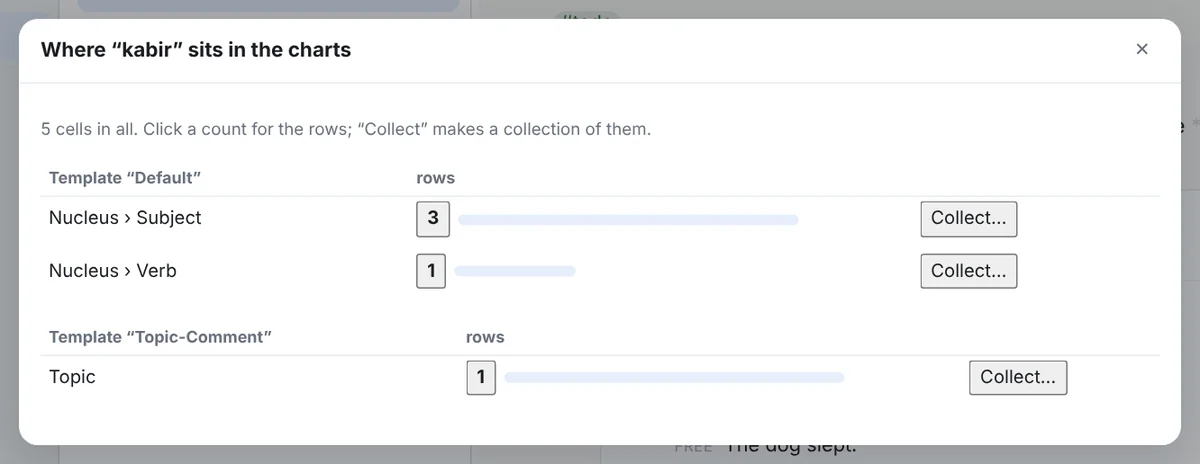
When the query has lex: or word:, Column profile… counts the cells holding the item per template and column, with the rows under each count and Collect…. The entry card's ▦ In charts opens it for the entry. A chart collection is a collection whose rule is a chart search; ⟳ Find new rows appends the rows that are new.
11Exports
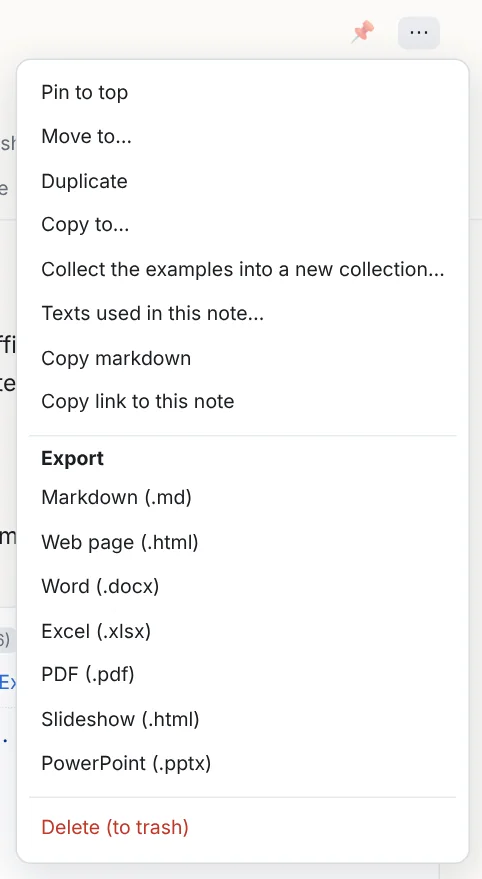
An export asks its questions first (embed the recordings? where to save?) and then runs in the background: a bar under the FLEx status in the sidebar shows what it is doing (reading the examples from FLEx, preparing the recordings, writing the file), the program stays usable meanwhile, and a second export waits its turn. Click the bar for the list, to stop the running export or take a waiting one out. The note is exported as it was when you clicked.
The formats
| Format | What you get |
|---|---|
| Markdown | The note's file as it is, with the readable copies of its objects and the attached files beside it. Copy markdown puts it on the clipboard. |
| Web page | One self-contained HTML file: a header, the note, examples and charts drawn as in the program, the styling kept; printable. With the recordings embedded as players if you say so. |
| Word | A .docx: headings 1–6, lists, tables, examples and pictures; the examples are LingTeX-Word tables (below), charts come on landscape pages with their custom columns and row colours, and chips and collapsed examples are links into FLEx. |
| Excel | A sheet Note with the blocks in order, a sheet per chart (the table as drawn, merged header groups, word and gloss in each cell) followed by Chart rows with one flat row per chart row (label, clause type, flags, each column's words and glosses, markers, moved text, custom columns, free translation, notes: what Excel filters and pivots), and Examples with one row per interlinear line. |
| Saved straight away on Windows; elsewhere the print dialog's Save as PDF. Charts land on landscape pages with the header rows repeated. | |
| Slideshow | One web page: a title slide, then the slides you lay out in the export dialog (to begin with a slide per heading, example, chart, table, entry and picture, running text continuing on "(cont.)" slides — below), in the theme you choose; arrow keys, T for contents, F full screen, P print; the players ride along. |
| PowerPoint | A .pptx of the same slides in the same theme: a title slide, a heading bar per slide, examples as tables, charts filling the slide, and each example's recording beside it as a ▶ that plays in the slide show. Expect to adjust it by hand (below). |
| FLEx text | A collection as a .flextext with its audio (above). |
| Chart XML / JSON | One chart in FieldWorks' own discourse-chart XML shape (with identities added), or as data, from the chart's ⋯. |
| Copy | Not a file: an example, entry, chart, chosen lines or rows, a table or a pivot on the clipboard — formatted for Word, PowerPoint, Excel and web pages, the example itself for a note, FLEx's rows for LingTeX Word (Copy an example). |
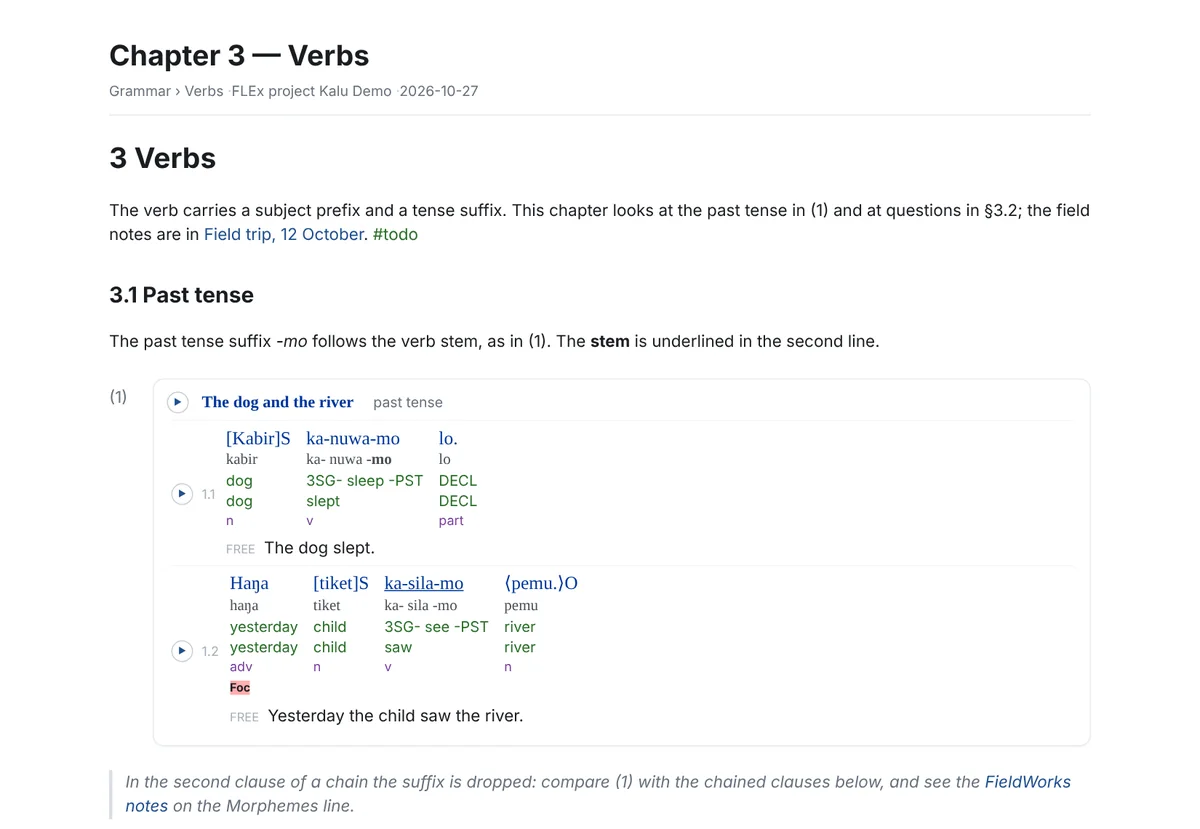
Word, in LingTeX-Word styles
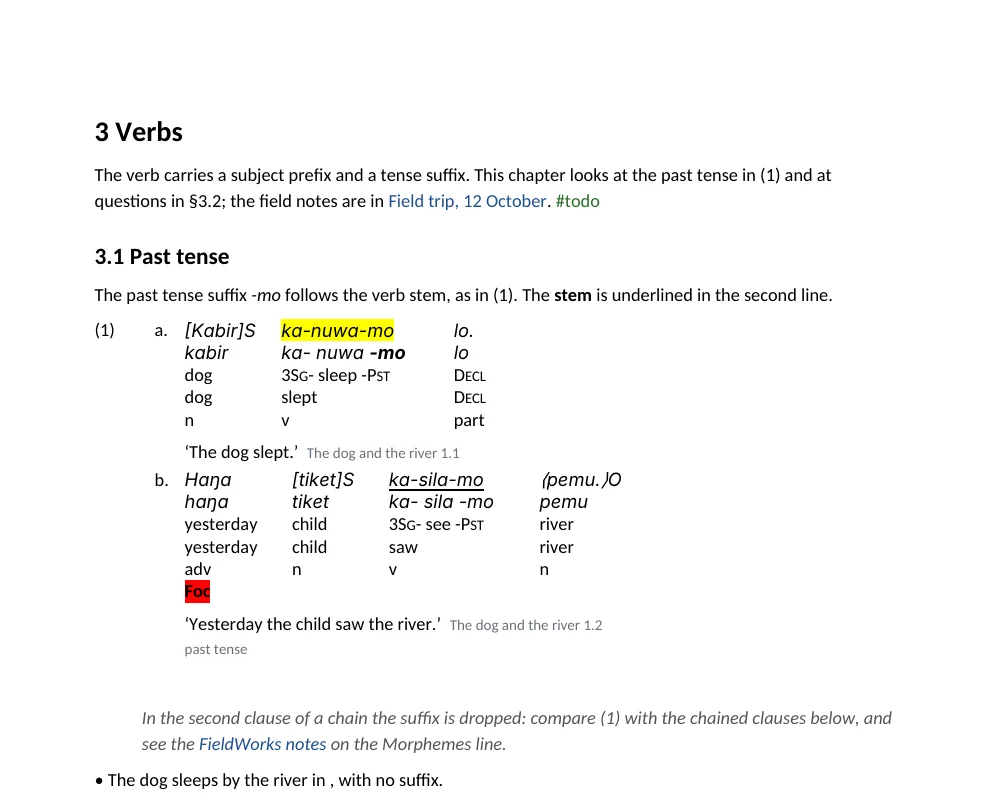
Every expanded example is written as a LingTeX-Word interlinear table: the add-in's own table and tier styles (LingTeX Interlinear, Vernacular, Morphemes, Gloss, Word Gloss, Category), grammatical glosses set in small capitals, Word's own (1) numbering with a., b. for several lines, the free translation in quotes followed by the text's title and FLEx line number as a link that opens the text in FLEx. A document with the add-in installed re-wraps them. Your highlights, bold, underline and colours stay.
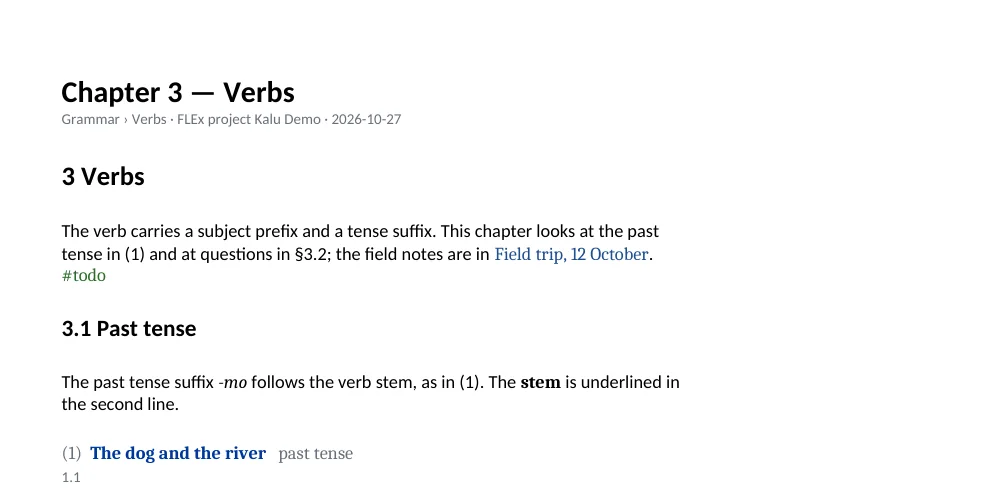
Slides: which blocks, and the look
The slideshow and PowerPoint exports open a dialog before they ask where to save. Slides lists every block of the note: tick New slide where a slide should begin, and every block after it, up to the next tick, shares that slide; untick Show to leave a block out. A heading that starts a slide is its title. It starts as the program would lay it out (One example per slide), and One slide per heading and Every block on its own slide set all the ticks at once. The Slide column shows where each block lands. Several examples, a chart and the text between them can share one slide; they are stacked and shrunk to fit. The program remembers your ticks for that note's blocks.
A long example in PowerPoint. The web slideshow shrinks a slide's content to fit the screen as it shows it; PowerPoint cannot, since it draws a table exactly as the file gives it. So the program measures every example and chart itself when it writes the file. A word's column is never narrower than the word, and a long line wraps onto further rows of words, as in Word. The type steps down from 18 pt to 12 pt until the slide holds everything, and what still does not fit continues on a (cont.) slide at 16 pt, a long chart with its header rows on every slide. The PowerPoint file is a starting point: look through the slides and adjust them by hand. Move a break, resize a table, or tighten a slide that has room to spare (the measurements err on the roomy side). The export dialog says so too.
Comments and speaker notes. Any block of a note can be a comment: tick 💬 Comment — not exported in its ⋮ menu, or press Ctrl+Alt+M (for several selected blocks too). A comment is drawn with a yellow tint and a 💬 tag (click the tag to make it ordinary content again), stays in the note and in search, and is never exported: not to a web page, Word, Excel, PDF, Markdown or the slides themselves. For the two slide formats the dialog lists the comments and offers Speaker notes: put the comments into PowerPoint's speaker notes (under each slide and in the Presenter View) or into the slideshow (S shows them under the slide, 🗒 opens them in a window of their own for another screen), each with the slide of what comes before it in the note. Also save presenter notes writes <name>.presenter-notes.md beside the file: every slide by number and title, what it shows, and its comments, to print or keep open on another screen. Leave the speaker notes off for a slideshow you hand out: they are in the file.
Look: a theme (Classic, Dark, Paper, High contrast, Forest) and, over it, your own background, text and accent colours and a font. The example colours follow the theme, and the small preview shows the result. The same look goes into the slideshow and PowerPoint.
Audio in the web page, slideshow and PowerPoint
When the note has time-aligned examples or charts, the export asks whether to embed the recordings: one clip per object, compressed (about 300 KB a minute), inside the page. Each line then has ▶, an example and a chart their own, the playing line or cells are lit, and a bar at the bottom pauses, stops and seeks. An object whose recording is not there exports without a player.
In PowerPoint each example and chart with time-aligned lines gets its recording as a round ▶ beside it on its slide. A click plays it in the slide show, and PowerPoint's own player bar appears under it. The clip is AAC (an .m4a) when ffmpeg is available, which it is in the Windows download, or a WAV file otherwise. PowerPoint plays a whole example, not line by line; the web slideshow plays each line.
A design prompt for an AI assistant
The web page and slideshow come out plain on purpose: the content is laid out, the design is yours. Tick Also save a design prompt for an AI assistant in the export dialog and a prompt is saved beside the file as <name>.design-prompt.md. Give both files to Claude Design or another assistant that edits web pages and it can restyle the page while keeping every word, gloss and number, the alignment of the glosses, the Unicode fonts, and the players working. Before it designs anything, the assistant asks you how you would like it to look — the colours or mood, the fonts, where the page will be read or the slides shown — and suggests two or three directions if you have no preference (the web page's prompt asks too beta.6; it used to end in a list of wishes to fill in). The prompt is yours to edit in the dialog, and your version is kept for the next export (↺ The default prompt brings the original back). The toast after the export can also copy the prompt to the clipboard.
Designing the page in a conversation beta.6
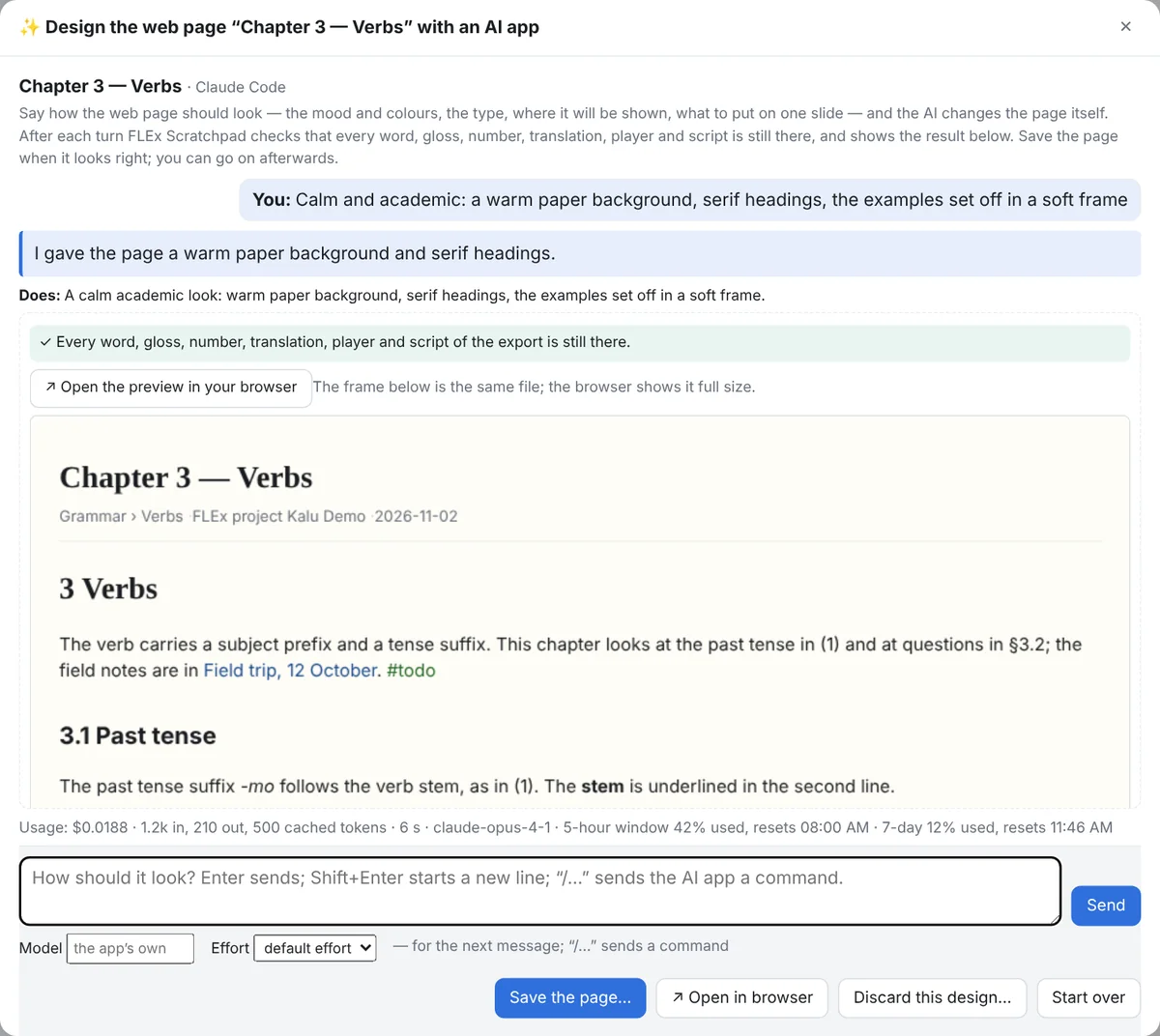
Instead of handing the page and its prompt to an assistant yourself, let the AI app on this computer restyle it while you watch. In the export dialog of a web page or a slideshow, tick ✨ Design the page in a conversation with the AI app on this computer first, then save it (the slideshow for slides): there is no save dialog yet. The page is built as usual (its recordings and pictures left out for the AI; they are back in the preview and in the saved file) and a conversation opens: say how it should look — the mood and colours, the type, where it will be shown, what goes on one slide, transitions — and the AI changes the page itself, in a folder of the conversation’s own that it may read and write and nothing else. After each turn FLEx Scratchpad checks the page: every word, gloss, number and translation, each player and script, the loading screen, the number of slides, and it warns when the page would fetch anything from the web. What is missing it asks the AI to put back, once; if it still is, the turn is set aside and the page stays as it was before it, and the window says which. The result shows in the window, and ↗ Open the preview in your browser (or ↗ Open in browser at the foot) shows it full size, with the players working. When it looks right, Save the page… is the save dialog; the saved file is the whole page with its recordings and pictures (a slideshow’s presenter notes beside it), and the conversation may go on after it. Discard this design… ends the conversation and throws the AI’s page away (what you saved stays); Start over begins again from the plain export. The design prompt of the dialog is what the conversation starts from, so the rules it states — keep every word, the alignment, the fonts, the scripts, offline — hold here too. Claude Code only, for now: it is the app that can be kept to the page’s folder. The paper and presentation kits are not changed: they remain hand-offs for an assistant of your choice.
A paper kit for an AI assistant beta.6
A paper kit hands your notes to an AI assistant (ChatGPT, Claude, Gemini, Copilot, Perplexity or another) so that it can help you turn them into a paper in the format you need: LaTeX, XLingPaper, Word, LibreOffice, or anything else a publisher, a school, a consultant or a community asks for. The kit is a zip. In it, your examples, charts and dictionary entries are written out in full, word by word and gloss by gloss, so the AI needs no access to FLEx. FLEx Scratchpad itself never sends anything anywhere: you decide what goes to which service.
Open a tab's, a folder's or a note's menu (⋯) and choose Paper kit for an AI assistant…. A wizard of six steps follows; each says what it is for.
- Choose the notes. Tick the notes the paper is made from; the tab, folder or note you started from is already ticked. They reach the AI in this order: a folder's own notes first, then its subfolders, and numbers in names in their natural order (2 before 10). Number your tabs, folders and notes the way the paper should run, and the outline follows.
- How much your AI takes at once. Free and low-cost web chats limit how long one message can be. Choose Small pieces and the kit cuts your notes into numbered parts small enough for one message each (about 12,000 characters); Medium pieces (about 60,000) suit a paid chat or files uploaded one at a time; One file suits a desktop app, a project with uploaded files, or an AI that reads long documents. Parts break between paragraphs and examples, never inside one. Every kit also holds everything in one file, so you can change your mind later.
- Your target. Say what the paper must become, as far as you know: who will read it and where it goes, the kind of paper, the format, the template or style sheet (Language Science Press, MIT's, the Unified Style Sheet for Linguistics, SIL's, a journal's or a school's own…), and for LaTeX the package for interlinear examples (langsci-gb4e, gb4e, expex, MIT's, linguex…) and for tables and charts (tabular, tabularx, longtable, xltabular, tabularray), and which programs you can use yourself. Every list starts with Don't know — let's discuss: leave it there and the AI asks you about your readers, your publisher and the programs you know, and recommends a format, a template and the packages before it writes anything.
- What the paper includes. Tick what the paper should have besides its chapters: a list of abbreviations, a table of contents, a list of tables and charts, a list of figures, a list of examples, references. For a paper all are ticked to begin with; your choices are kept for the next kit. For the abbreviations the kit does the finding: it lists every grammatical gloss in your examples (3SG, PST…) with where it occurs, suggests the Leipzig Glossing Rules' standard meaning where there is one, and leaves a
?for the rest; the AI then asks you to confirm or fill in each meaning, a few at a time with an example, and never uses one you have not confirmed. For references, the works your notes cite come from your Zotero library by themselves (Cited works.json in the kit). Without Zotero connected, 📚 Add a bibliography file… takes the file your reference manager exports for the works you cite (from Zotero: File › Export Library… or a collection's Export Collection…, as BibTeX, CSL JSON or RIS); without one, the AI asks you for it, and it never invents a reference. - The prompt for the AI. What the AI reads first: how you will work together, the rules that keep your data exact, and how your examples are written in the kit. Change anything you like; your version is kept for the next kit, and Back to the default brings the original back.
- Privacy, then make the kit. Read the warning (below) and tick its box; then Make the kit… asks where to save the zip, and the kit is made in the background like any export.
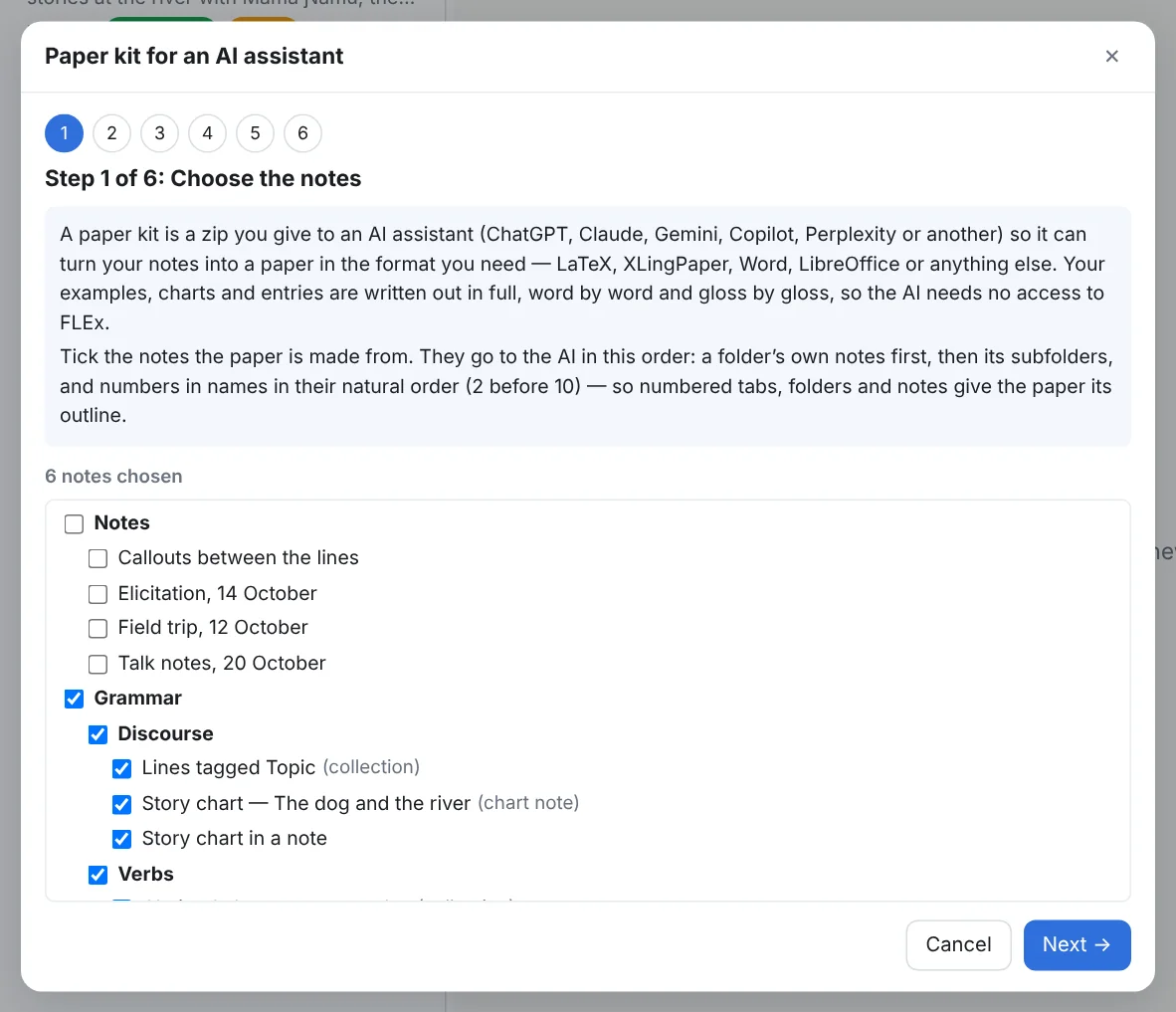
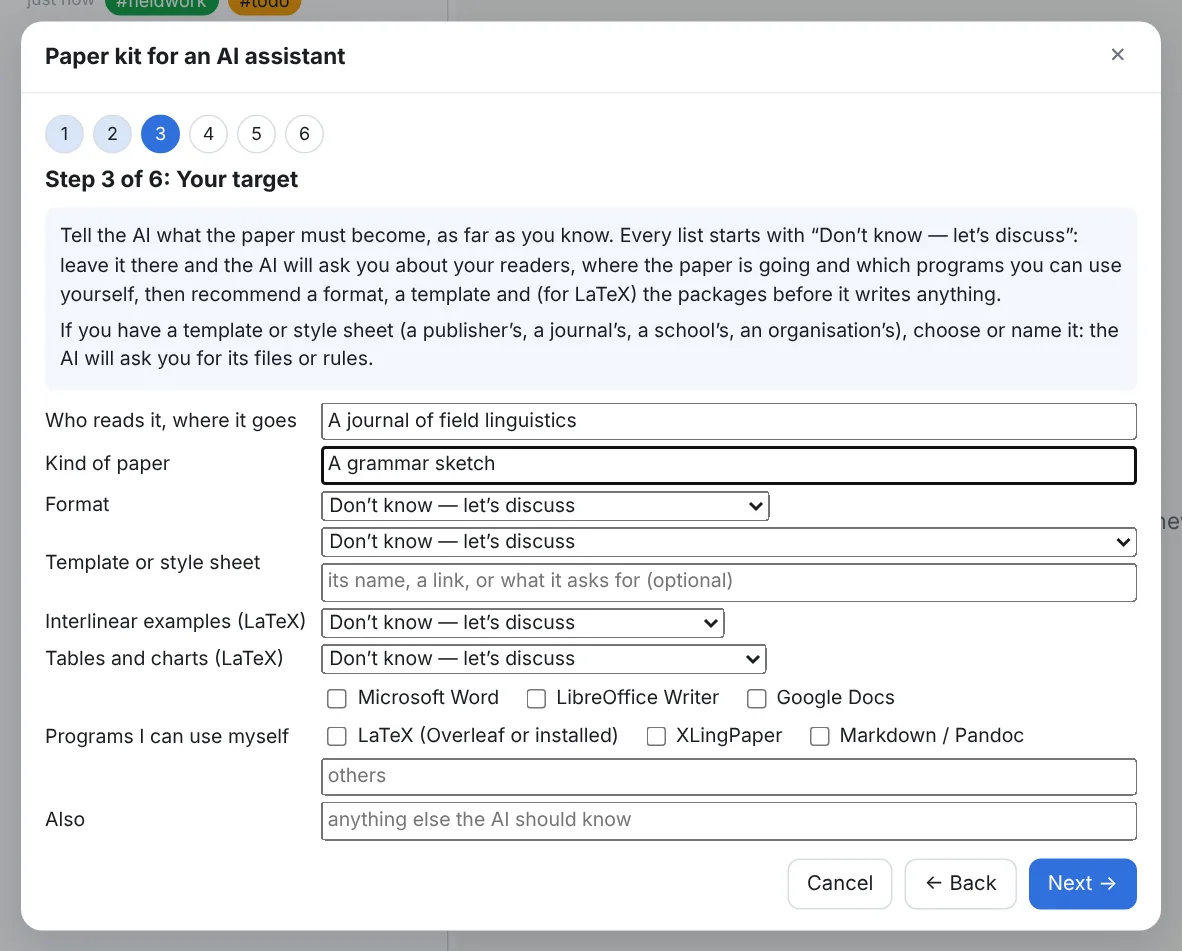
Read this before you send the kit anywhere. The kit holds your notes and every word of language data they quote, the words of the people you work with. Sending it to an online AI service sends all of it to that company's computers. Many free and low-cost plans keep what you send and may use it to train future models, and some let staff read conversations; using a service without signing in usually gives the least protection. Turning training off applies from then on only. A desktop app is not more private by itself: it sends everything to the same servers. Before you send anything, make sure you may share it under your agreements with the community and the speakers, the consent they gave, your ethics board's conditions and an archive's access rules, and take out anything restricted or sensitive. The only way to keep everything on your own computer is an AI model that runs there (for example in LM Studio or Ollama). The wizard's last step and the kit's read-me link each service's own page on its privacy settings: ChatGPT, Claude, Gemini, Copilot, Perplexity. Read the page for the service and plan you will actually use.
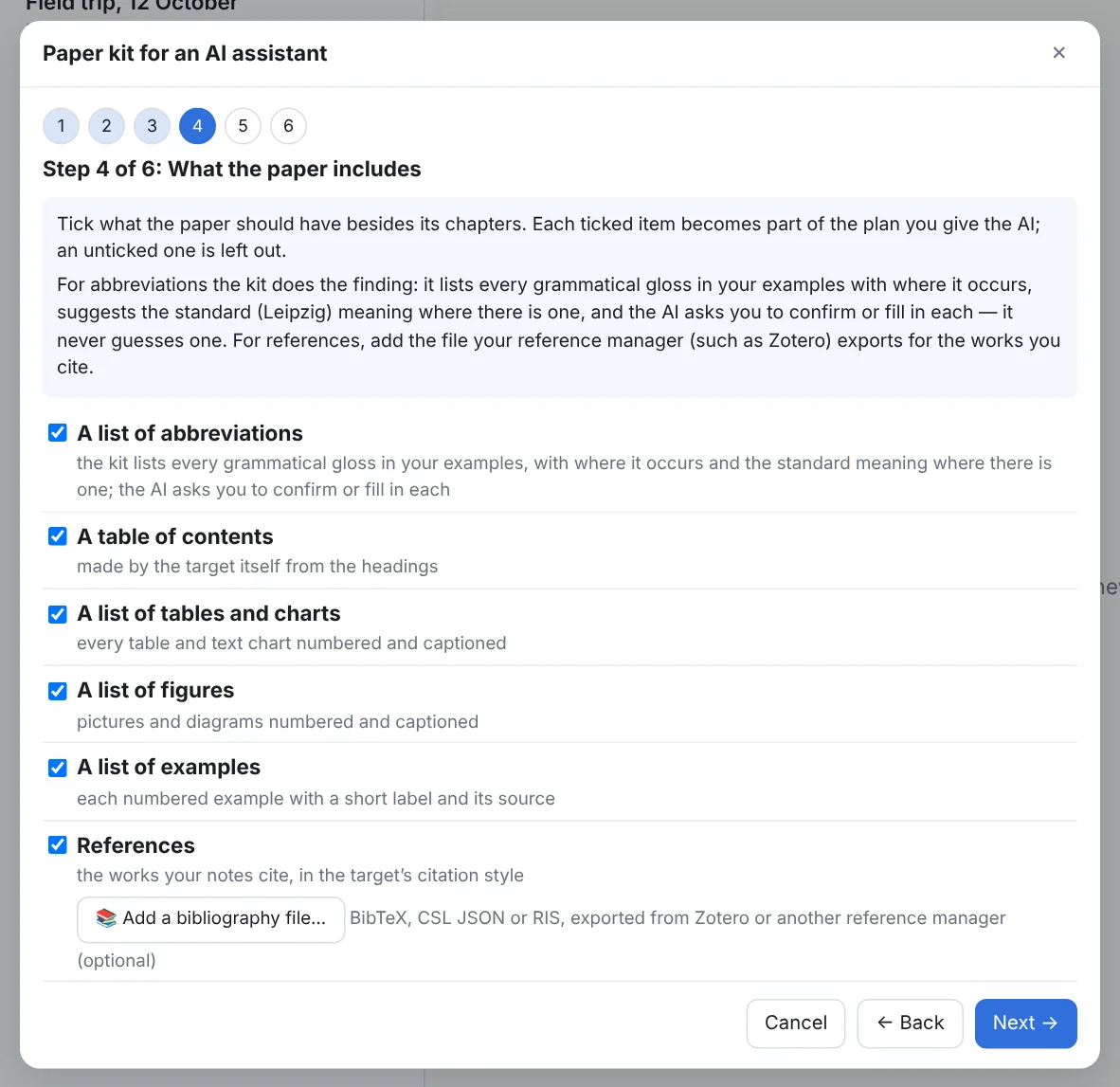
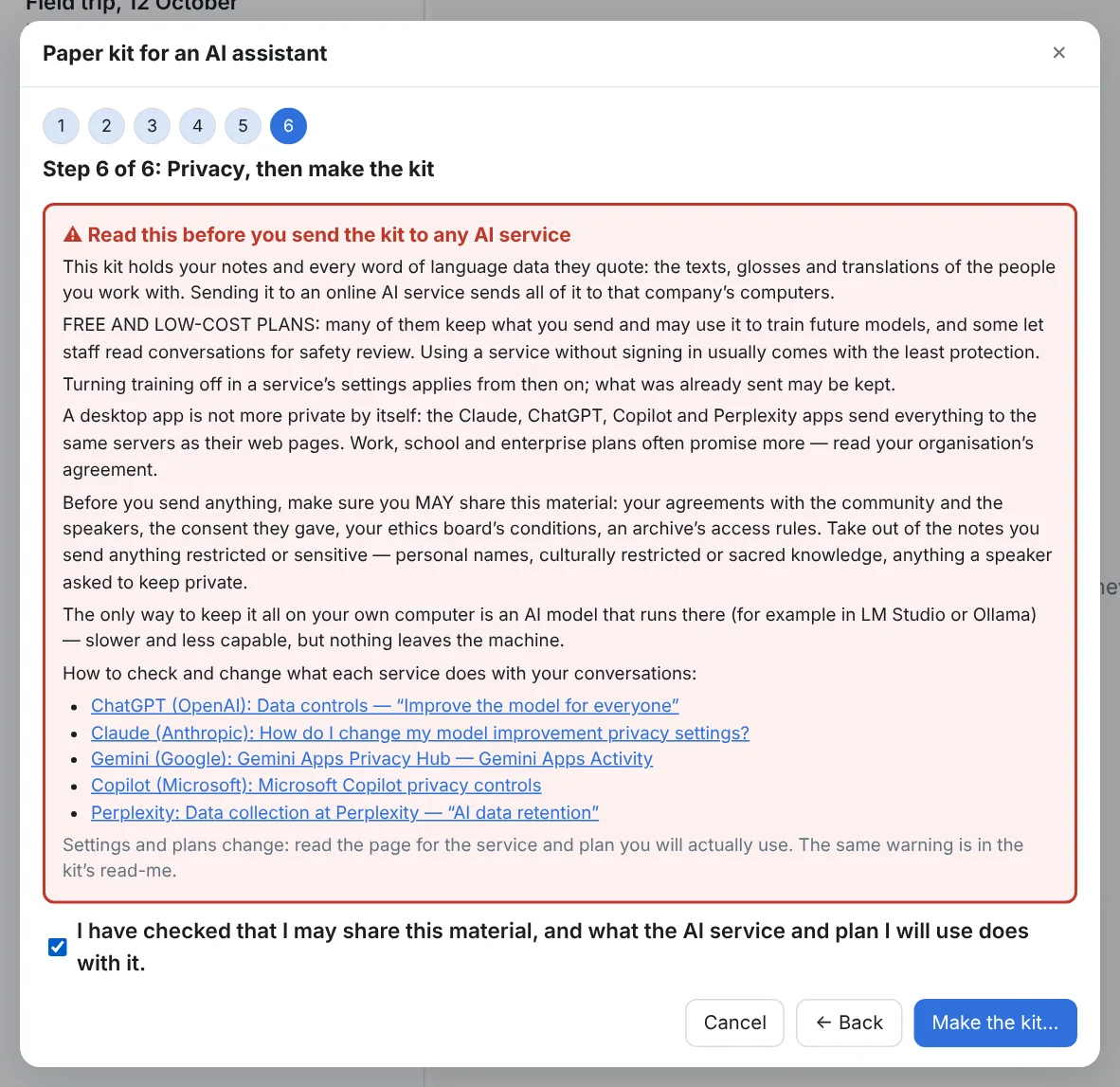
Using the kit. When the kit is ready, a window says how to use it and puts every piece one click away. In a web chat: start a new chat, press ⎘ Copy the prompt, paste it in and send it; answer the AI's questions about your target (give it your template or style sheet if it asks), and send the abbreviations (⎘ Copy the abbreviations) and your bibliography when it asks for them; then press ⎘ Copy part 1, paste and send it, wait for the answer, and go on part by part, saving what the AI writes back. The AI ends every answer with a short CARRY-OVER block (the last example number, the abbreviations used, open questions): if the chat says it is too long, start a new one with the prompt, that block and the next part. With an AI that takes files, give it 1 Prompt for the AI.md and All notes in one file.md from the zip and ask it to follow the prompt. The window comes back from How to use it on the message that said the kit was saved, and everything in it is also in the zip.
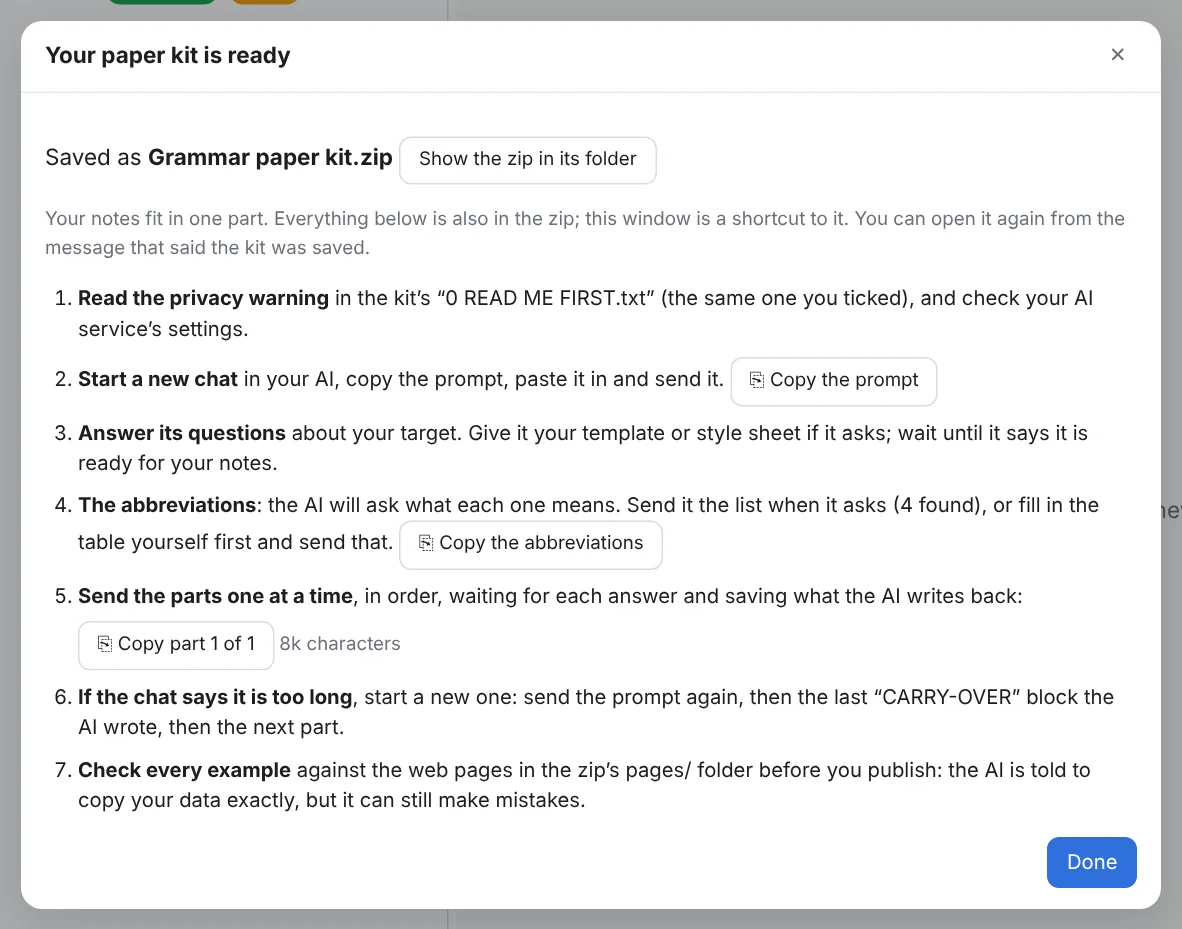
In the zip: 0 READ ME FIRST.txt (the warning and how to use the kit), 1 Prompt for the AI.md (the prompt, your target, what the paper includes and the list of your notes with the part each is in), 2 Abbreviations to fill in.md and References.bib (or .json, .ris) when you asked for them, Part 01 of NN.md … , All notes in one file.md, a pages folder with each note as a web page, and a files folder with the pictures your notes attach. Comment blocks are left out, collapsed examples are written out in full, and an example in a line of text is its reference ("DOG 1.2"). Before you publish, check every example against the pages in the pages folder: the AI is told to copy your data exactly, but it can still make mistakes.
A presentation kit beta.6
The same thing for a talk: ⋯ → Presentation kit for an AI assistant… on a tab, a folder or a note. The wizard has the same six steps, the same pieces and the same privacy warning, and the zip is laid out the same way. What differs is the target and the prompt. For slides, who will be there, where and how the slides are shown, how long you have and the look and feel you want matter more than any template, so the target step asks about those first. The formats are an HTML slideshow (opens in any browser; the AI recommends it when you do not mind), PowerPoint, LibreOffice Impress, Google Slides, PDF slides made with LaTeX Beamer, and the Beamer source itself for those who want to manage the code; only for Beamer does it ask about a theme and packages. Of what the presentation includes, only references (on the last slides) are ticked to begin with; tick the abbreviations, an outline slide or the others when the talk needs them. The prompt has the AI talk through the audience, the room and the time with you before it recommends anything, plan the slides before it makes them, keep each example large and its words and glosses lined up, and put what you would say into speaker notes.
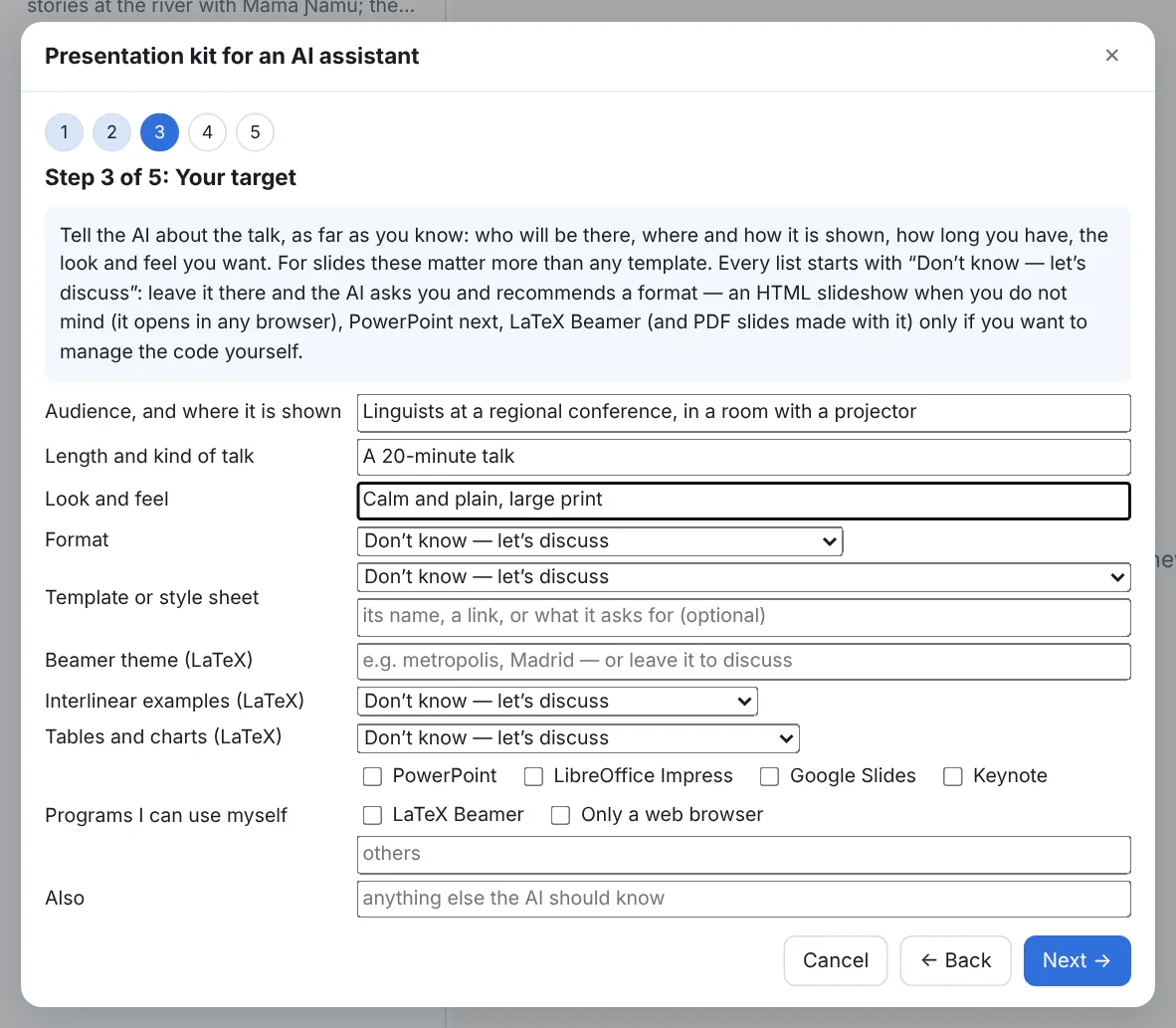
FLEx Scratchpad's own slideshow and PowerPoint exports remain the quick way to put one note on slides; the presentation kit is for a talk you want to build with an AI's help from several notes.
12Backup and storage
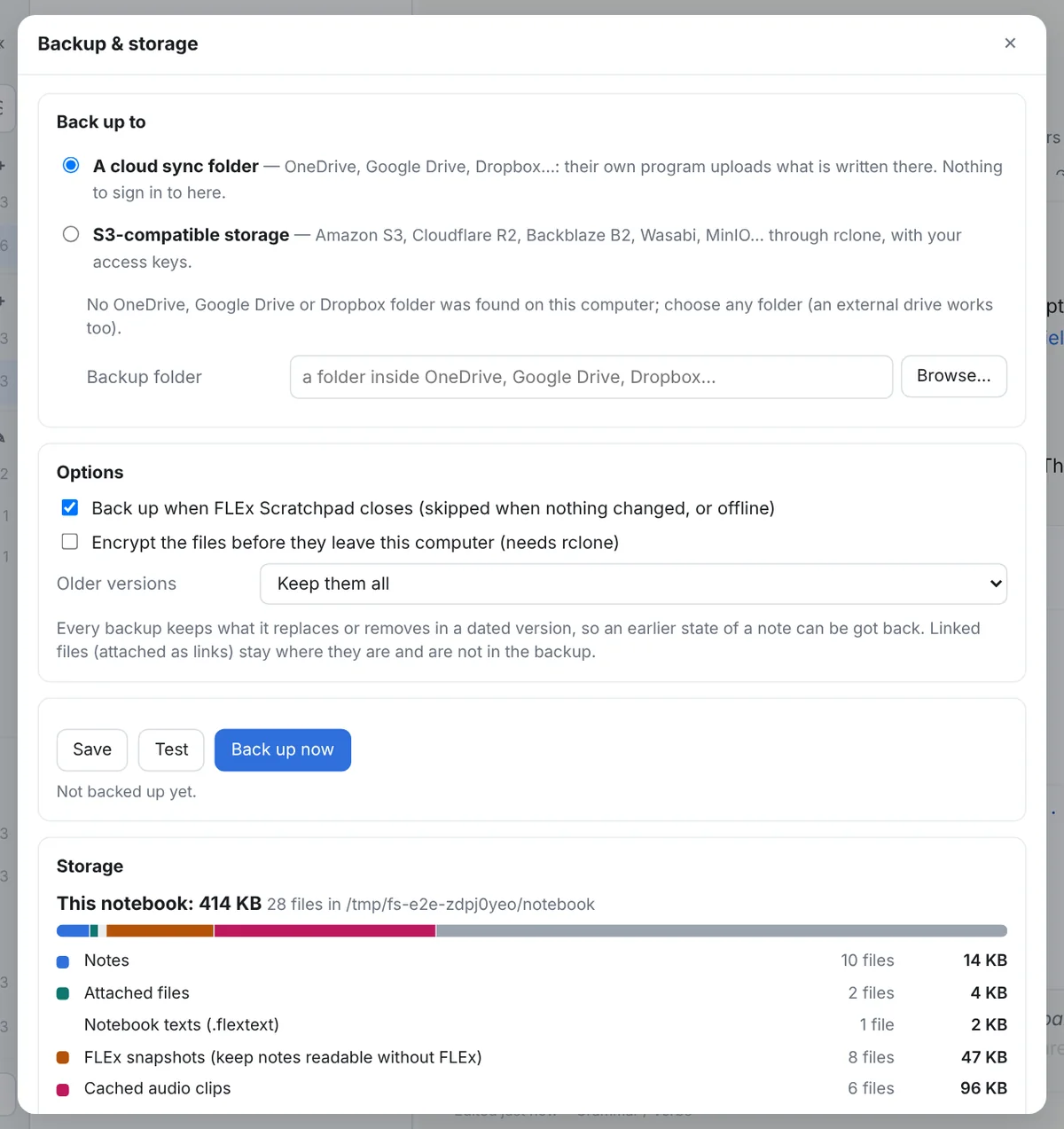
- Where: a folder, with the program guessing your OneDrive, Google Drive, Dropbox, iCloud or Box folder (FLEx Scratchpad backup/<notebook> inside it), or S3-compatible storage through the bundled rclone, with the keys kept in Windows' Credential Manager, never in a file. Encryption is optional and off by default.
- When: Back up now, and on close when something changed; the window then shows the progress and lets you close without waiting.
- Versions: a mirror of the notebook plus a dated folder per backup holding what that backup replaced or removed; keep old versions N days prunes them, and Restore… brings a version back.
- Storage: how much the notes, attached files, pictures, FLEx snapshots, cached clips and the trash take; cleanup moves unused attachments to the trash, clears the cached clips, and Empty the trash is the one real deletion, asked first. Snapshots are never offered for cleanup: they keep notes readable without FLEx.
Beside the backup, the whole notebook can be exported and imported as a zip, and the notebook folder itself is plain files you can copy, sync or put under version control.
13Settings and shortcuts
Settings
⚙ or Ctrl+,: the notebook folder, the FLEx project (or a .flextext file, or the demo), diacritics-insensitive search, markers hidden, Backup & storage, the program's version and build, the bar between blocks, sticky headings, the FLEx text markup tag styles for the whole notebook, visual filters and the list of keyboard shortcuts. The window remembers its size and place.
Updates beta.6: when a newer version is out, FLEx Scratchpad says so once, and a small ⬆ 0.3.2 is out button appears at the foot of the left pane. Its window shows what is new and has Download from the website, which opens this site in your browser: download the installer there and run it (close FLEx Scratchpad first). It updates the program in place, and your notebooks, notes and settings stay as they are. FLEx Scratchpad never downloads or installs anything by itself. To find out, it asks GitHub, where the releases are published, at most once a day when it starts. Settings › Updates turns that off, has Check now, and chooses whether you hear about pre-releases (betas): to begin with, only if the version you have is one. Skip this version stops the reminders for that one.
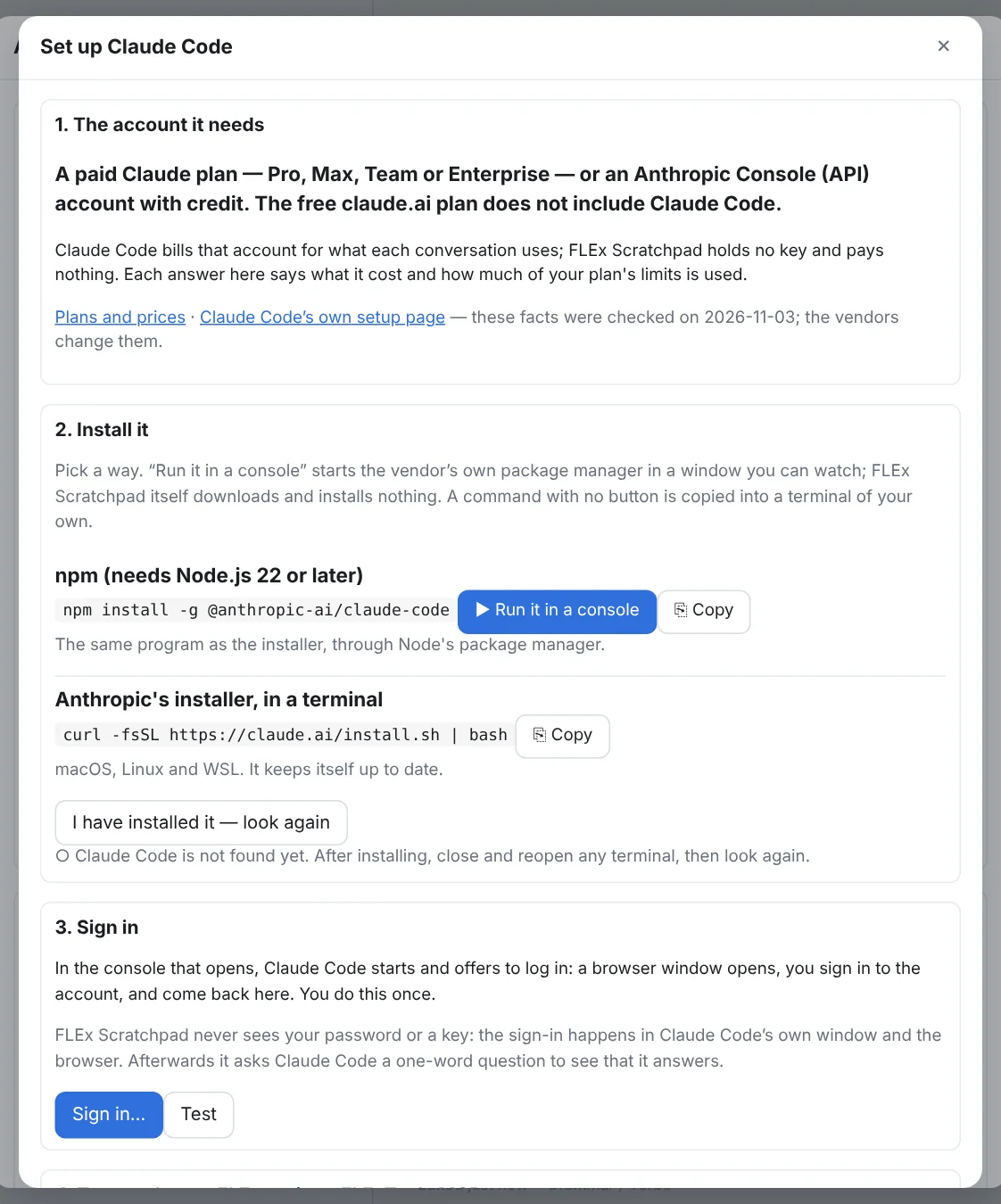
AI assistant beta.6: Settings › AI assistant… lists Claude Code and Gemini CLI, each with Set it up… (Set up / sign in… once it is found): (1) the account it needs — Claude Code needs a paid Claude plan (Pro, Max, Team or Enterprise) or an Anthropic Console account with credit; the free claude.ai plan does not include it. Gemini CLI starts with a personal Google account on a free tier with limits; Google AI Pro and Ultra plans raise them, and an API key or a Google Cloud project bills per use. FLEx Scratchpad holds no key and pays nothing, and each answer says what it cost and how much of the plan’s limits is used (these facts were checked on 2026-11-03; the vendors change them, and the window links their pages); (2) install it — a command for each way (winget on Windows; npm, which needs Node.js; Anthropic’s installer; for Gemini, npx without installing), with ▶ Run it in a console where FLEx Scratchpad can start the vendor’s own package manager in a window you can watch, and ⎘ Copy for the rest; FLEx Scratchpad itself downloads and installs nothing; then I have installed it — look again; (3) sign in — Sign in… opens a console running the app, which offers to log in through your browser; FLEx Scratchpad never sees your password or a key, and Test asks the app a one-word question to see that it answers; (4) FLExTools MCP, for the AI search (the filter, rule and design conversations do not need it). Not yet run on Windows.
Keyboard shortcuts
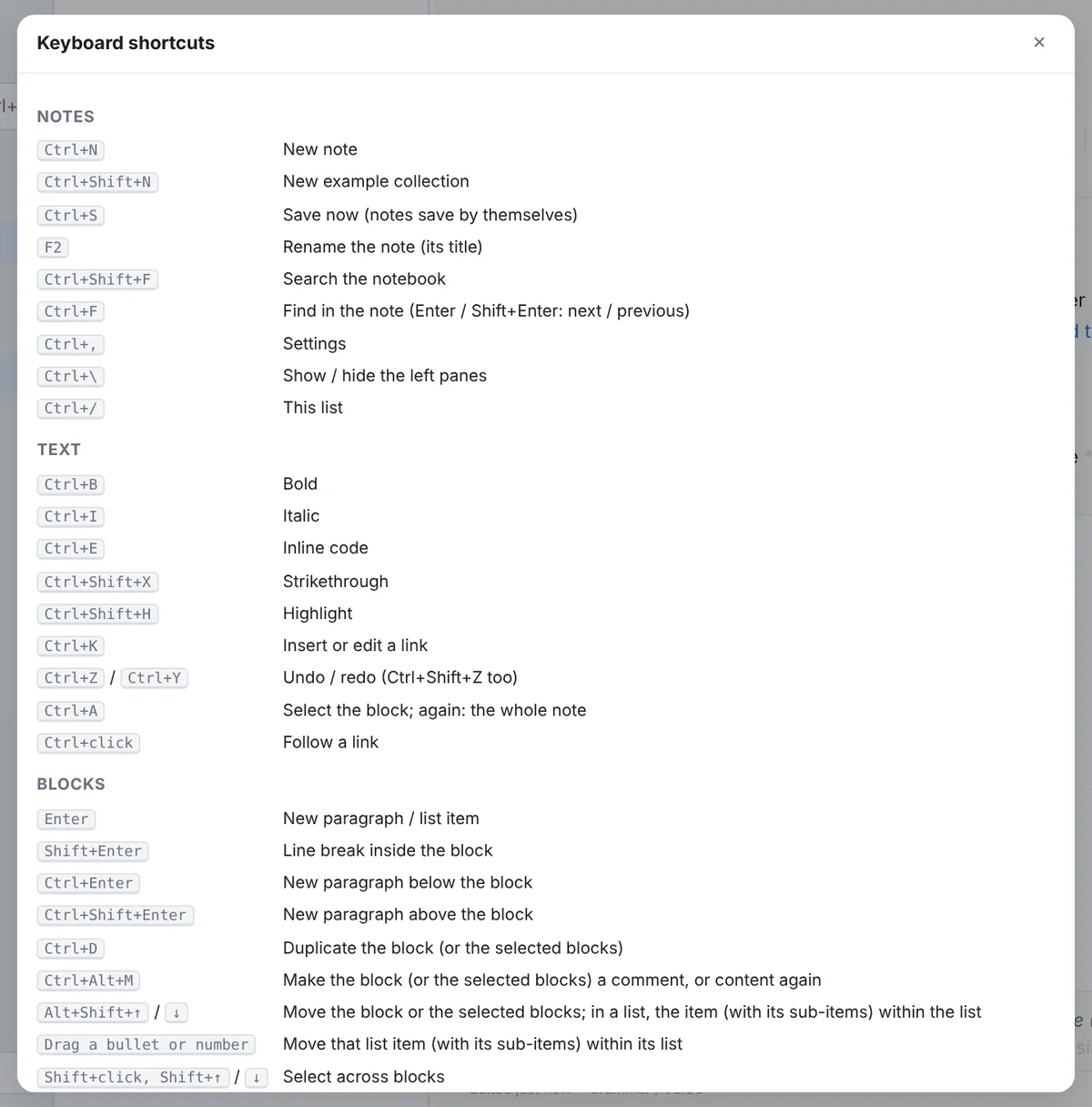
| Notes | |
|---|---|
| Ctrl+N | New note |
| Ctrl+Shift+N | New example collection |
| Ctrl+S | Save now (notes save by themselves) |
| F2 | Rename the note |
| Ctrl+Shift+F | Search the notebook |
| Ctrl+F | Find in the note (Enter / Shift+Enter: next / previous) |
| Ctrl+, | Settings |
| Alt+← / Alt+→ beta.6 | Back / forward through the notes you opened (the mouse's back and forward buttons too) |
| Alt+↑ beta.6 | Up to the folder above |
| Ctrl+\ | Show / hide the left panes |
| Ctrl+/ | The shortcut list |
| Text | |
| Ctrl+B / I / E | Bold / italic / inline code (Ctrl+E) |
| Ctrl+Shift+X / H | Strikethrough (Ctrl+Shift+X) / highlight |
| Ctrl+K | Insert or edit a link |
| Ctrl+Z / Ctrl+Y | Undo / redo (Ctrl+Shift+Z too) |
| Ctrl+A | Select the block; again: the whole note |
| Ctrl+click | Follow a link |
| Blocks | |
|---|---|
| Enter | New paragraph / list item |
| Shift+Enter | Line break inside the block |
| Ctrl+Enter / Ctrl+Shift+Enter | New paragraph below / above the block |
| Ctrl+D | Duplicate the block or the selected blocks |
| Alt+Shift+↑ / ↓ | Move the block or the selected blocks |
| Shift+click, Shift+↑ / ↓ | Select across blocks |
| / | The insert menu, on an empty line |
| Esc | Leave the block / clear the selection |
| Headings and lists | |
| Ctrl+Alt+1 … 6 | Heading 1 … 6 |
| Ctrl+Alt+0 | Plain text (no heading, list or quote) |
| Ctrl+Alt+[ / ] | Promote / demote every heading (note or selection) |
| Ctrl+Shift+8 / 7 / 9 | Bulleted list / numbered list / checklist |
| Tab / Shift+Tab | List item in / out (also Ctrl+] / Ctrl+[) |
| Alt+Shift+↑ / ↓ (in a list) | Move the list item, with its sub-items, within the list |
| FLEx and tables | |
| Ctrl+Shift+L | Insert a FLEx object |
| Ctrl+Shift+K | Search the text charts |
| Ctrl+V | Paste FLEx rows or a FLEx link as an example; a grid as a table |
| Tab (in a table) | Next cell; at the end, a new row |
| Alt+↑ / ↓ (in a cell) | The cell above / below |
| Esc (while playing) | Stop playback |
14Your notes are files
The notebook is a folder: a folder per tab, a folder per folder, and a Markdown file per note with a few lines of front matter (its id, title, tags, dates). notebook.json holds the tabs, tags, project and styles; attachments/ the attached files; flextexts/ the notebook's own texts (manual interlinear examples, and .flextext files); .scratchpad/ the snapshots, cached clips and the trash. Everything is UTF-8 and keeps its Unicode, filenames included, so a Tamil or Arabic title is a readable filename.
beta.6 Instructions for AI apps. Three small files at the notebook's top, AGENTS.md, CLAUDE.md and GEMINI.md, say what this folder is, how it is laid out, what an AI app may read and write and how: a new note, or additions to a note you ask it to add to, every word of its own between {ai} and {/ai} and every example it writes marked ai=, so FLEx Scratchpad shows them as the AI's until you approve them; and that it must never delete, move or reword anything, nor touch the FLEx project. Claude Code, Gemini CLI and most AI agents read a file of that name when started in the folder. The program writes them and rewrites them when its rules change; a file of that name you wrote yourself is left alone.
A FLEx object in a note is a short reference, written and read only by the program:
{{flex:text 9b1c2d3e-… seg=1-2 ex hl=1.2 b=morph:"-mo" u=2.3 "past tense"}}
{{flex:entry 6a5f3a2e-…}}
{{flex:chart d15c0000-… rows=2-5 cols=Nucleus,Postnuclear/Inner free=row hl=r2 "label"}}
{{file attachments/wordlist.xlsx "Wordlist, October"}}
and after every such reference the file carries a plain-text copy that the program never shows: a link line with the text's title and FLEx line numbers (a silfw:// link that opens FLEx), and the lines of the example as a plain fenced block, each word a column, so a note is readable, searchable and diffable in any editor or on GitHub, in ten years, without the program or FieldWorks. The copy is refreshed whenever the example changes. Folded headings carry {collapsed}; a table's styling is a line after it; a collection is a note whose body is one example per paragraph with ## Group headings and > notes; a chart note's custom columns and values are two Markdown tables. The Markdown export and Copy markdown keep all of it; the other exports draw from it.
15Questions people ask
How do I get audio to match the interlinear text lines in my FLEx database?
FieldWorks stores a start and an end time on each line of a text, but it cannot set them itself: it has no tool for aligning a recording to the lines. The times come in with an import. Three ways in:
- From ELAN. In ELAN, File › Export As › FLEx file writes the text with each annotation's times; FieldWorks' interlinear text import keeps them on the lines.
- From the FlexText Editor suite. A
.flextextwritten by the FlexText Editor or the Recorder carries each line's times and the name of the recording; the same import keeps them. - A text that is already in FLEx, as text only. Use the FlexText Audio Segmenter: export the text from FLEx, align the recording to its lines there, and import the result; the lines keep their analyses and gain their times. A release that works inside FLEx directly, without the round trip, is coming soon.
Where to keep the recordings. Keep whole-text recordings outside the FLEx project's own folder. FieldWorks' Send/Receive tries to carry everything in the project's LinkedFiles, and a recording larger than a few megabytes makes it fail, and keep failing until the file is moved out. A good home is lameta, which keeps each session's recordings and their description in a folder of its own; point FLEx at the recordings there rather than copying them into the project. In FLEx Scratchpad an example whose recording is not found offers Browse…: pick the recording in its lameta session folder, and the program remembers the whole lameta project, so every other session's recordings are found too. An example collection exported as a FLEx text comes with one recording stitched from its examples, named to pair with it in the Segmenter.
Can it change my FLEx project?
No. It opens the project for reading only, has no code that writes to one, and its own tests fail if any appears. Everything you write lives in your notebook folder. The only files it makes for FLEx are exports you import yourself, as new texts.
Can FieldWorks be open at the same time?
Yes, when the project is shared: in FLEx, Project Properties › Sharing › Share project contents with programs on this computer. Otherwise FLEx holds the project and the status pill says so; the notes then show their snapshots until it is free. What FieldWorks saves while both are open appears after ↻ on an example or Refresh all, but a change can reach the project only when you quit FLEx, and FLEx will not Send/Receive while FLEx Scratchpad is open: see the next two questions.
I changed something in FLEx, and FLEx Scratchpad still shows the old version.
Your latest edits can reach the project file only when you quit FLEx: when FLEx Scratchpad opened the project first, FieldWorks leaves the writing of the file to it, and it writes them when it closes (issue 25, being fixed). Quit FLEx, then click ↻ on the example (or ↻ Refresh all on the toolbar) in FLEx Scratchpad. Open FLEx again afterwards if you want; the change is in the project from then on.
FLEx refuses to Send/Receive.
FieldWorks will not Send/Receive while another program has the project open, and that includes FLEx Scratchpad, even though it only ever reads. Close FLEx Scratchpad, Send/Receive in FLEx, then start FLEx Scratchpad again. Nothing in your notebook is lost while it is closed, and the examples show their saved copies until the project can be read again. If Send/Receive fails on a large recording instead, see where to keep the recordings.
Where are my notes, and can I read them without the program?
In the notebook folder you chose (by default Documents\FLEx Scratchpad): a Markdown file per note in a folder per tab. Every example in them is also written as plain text with a link into FLEx, so the files read in any editor, on GitHub, or in ten years. See Your notes are files.
Can my notebook live in OneDrive, Dropbox or Google Drive?
It can, but on one computer it is better to keep the notebook in an ordinary folder (Documents\FLEx Scratchpad, the default) and choose the sync folder as the backup. A sync program copies every change, mistakes and deletions included, to every computer within seconds; the backup copies only when you back up, and keeps the older copy of whatever it replaces. A sync program may also hold a file while it uploads it, and may keep files online only, so they are missing when you work without the internet.
If you need the same notebook on two computers, keeping it in the sync folder is the way, with three habits: set the folder to Always keep on this device (OneDrive), Available offline (Google Drive) or Make available offline (Dropbox); use one computer at a time and let the sync finish before you switch (a note changed on both becomes two notes, one marked as a conflicted copy); and back up somewhere else, a bucket or another drive, since the sync folder copies mistakes too. FLEx Scratchpad notices when a note changes on disk and shows the new version. beta.6 It shows it where you were in the note, with the cursor where it was, and your own saves never count as a change.
Can several people share one notebook?
Not yet as a feature: FLEx Scratchpad has no merging, and nothing it writes is meant for two writers at once. What works today is one writer at a time: the notebook in a synced folder (above) or on a network drive, used by one person and then another, each letting the sync finish and closing the program before the next begins. A note changed on two computers at once becomes two notes (a sync program's “conflicted copy”), and notebook.json, where every setting lives, keeps one side's changes only. Sharing packages hand a tab, a folder or a note over once, safely, and never overwrite. A team that knows Git or Mercurial can keep the notebook in a repository (leave .scratchpad/ out of it): that gives history and merges of the notes' text, but merges an example's one-line reference and the settings file badly, grows with every attached file, and puts the speakers' words on a hosting service unless the repository stays on the team's own computers. Merging changes properly — every device adding to a shared place, the program reconciling — is planned.
Can I use it on a computer without FieldWorks?
The program needs FieldWorks' own libraries to read a project, so a live project needs Windows and FieldWorks 9. Without them it can open a .flextext file (texts only) or the built-in demo, and a notebook made elsewhere still shows every example from its snapshots. The notes themselves are plain files you can read anywhere.
Which version should I install?
The one on the home page: there is one current release, 0.3.1-beta.1, as an installer or a portable zip, and they are the same program. A newer Setup upgrades in place and keeps your notebooks. If you report a problem, say which version you are on (Settings shows the version and build).
Why does an example say snapshot?
The project could not be read at that moment (FLEx holds it unshared, it is on another computer, or no project is set), so the example is drawn from the copy kept in the notebook the last time it was read. It is the same lines as last seen; ↻ reads the project again once it is reachable.
A pasted example landed on the wrong line, or nowhere.
Copy with the Word line showing: the program finds lines by their baseline first, then by morphemes and glosses, and by FLEx's own line numbers when the copy carries them. When it still lands wrong, the dialog lets you insert the paste as text, and When something goes wrong says how to send what the program read.
When a paste is not recognised at all, the lines FLEx copied are probably set up in a way the program cannot read yet, most often a text shown with more than one analysis language. In FLEx, open the text's Print View tab, remove the extra interlinear lines (the extra analysis languages above all), and copy again; or insert the example with + FLEx object (Ctrl+Shift+L). This is a known issue (issue 23).
How do I get a text chart or a lexical entry from FLEx into a note?
From inside FLEx Scratchpad: + FLEx object (Ctrl+Shift+L), then the Text charts or Lexicon tab (or ▦ Search charts, Ctrl+Shift+K, for chart rows). FLEx has no way to copy a text chart, and copying a lexical entry in FLEx gives nothing this program can recognise as the entry, so neither can be pasted in from FLEx. Interlinear lines can be pasted (Paste lines copied in FLEx); once in a note, examples, charts and entries can be copied and pasted between notes.
Does it need the internet?
No. Everything comes in the download, audio tools included, and it works the same on a field laptop with no connection. It goes online only for what you set up yourself: a backup to S3-compatible storage, and beta.6 the once-a-day question to GitHub whether a newer version is out (Settings › Updates turns it off) and a Zotero library read from zotero.org. Without a connection these simply wait; nothing else changes.
16When something goes wrong
| What you see | What to do |
|---|---|
| The window says Waiting for the app… | The page is open but the program behind it has not answered yet; it waits, reloads itself twice, and never shows the sample data in place of your notebook. Your notes are on disk and untouched. If it stays, start the program from a terminal with flex-scratchpad -v and send the log. |
| The window says FLEx Scratchpad could not start its window | beta.6 One of the window's own files did not load, and the screen names it; so does the log. Your notes are on disk and untouched. Update the program — git pull in its folder if you installed it from there, else the newest Setup — and start it again. In an older version the same thing showed as an empty window: no tabs, no folders, no notes. |
| The project cannot be opened | The status pill says why: FieldWorks has it open without sharing (turn sharing on in FLEx's Project Properties), the project needs opening in FLEx once after an upgrade, or the FieldWorks libraries were not found. Until then the notes show their snapshots. |
| A paste lands on the wrong line, or nowhere | Copy with the Word line showing. For a report: flex-scratchpad --project NAME --locate clip with the rows still copied writes flex-scratchpad-locate.json, which shows what the program read and what the project holds there. |
| A line of an example looks wrong (a morpheme twice, a missing gloss) | flex-scratchpad --project NAME --dump "TEXT TITLE" --seg 11.1 prints that line exactly as the project returns it. A word shown twice in the Morphemes line (budu budu) is FieldWorks' own import of a word glossed in two languages with no morphemes; --doubled-morphs lists every such analysis, and the fix is in FLEx's Word Analyses. |
| Examples are slow to appear | beta.6 A note asks for two examples at a time, the ones on screen first, and what has been read from the project is kept until it is loaded again. Each example that still takes long leaves a line in the log file — fetched text … in 1200 ms (flex …, tracking …, snapshot …, charts …) — saying where the time went: FieldWorks itself, following the example's lines, its saved copy, or the text's charts. Please send those lines with your report. |
| Tags or a chart look wrong | --dump-tags and --dump-charts [TEXT] write what the project returns, to attach to an issue. |
| Anything else | Run flex-scratchpad -v from a terminal: every call the page makes, every FLEx read and every file written, with times, and the same goes to %LOCALAPPDATA%\FLEx Scratchpad\log\flex-scratchpad.log for the installed program. Nothing in the log is ever a secret. --devtools (or F12 in the program) opens the browser developer tools. FLEx Scratchpad.exe --selftest report.json checks the installation and writes a report to attach. |
Known issues
- Changes made in FLEx show only after you quit FLEx. FieldWorks often writes your edits into the project only when you quit it or Send/Receive. Quit FLEx, then click ↻ (or ↻ Refresh all) in FLEx Scratchpad (more). Mostly FLEx Scratchpad's doing, not FieldWorks' (issue 25).
- Send/Receive needs FLEx Scratchpad closed (MCP Tools and other programs may also find the project locked). FieldWorks refuses to Send/Receive while another program has the project open, even read-only. Close FLEx Scratchpad, Send/Receive, then start it again (more). The fix lets go of the project on demand and when idle (issue 25).
- Some interlinear setups are not recognised when pasted. Lines copied from a text shown with extra interlinear lines, especially more than one analysis language, may not be found. Workaround: in FLEx, remove the extra lines in the text's Print View tab (the extra analysis languages above all) and copy again, or insert the example with + FLEx object (more, issue 23).
- Closing after a backup can take a while. When FLEx Scratchpad backs up as it closes, the backup screen may stay at 100% for some time before the window closes. Let it finish: the backup is complete when the screen says so (#27).
- A backup to a cloud bucket is slow. It copies only what changed, but deciding what changed asks the bucket about every file. beta.6 asks once for the whole bucket and works on more files at once. A plain backup folder (a OneDrive, Dropbox or Google Drive sync folder) does not wait on the network, since its own program uploads it afterwards (#28).
- Text charts and lexical entries come in only from FLEx Scratchpad. FLEx has no way to copy a text chart, and a lexical entry copied in FLEx is not recognised as the entry. Insert both with + FLEx object (Ctrl+Shift+L) (more).
- Some export formats are still rough. Word, PDF and the web page come out well. The slideshow and PowerPoint less so: a PowerPoint file needs adjusting by hand after export: long examples and charts are wrapped, shrunk to 12 pt or continued on “(cont.)” slides, which is readable but rarely the layout you would choose (you choose where slides break in the export dialog). In Word the examples are LingTeX-Word tables and look right, but asking the LingTeX-Word add-in to re-render them does not work correctly yet (issue 21).
Please report what you find; the planned features are the issues labelled planned.
↑ Back to the top